
Tap the Share button, then “Add to Home Screen”.
Tap the Share button, then “Add to Home Screen”.

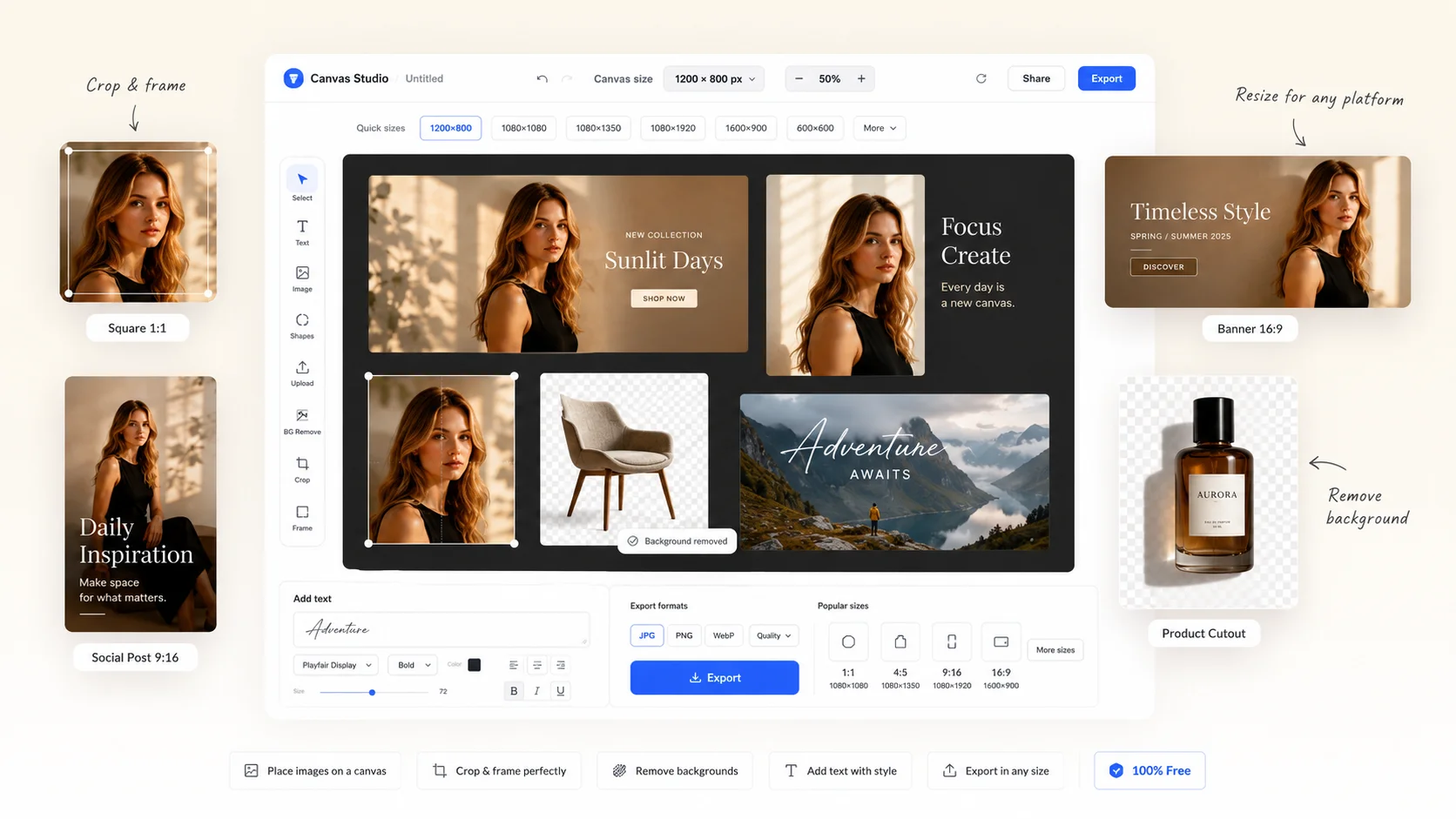
Place or paste an image, crop and add captions, remove backgrounds, apply filters — then export at exact pixel sizes for any platform. No uploads, 100% free.
Open Canvas Studio Canvas Studio/Untitled
Place or paste an image, crop and frame it, add captions, remove the background, and export at exact pixel sizes for every platform — all free, right in your browser. No installs, no uploads.
Anyone who needs to place images at exact dimensions — no Photoshop, no upload.
Fit product photos to your store's required dimensions — 700×700, 700×600, or any custom size — without distortion. Export clean images ready to upload directly to your storefront.
Prepare hero images and OGP thumbnails at exact pixel dimensions before uploading to your CMS. Get consistent image sizes across every post without touching design software.
Frame photos to platform-specific sizes for Instagram, X, or LinkedIn. Drag to reposition and scale until it looks right, then export in one click — all without leaving your browser.
Quickly crop and frame images to client-specified dimensions for mockups or handoff. Use Smart Sharpen to keep edges crisp after scaling, then export as WebP, PNG, or JPG.
Compose and reframe shots to fit gallery or print dimensions without cropping in a full editor. Your originals never leave your device — all processing stays in the browser.
Generate placeholder or production images at exact pixel dimensions for layouts and prototypes. Drop an image, set the canvas, export — faster than opening an image editor.
No. All processing happens entirely in your browser. Your files never leave your device and are never sent to any server.
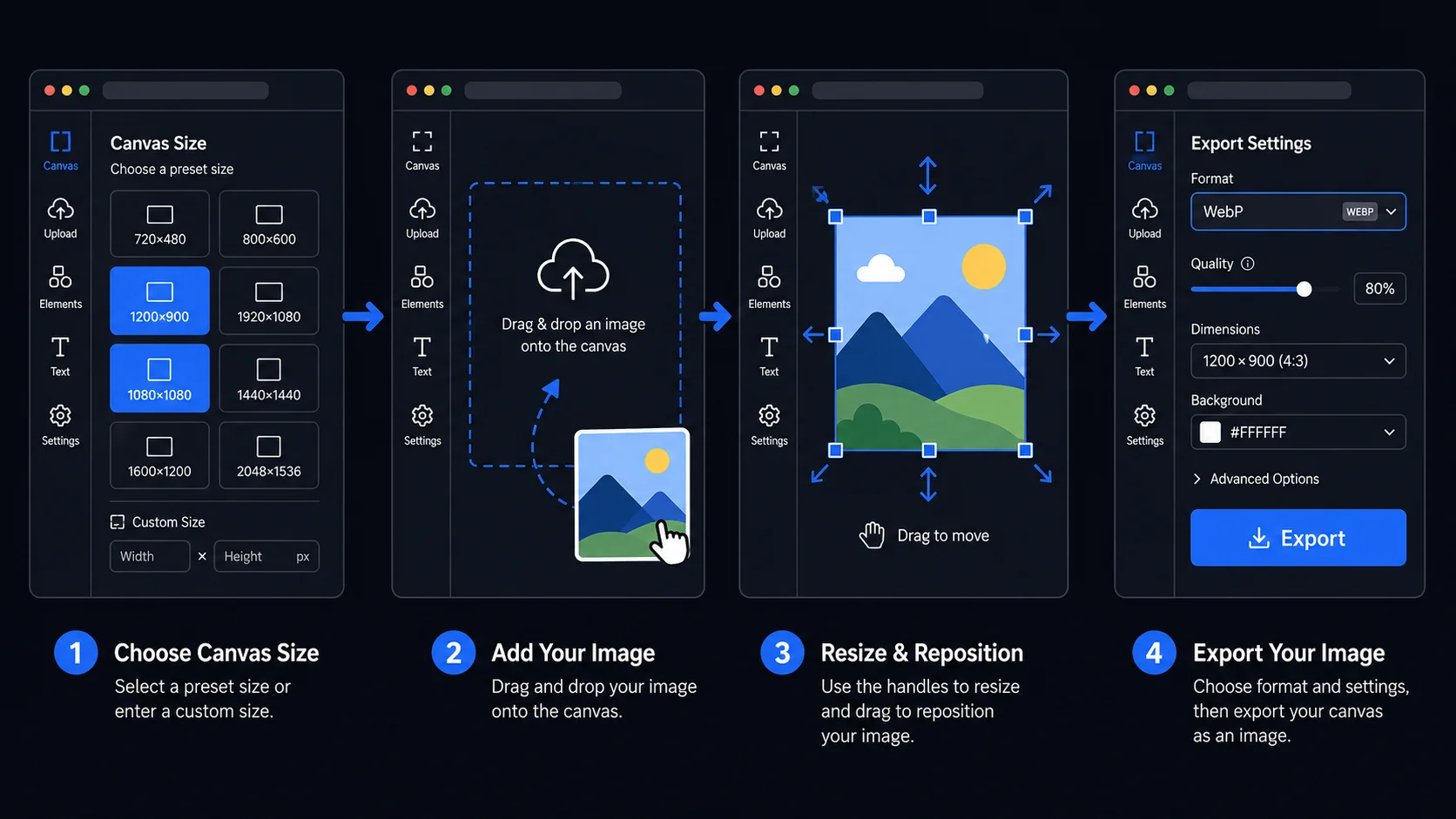
You can set any size between 100×100 and 5000×5000 pixels. Common presets like 1200×900, 1080×1080, and 700×700 are available as one-click shortcuts.
Drag the image to move it freely on the canvas. Use the handles around the edges to resize. Hold Shift while dragging a corner handle to lock the aspect ratio.
Smart Sharpen applies an unsharp mask to the exported image, restoring edge clarity lost during scaling. You can adjust Amount, Radius, and Noise Reduction to match your image.
You can export as JPG, PNG, or WebP. WebP is recommended for web use as it offers the best balance of quality and file size.
The canvas background is black by default, which works well for product photography and images with transparent areas. The exported file will have a black background in areas not covered by your image.
Yes. Click "Add text" to place text on the canvas, then drag it to position. You can choose a font, adjust size, letter spacing, and color, and toggle a background bar behind the text — with adjustable color, opacity, corner radius, and padding — so white captions stay readable over any photo. The text is included in the export.
The most common use for exact-pixel canvas export is preparing images for platforms that require a specific size. E-commerce storefronts typically require product images at 700×700 or 1000×1000 pixels for consistent grid display. OGP images for social link previews are 1200×630 pixels — the standard for Facebook, Twitter, and LinkedIn link cards. Instagram grid posts display best at 1080×1080 (square) or 1080×1350 (portrait). YouTube thumbnails require 1280×720.
The canvas preset buttons give one-click access to the most common sizes. For any size not in the preset list, type the exact width and height directly. The canvas supports any size from 100×100 up to 5000×5000 pixels.
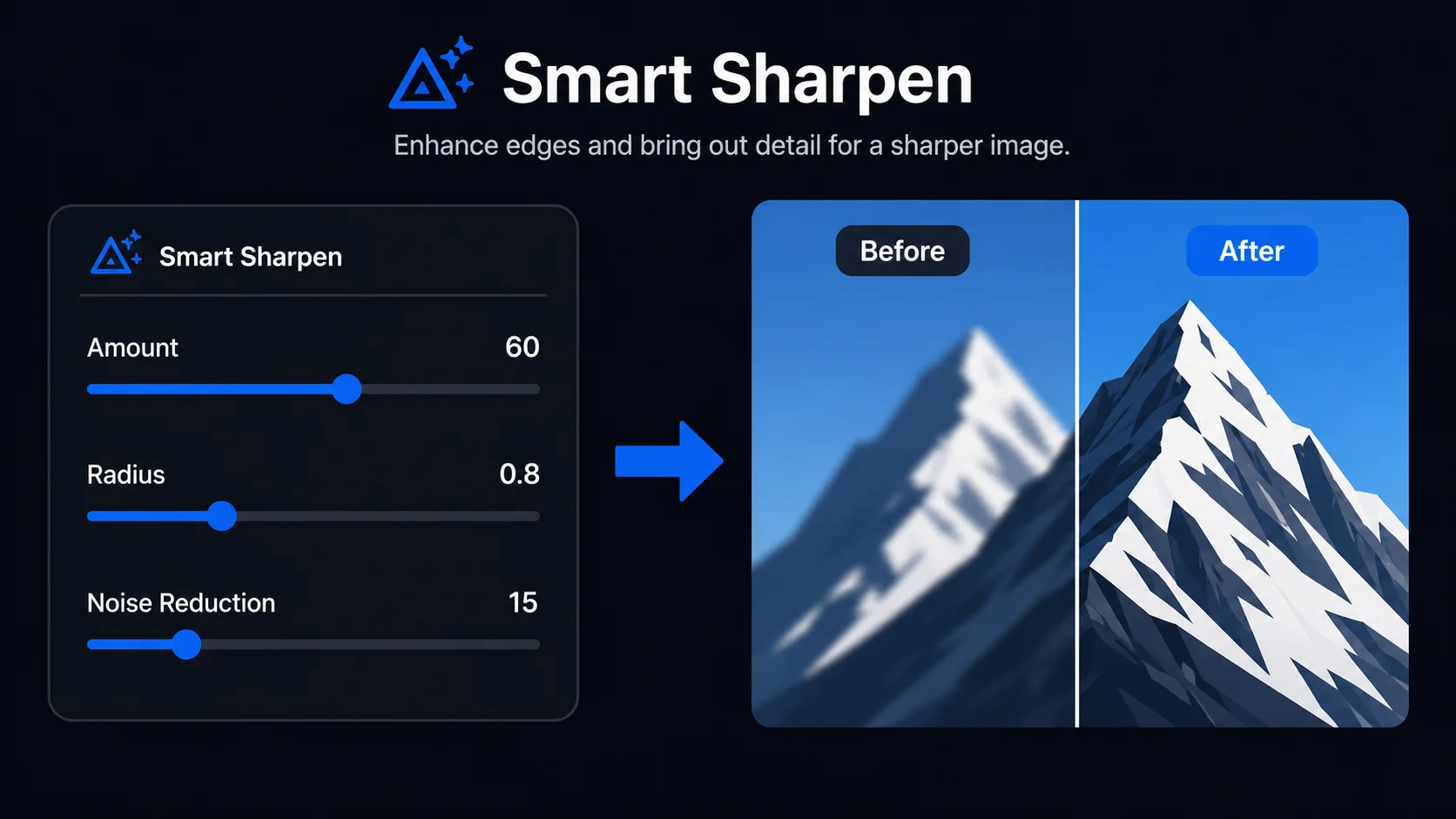
When an image is scaled down significantly — for example, a 4000px photo fitted onto an 800px canvas — the browser's Canvas rendering can introduce slight blurring at edges and fine details. Smart Sharpen applies an unsharp mask to restore edge clarity. Amount controls sharpening strength. Radius controls how wide the effect extends around edges. Noise Reduction suppresses sharpening in flat-color areas, preventing background noise amplification.
For most product photos and portraits scaled to 700–1200px, Amount 50–80, Radius 0.5–1.0, and Noise Reduction 10–20 produces clean results without visible oversharpening. For images with fine texture — fabric, fur, hair — lower the Amount to avoid amplifying texture into noise.
Beyond placing an image, Canvas lets you add text directly on top — ideal for product specs, price tags, promo copy, or social captions. Click "Add text", type your message (line breaks supported), then drag it anywhere on the canvas. Choose from several font styles, and fine-tune size, letter spacing, and color. You can add multiple text blocks and edit each one independently.
White text often disappears over bright photos. Toggle the background bar behind any text block to fix this instantly — then adjust its color, opacity, corner radius, and the horizontal and vertical padding to get a clean caption bar that stays readable on any image. All text is rendered into the final export at full canvas resolution, so what you see is exactly what you download.
Tracelyx Canvas runs entirely in your browser. The Canvas API positions your image, applies scaling, renders the background color, and generates the export file — all locally on your device. Nothing is sent to any server. You can safely process client product photos, confidential brand assets, unreleased marketing visuals, and personal images without any third-party exposure.
Unlike cloud-based image editors that require account creation or file uploads, Canvas works immediately in any modern browser. No installation, no account, no waiting for server processing. Close the tab and all image data is discarded.

写真をトレース向けの線画に。手動で描画・消去・微調整でき、すべてブラウザ内で処理されます。
ツールを開く →
正確な方眼を重ね、原寸を指定してA4分割で原寸印刷。拡大模写・転写に。
ツールを開く →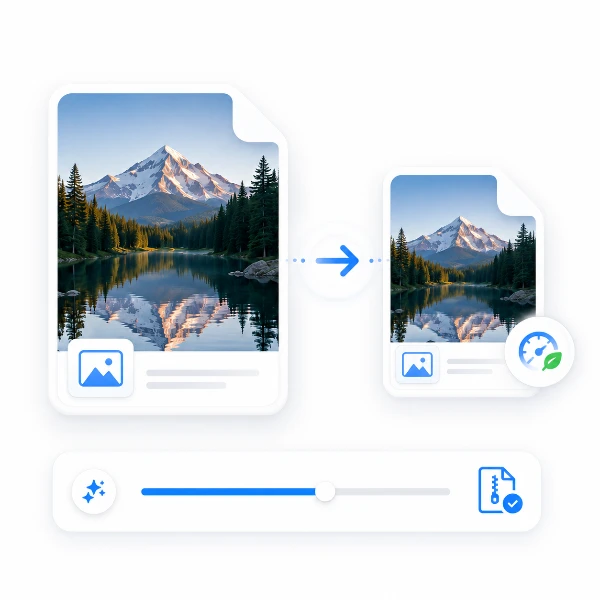
きれいなまま、画像を軽くします。
ツールを開く →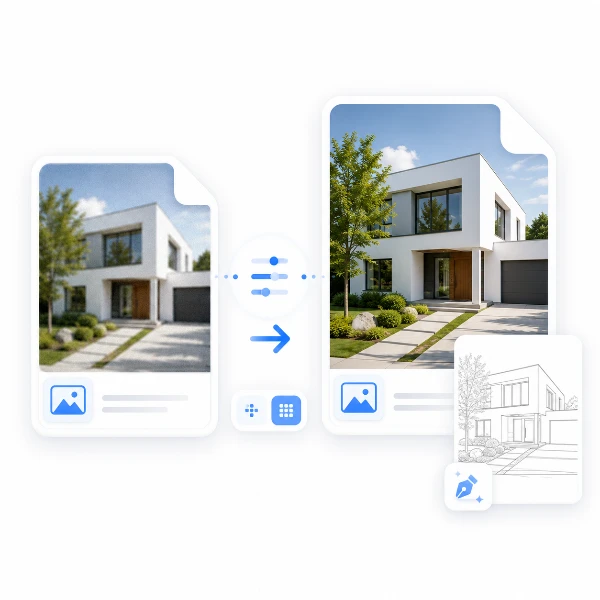
トレース作業に最適な画像へ下準備。細部を整え、TraceLine向けにスケール調整します。
ツールを開く →
建物写真をきれいな線画に。SVG・透過PNGで書き出し。
ツールを開く →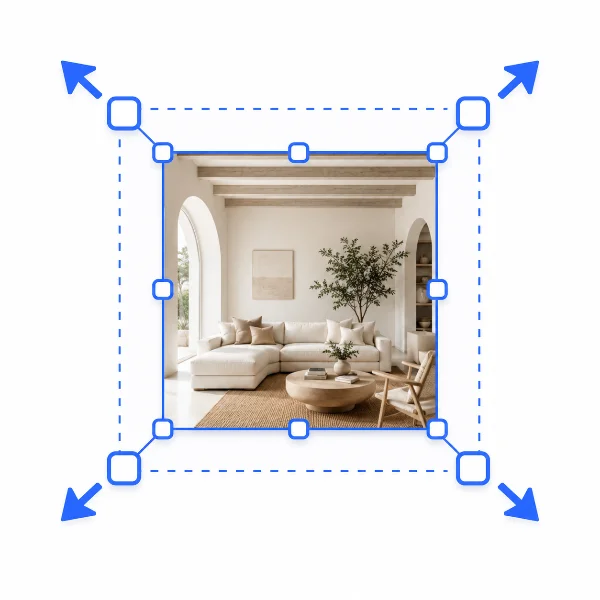
WebやSNSにちょうどいいサイズへ。
ツールを開く →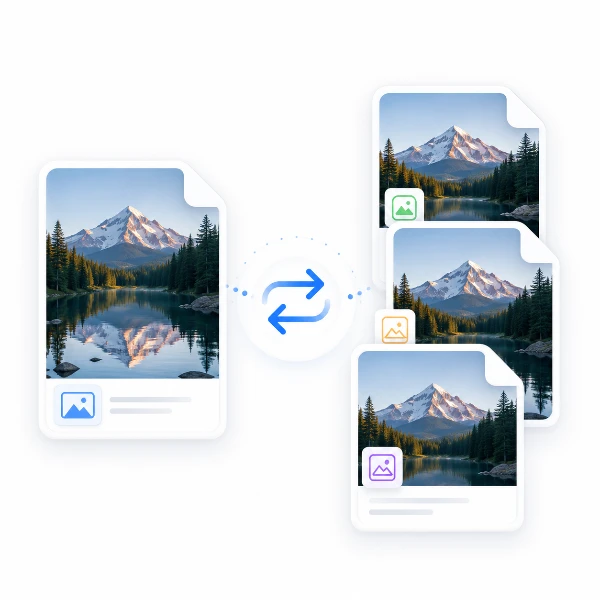
形式を変えるだけ。画質はそのまま。
ツールを開く →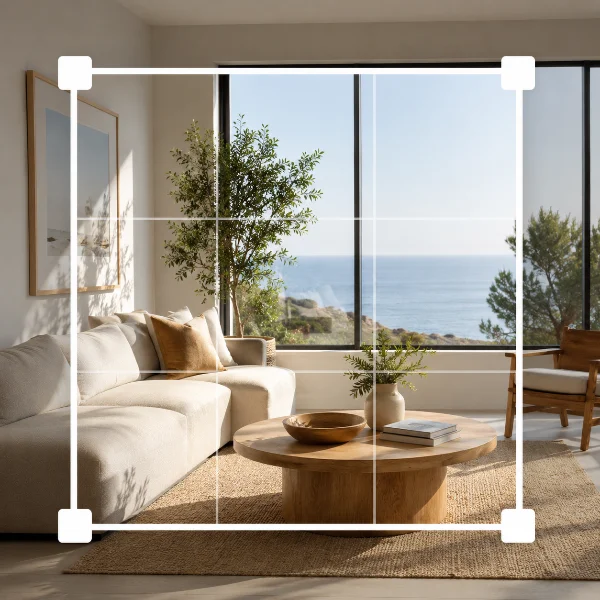
必要なところだけ、切り取れます。
ツールを開く →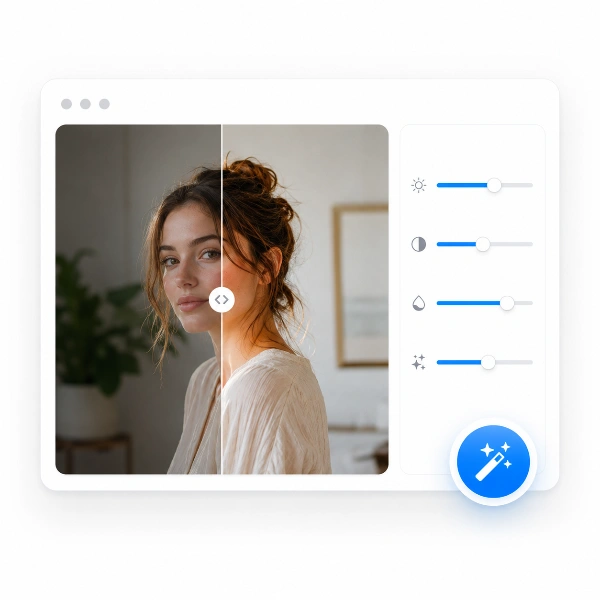
自然な明るさと色合いに整えます。
ツールを開く →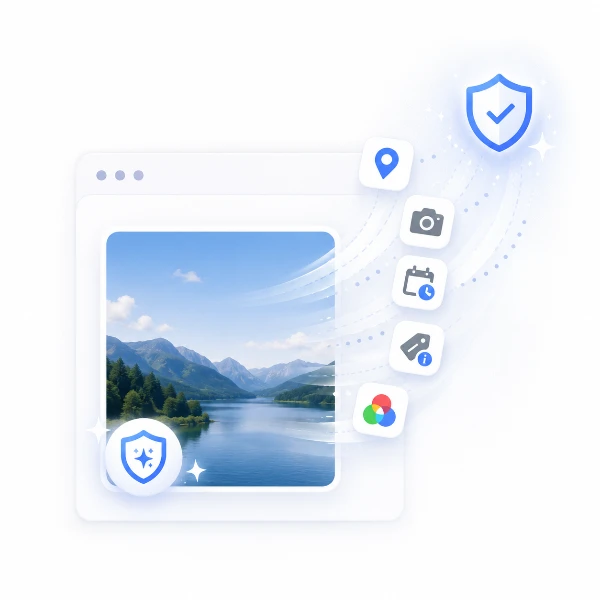
見えない画像情報を、きれいに整理。
ツールを開く →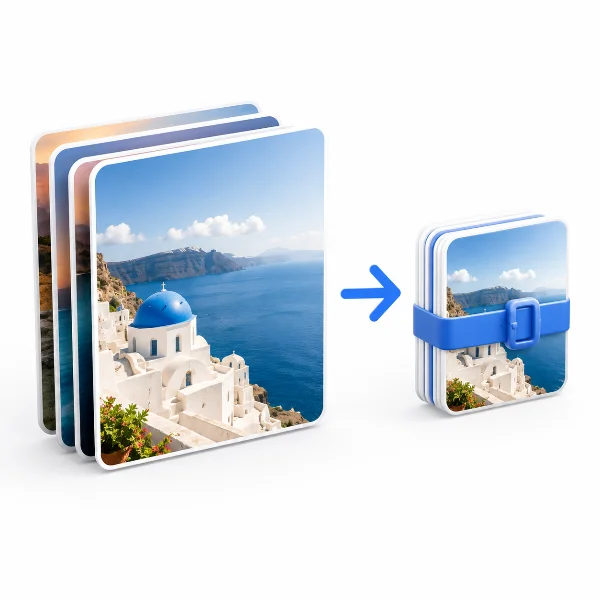
まとめて処理して、時間を短縮。
ツールを開く →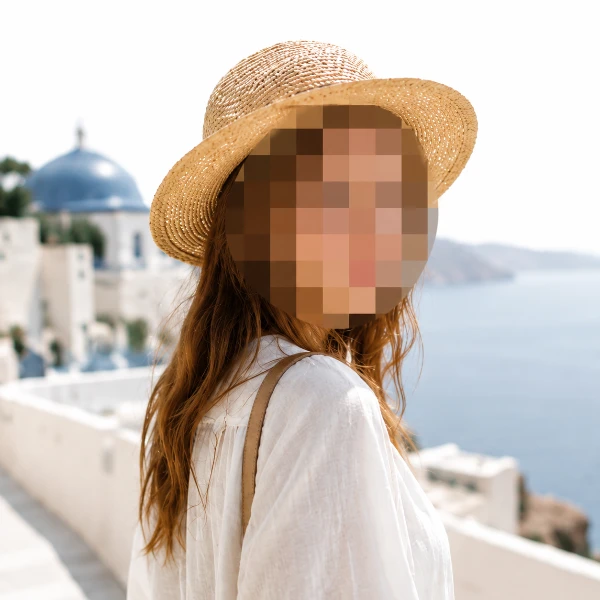
見せたくない部分を、さっと隠せます。
ツールを開く →
迷わず、きれいに仕上げます。
ツールを開く →