How to Export Images at Exact Pixel Dimensions
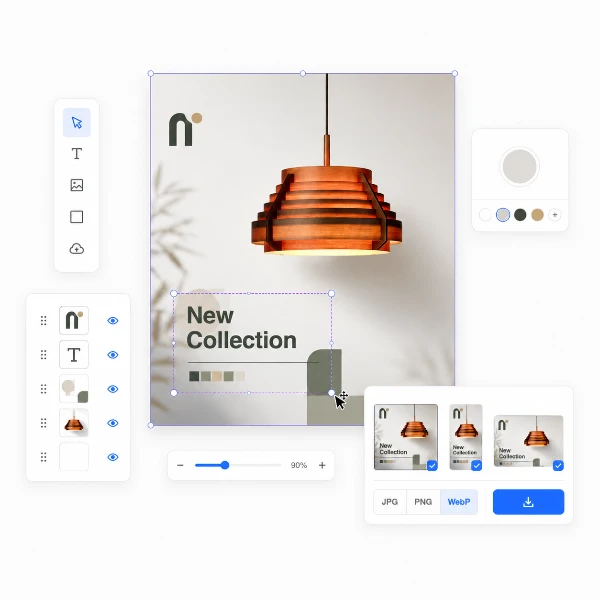
Placing an image at a specific pixel size is a routine task that most image editors handle poorly. Resize and the canvas expands. Crop and you lose composition control. Export from a design tool and you're fighting artboard settings. The simpler approach: set a canvas to the exact dimensions you need, place your image, adjust its position and scale until the composition looks right, and export. This is what Tracelyx Canvas does — entirely in your browser, without uploading your files anywhere.
Why Exact Pixel Dimensions Matter
Most web and digital platforms have specific size requirements that are enforced in ways you can't always control. E-commerce storefronts display product images in a fixed grid — images at the wrong size get stretched, cropped, or letterboxed with white padding, all of which look unprofessional. Social media platforms enforce aspect ratios and will auto-crop anything that doesn't fit. Email marketing tools require header images at an exact width.
Preparing images at the correct size before uploading prevents all of these issues. You control the composition, the background, and the exact pixel area that gets used. The output is predictable.
Pixel Reference for Common Platforms
E-commerce product images: most platforms require square crops, typically 700×700, 800×800, or 1000×1000. OGP images (the preview shown when a URL is shared on social) should be 1200×630 — the standard for Facebook, Twitter, LinkedIn, and most messaging apps that display link previews. Instagram grid posts display best at 1080×1080 (1:1) or 1080×1350 (4:5).
YouTube thumbnails are 1280×720 (16:9). For email headers, 600px wide is the standard for most email clients. Blog post hero images are typically 1200×630 or 1200×900. The canvas preset buttons cover the most common of these sizes directly.
Step-by-Step: Exporting at Exact Dimensions
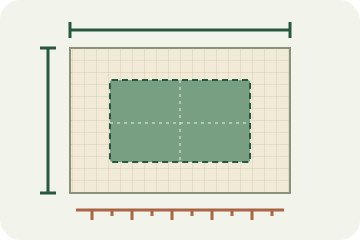
- Set the canvas size — Click a preset or type exact pixel values. The canvas outline shows the export area.
- Drop your image — Drag and drop a photo or click to select. The image appears centered on the canvas.
- Adjust position and scale — Drag to move. Drag corner handles to resize (hold Shift for locked ratio). Position the subject exactly where you want it.
- Set background color — The default is orange (#ff8800), making uncovered areas easy to spot. Change it to white, black, or any brand color before exporting.
- Enable Smart Sharpen if needed — For images scaled down more than 50%, Smart Sharpen restores edge clarity. Start with Amount 60, Radius 0.8.
- Export — Choose JPG, PNG, or WebP, set quality, and click Export. The file saves at exactly the canvas dimensions.
Smart Sharpen: Restoring Clarity After Scaling
Scaling an image down reduces the pixels representing its edges. The Canvas API's interpolation produces a slightly soft result at sharp boundaries — edges, text, and detailed textures. Smart Sharpen corrects this by applying an unsharp mask after the export is rendered.
For most e-commerce product photos, Amount 50–70 and Radius 0.5–0.8 is a safe starting point. Use the preview to verify the result looks sharp without haloing. If the image has fine texture (fabric, wood grain, hair), reduce Amount to 30–40 to avoid noise amplification. For simple images (flat-color product on white), Amount 80–100 with Radius 1.0 gives strong edge definition.
Your Images Stay on Your Device
Tracelyx Canvas runs entirely in your browser using the HTML Canvas API. Your image is loaded into browser memory, positioned on a virtual canvas, and rendered to an output file — all without any network request. Nothing leaves your device. This matters for product photos of unreleased goods, images under client NDA, personal portraits, and any content you wouldn't want stored on a third-party server.
When you close the browser tab, all data is discarded. There is no storage, no login, no usage tracking. The tool is stateless by design — it has no server to send your data to.
Start Exporting at Exact Dimensions
Preparing images at the correct pixel dimensions before uploading eliminates platform auto-cropping, ensures consistent product grids, and makes every piece of content look intentional. Tracelyx Canvas handles the entire workflow in your browser — set the size, place the image, export. No account, no upload, no waiting.
Try Tracelyx Canvas now →