Hide sensitive details
Quickly blur or blackout names, addresses, license plates and more before sharing screenshots or photos.
Tap the Share button, then “Add to Home Screen”.
Hide names, email addresses and account details before sharing a screenshot or photo. Free, no sign-up; your image stays in your browser.
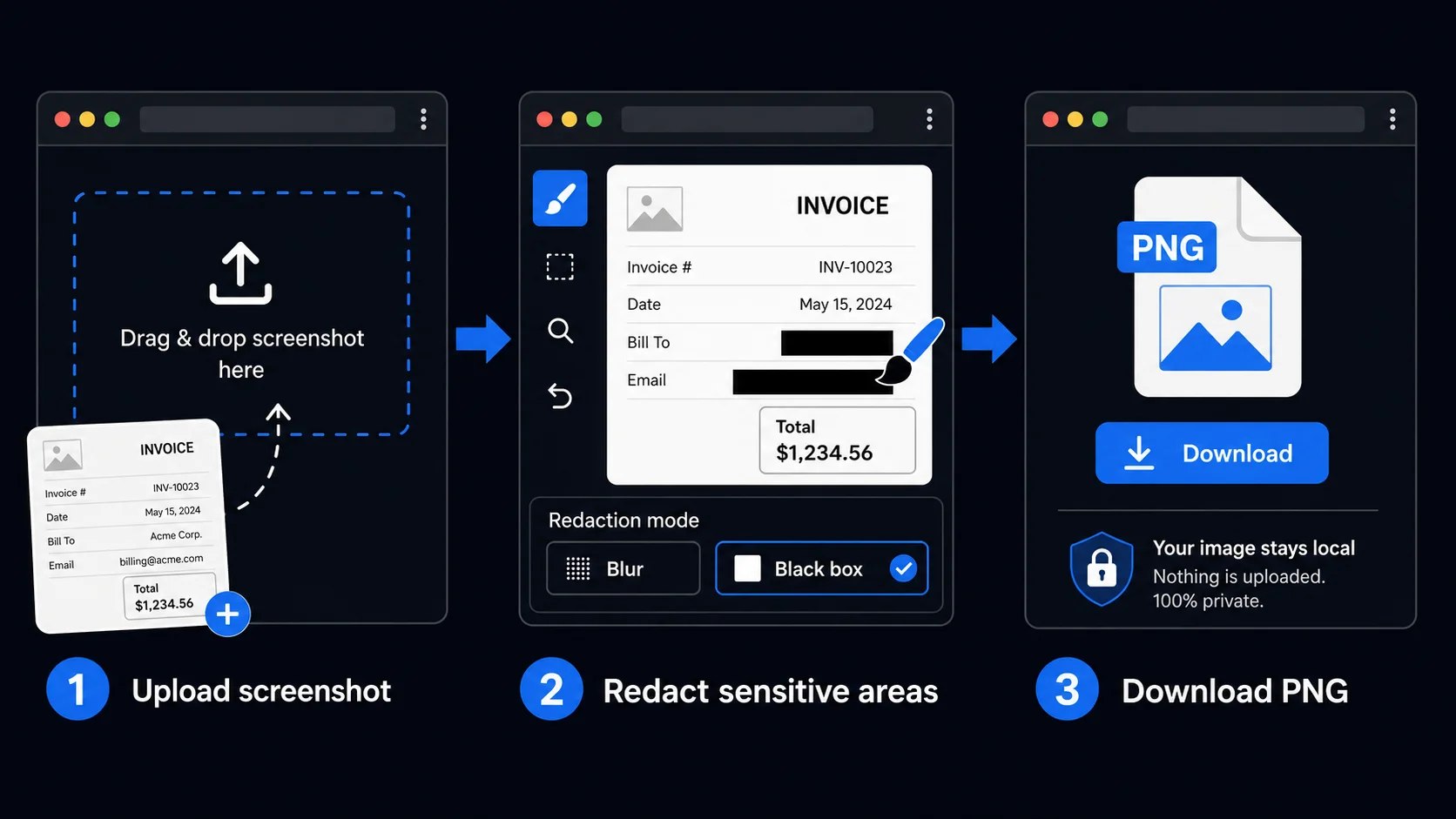
Draw over any area to blur or black-box it. All redaction runs in your browser — your image is never uploaded to any server.
The sample contains fictional details. Choose Black box to cover text, then download a separate PNG.
Use the tools on the right to hide sensitive areas.
Quickly blur or blackout names, addresses, license plates and more before sharing screenshots or photos.
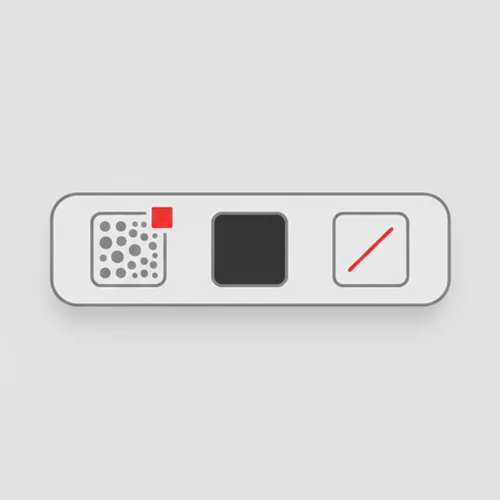
Switch between blur, black box and line tools. Adjust brush size with a single slider.
All redaction runs locally in your browser. Images never leave your device.
Perfect for customer support screenshots, invoices, school documents and any image that needs quick masking.
Anyone who needs to share images without exposing private details — no app, no upload.
Redact customer names, order numbers, and account details from screenshots before sharing them in internal reports or escalations. Keep sensitive data out of communication threads.
Mask personal identifiers, signatures, and case-sensitive details from documents before sharing with external parties. A fast, private alternative to dedicated redaction software.
Anonymize student work, survey responses, and research materials before publishing or presenting. Hide names and identifying details without altering the content itself.
Blur out phone numbers, addresses, and other personal details from screenshots before posting online. A quick step that protects your privacy and the privacy of others.
Hide test data, internal URLs, and client-specific content from UI screenshots before adding them to portfolios, case studies, or documentation.
Mask license plates, house numbers, faces, and other details from photos before sharing with friends or posting on social media. Simple, fast, and completely private.
No. All redaction processing happens entirely in your browser using local processing. Your files never leave your device and are never sent to any server.
Blur obscures details but can leave clues, especially in text. For names, emails and account numbers, use a solid black box that fully covers the text and inspect the saved image.
This tool adds masks; it does not reveal text hidden in someone else's image. An opaque black box replaces covered pixels in the exported PNG. Blur is not a guarantee that information cannot be inferred. Keep your original separately if you need it.
Yes. Use the Undo last button to step back one action at a time, or Clear all to remove all redactions and start over — as long as you have not downloaded the image yet.
Yes, completely free. No account required, no usage limits, no watermarks.
Tracelyx Redact supports JPEG, PNG, and WebP as input. The redacted image is saved as a PNG to preserve the quality of all redaction layers.
Redacting an image means covering the parts you do not want to share — names, addresses, faces, account handles or amounts — with a blur or a solid black box. With Tracelyx you just drag over the area to mask it, and nothing is uploaded to a server.
Open the screenshot, drag over the area you want to hide, choose blur or a black box, then download. You can hide names, e-mail addresses, phone numbers and profile pictures in the same pass. Everything runs in your browser, so the personal data never leaves your device.
No. Tracelyx Redact runs entirely in the browser, so there is nothing to install and no account to create. Load the image, drag over what you want to remove, apply the black box and save. It works the same way on a phone.
Yes. Add as many blur or black-box areas as you need before saving, and use undo to step back through them one at a time. The redactions are only baked into the file when you download it.
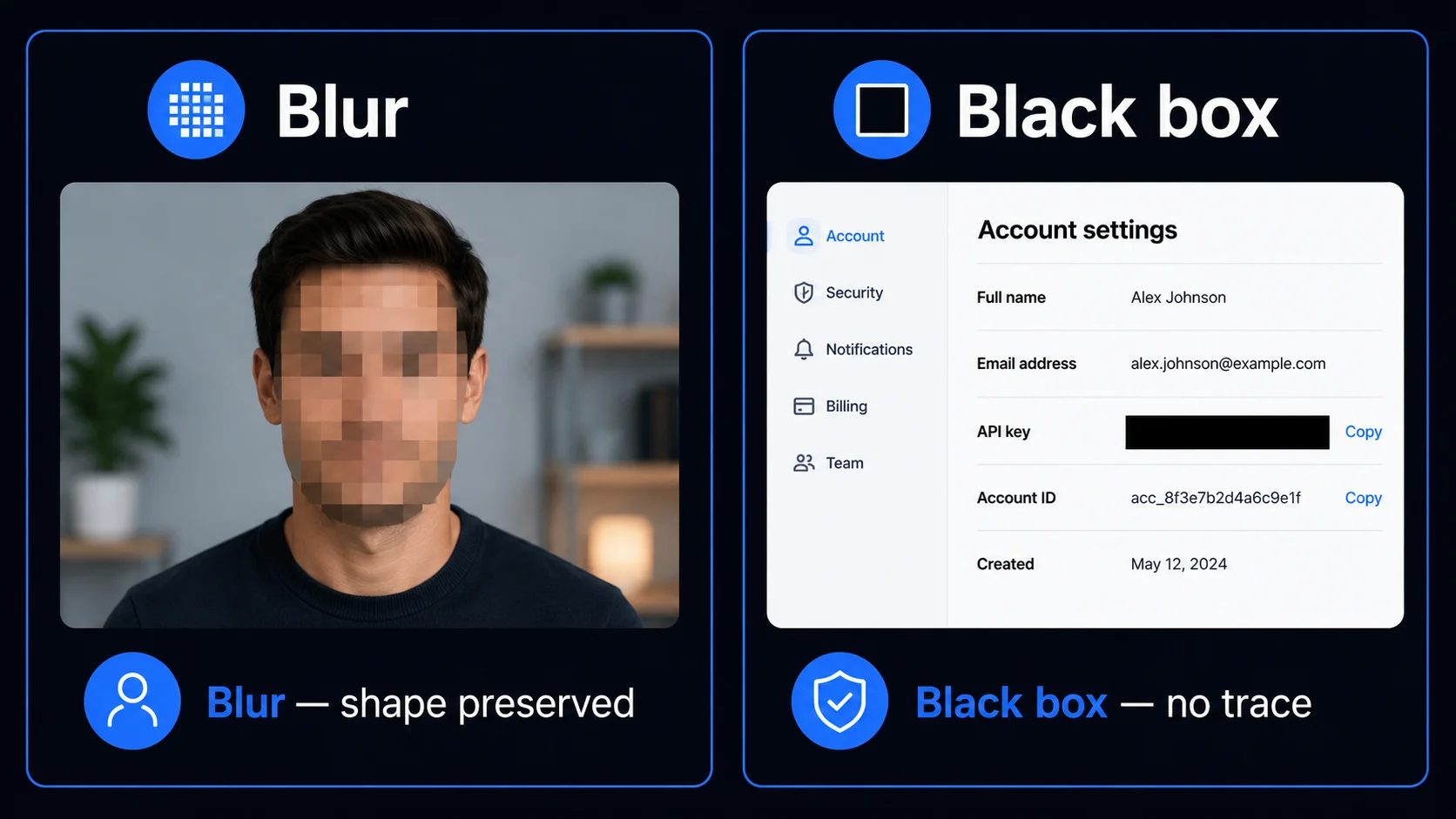
Blur reduces visible detail but can leave shapes or readable clues. Avoid relying on blur to protect private text such as names, emails and account numbers.
Black box paints opaque black brush strokes over the image. Choose a brush large enough to cover every character, including its edges. Inspect the exported PNG at full size before sharing; this tool does not certify legal or compliance requirements.
Most online redaction tools work by uploading your image to a server, processing it remotely, and returning the result. This creates a window during which your original, unredacted image exists on a third-party server. For images containing sensitive personal information, confidential business data, or legally protected content, this upload step is a genuine privacy risk — the original content is transmitted before any redaction is applied.
Tracelyx Redact processes everything locally in your browser using the HTML Canvas API. Your image is loaded into browser memory, redaction is drawn directly on the canvas, and the output PNG is generated entirely on your device. Nothing is sent to any server at any point. This makes Tracelyx Redact safe for processing medical records screenshots, legal documents, internal business data, and any content you would not want transmitted to a third party.
For customer support teams, the most common workflow is redacting screenshots before sharing them in tickets or escalation threads. Account numbers, email addresses, order IDs, and personal names should be blacked out before any screenshot enters a shared channel or external system. A fast redaction step before sharing keeps sensitive customer data out of places it should not be.
For personal use, the most common case is removing license plates, house numbers, faces, and identifying details from photos before posting on social media. Redact runs directly in your browser — there is no app to install, no account to create, and no image to upload. Open the tool, redact the photo, download the result, and post it. The entire workflow takes under a minute.
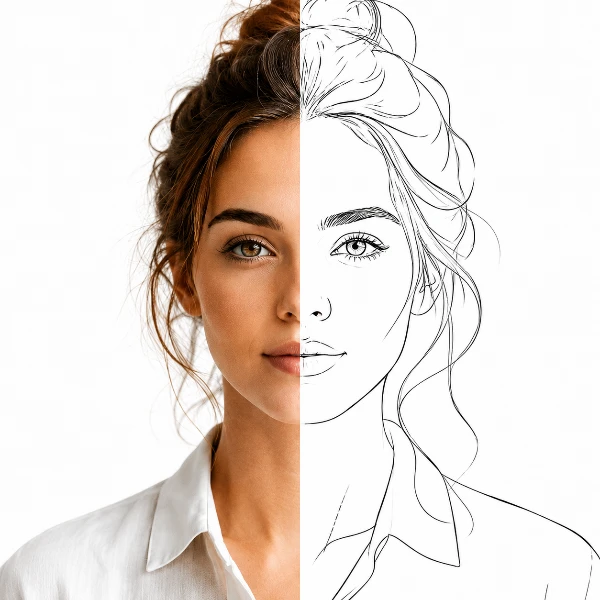
Trace-ready line art with manual control — all processed locally.
Open tool →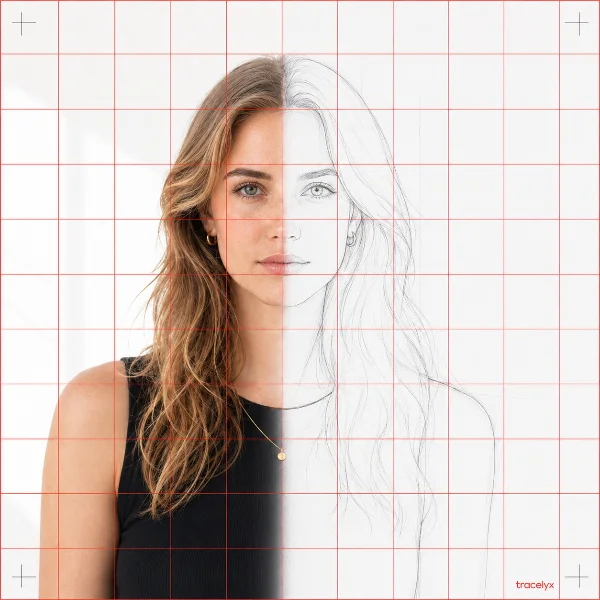
Overlay a precise grid, set the real size, and print to scale across A4 sheets.
Open tool →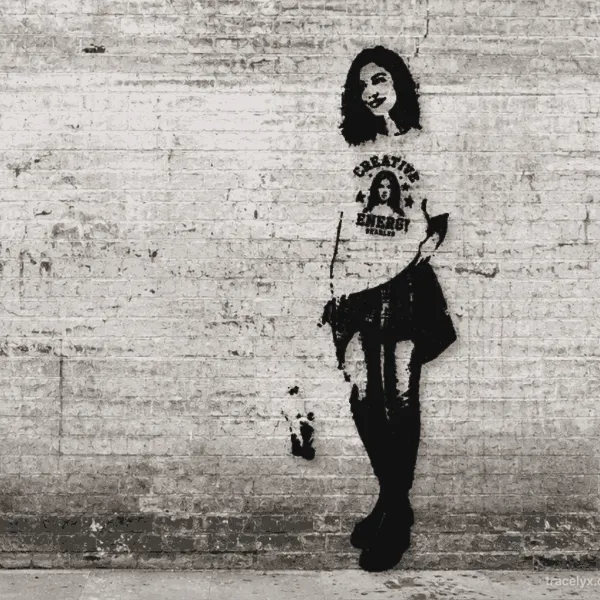
Turn photos into stencil-style street art on real walls.
Open tool →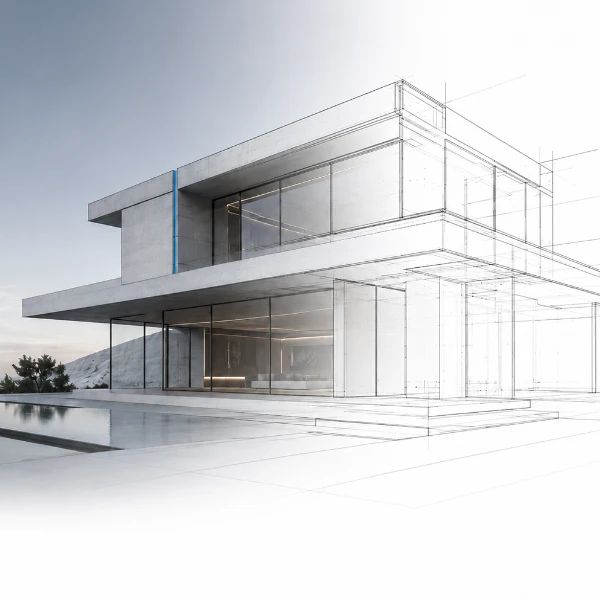
Turn building photos into clean line drawings — SVG & PNG.
Open tool →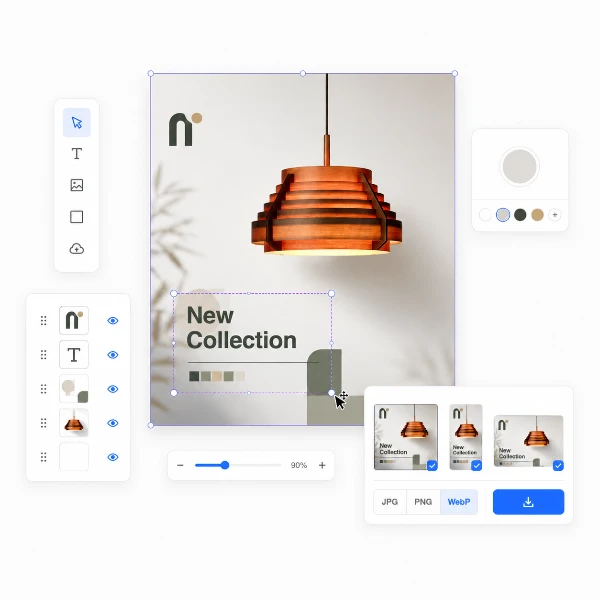
Set a canvas size, drop your image, adjust position and scale — then export at exact pixel dimensions.
Open tool →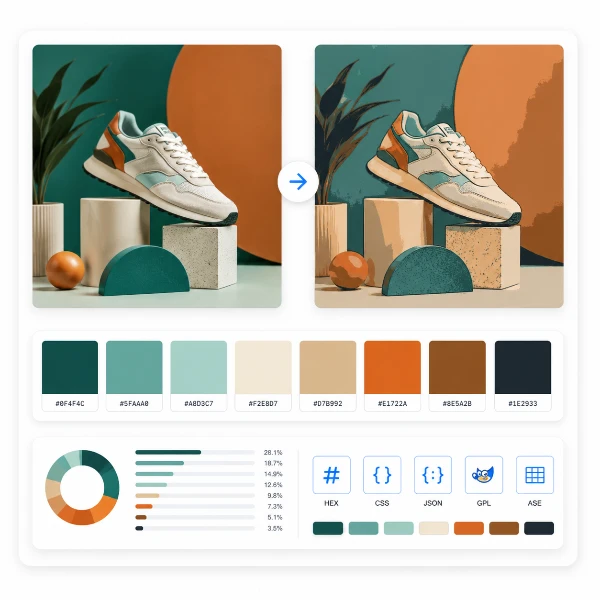
Reduce, control and reuse image colors precisely — export to HEX, CSS, JSON, .gpl & .ase.
Open tool →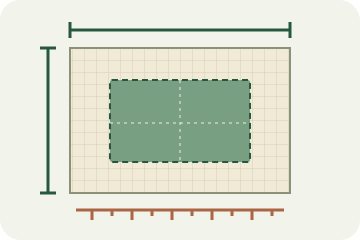
Calculate fabric size from stitch counts, compare cloth counts and add finishing margins.
Open tool →
Turn a few photos or drawings into a flipbook preview. Adjust order, timing and ping-pong.
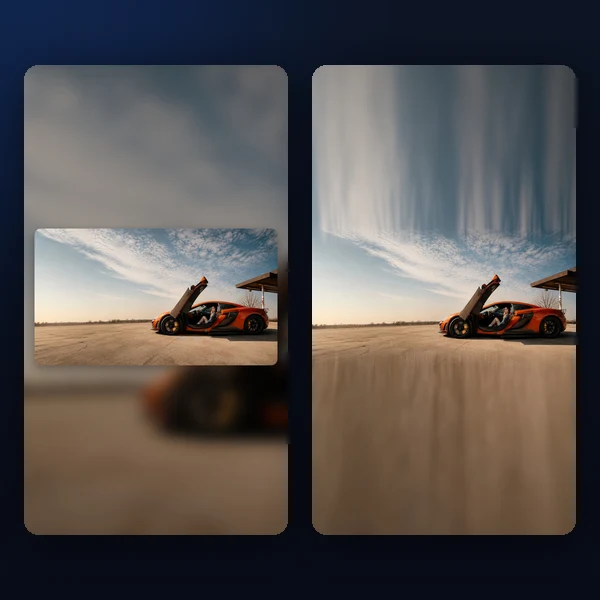
Any photo → a polished 9:16 story. Blur, gradient, extend & card layouts.
Open tool →