
Pulsa el botón Compartir y luego «Añadir a pantalla de inicio».
Pulsa el botón Compartir y luego «Añadir a pantalla de inicio».

Coloca o pega una imagen, recorta y añade texto, quita fondos, aplica filtros — y expórtala con dimensiones exactas en píxeles para cualquier plataforma. Sin subidas, 100% gratis.
Abrir Canvas Studio Canvas Studio/Sin título
Coloca o pega una imagen, recórtala y encuádrala, añade texto, quita el fondo y expórtala con dimensiones exactas en píxeles para cada plataforma — todo gratis, en tu navegador. Sin instalaciones ni subidas.
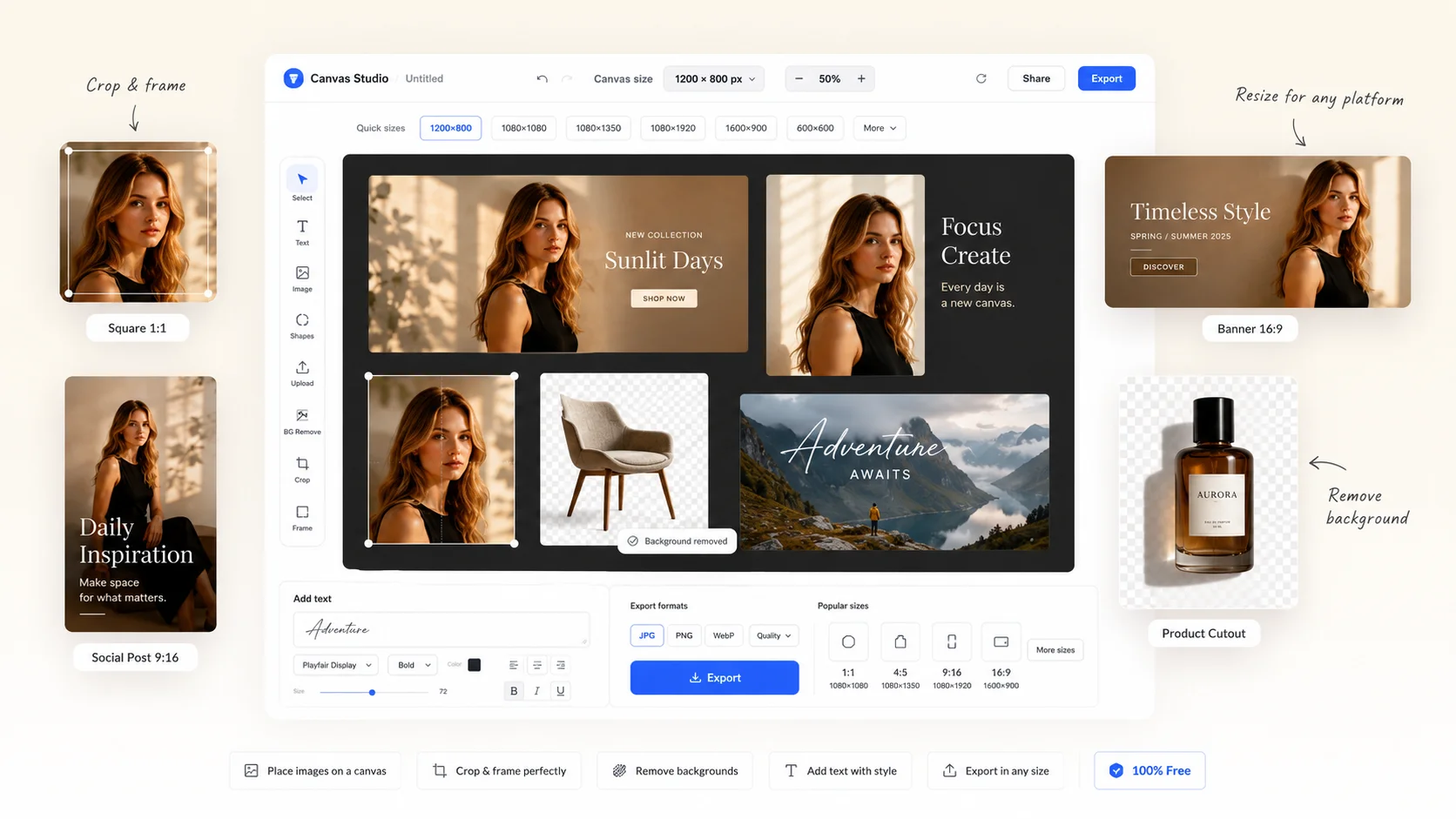
Cualquier persona que necesite colocar imágenes con dimensiones exactas — sin Photoshop, sin subidas.
Ajusta fotos de productos a las dimensiones requeridas por tu tienda — 700×700, 700×600 o cualquier tamaño personalizado — sin distorsión. Exporta imágenes listas para subir directamente.
Prepara imágenes destacadas y miniaturas OGP con dimensiones exactas antes de subirlas a tu CMS. Consigue tamaños de imagen consistentes en cada publicación sin tocar software de diseño.
Encuadra fotos en los tamaños específicos de Instagram, X o LinkedIn. Arrastra para reposicionar y escalar hasta que quede bien, luego exporta con un clic.
Recorta y encuadra imágenes a las dimensiones especificadas por el cliente. Usa Enfoque inteligente para mantener los bordes nítidos tras el escalado y exporta como WebP, PNG o JPG.
Compón y reencuadra fotos para dimensiones de galería o impresión. Tus originales nunca salen de tu dispositivo — todo el procesamiento se queda en el navegador.
Genera imágenes de marcador de posición o producción con dimensiones exactas para maquetas y prototipos. Suelta una imagen, ajusta el lienzo, exporta — más rápido que abrir un editor.
No. Todo el procesamiento ocurre en tu navegador. Tus archivos nunca salen de tu dispositivo ni se envían a ningún servidor.
Puedes establecer cualquier tamaño entre 100×100 y 5000×5000 píxeles. Los preajustes más comunes como 1200×900, 1080×1080 y 700×700 están disponibles con un clic.
Arrastra la imagen para moverla libremente. Usa los controles de los bordes para redimensionar. Mantén Shift al arrastrar una esquina para bloquear la proporción.
El Enfoque inteligente aplica una máscara de enfoque a la imagen exportada, restaurando la nitidez de bordes perdida al escalar. Puedes ajustar Cantidad, Radio y Reducción de ruido.
Puedes exportar como JPG, PNG o WebP. Se recomienda WebP para uso web por su mejor equilibrio entre calidad y tamaño de archivo.
El fondo del lienzo es naranja (#ff8800) por defecto, lo que facilita identificar las áreas sin imagen. Puedes cambiarlo con el selector de color BG. El archivo exportado mostrará el color de fondo elegido.
Sí. Haz clic en «Añadir texto» para colocar texto en el lienzo y arrástralo a su posición. Puedes elegir una fuente, ajustar el tamaño, el espaciado entre letras y el color, y activar una barra de fondo detrás del texto — con color, opacidad, esquinas redondeadas y márgenes ajustables — para que los subtítulos en blanco se lean bien sobre cualquier foto. El texto se incluye en la exportación.
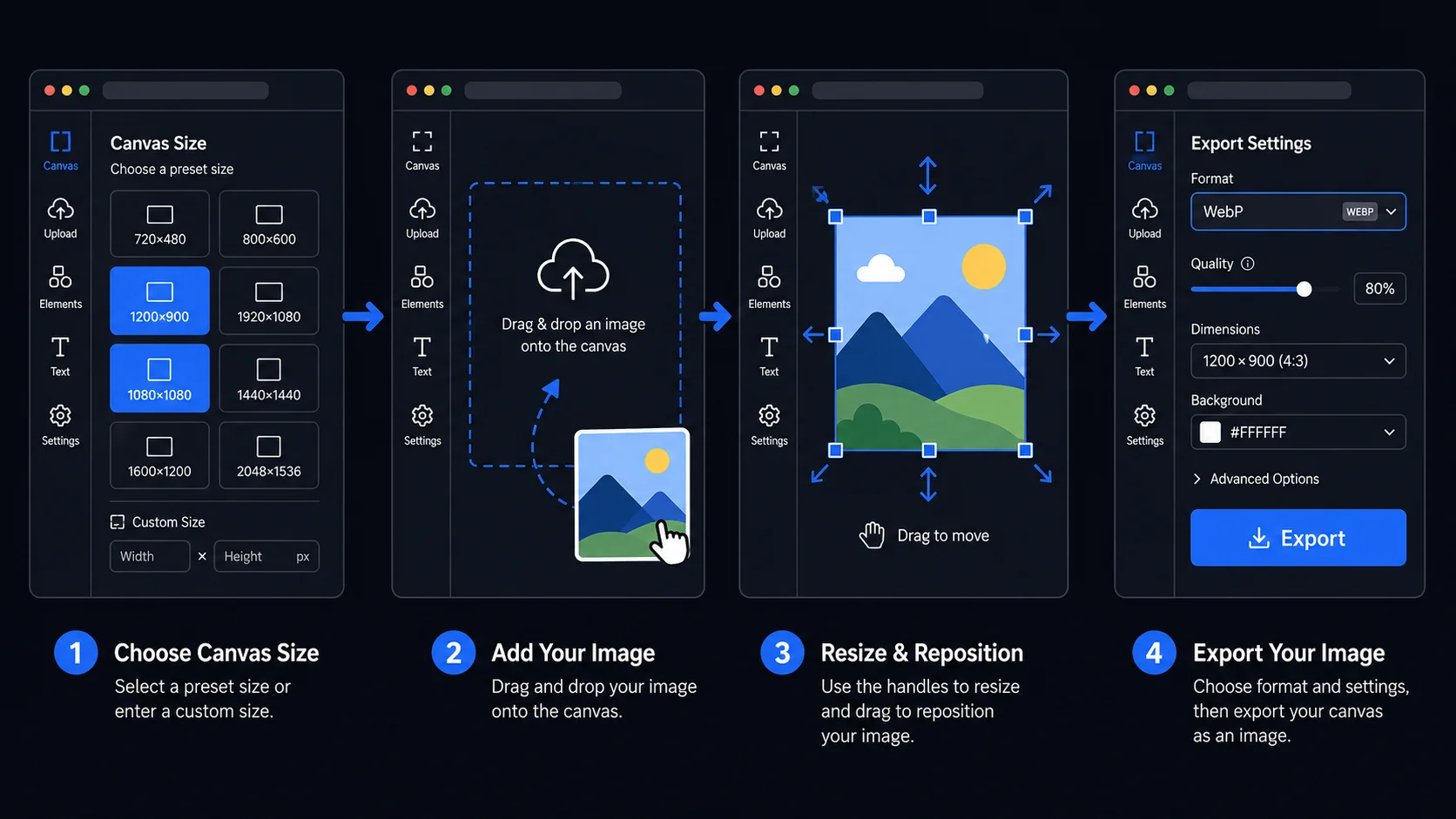
El uso más común de la exportación en píxeles exactos es preparar imágenes para plataformas que requieren un tamaño específico. Las tiendas de e-commerce suelen requerir imágenes de producto a 700×700 o 1000×1000 píxeles. Las imágenes OGP para previsualizaciones de enlace social son 1200×630 — el estándar para Facebook, Twitter y LinkedIn. Las publicaciones de Instagram se ven mejor a 1080×1080 (cuadrado) o 1080×1350 (retrato). Las miniaturas de YouTube requieren 1280×720.
Los botones de preset dan acceso con un clic a los tamaños más comunes. Para cualquier tamaño que no esté en la lista, escribe el ancho y alto exactos directamente. El lienzo soporta cualquier tamaño de 100×100 hasta 5000×5000 píxeles.
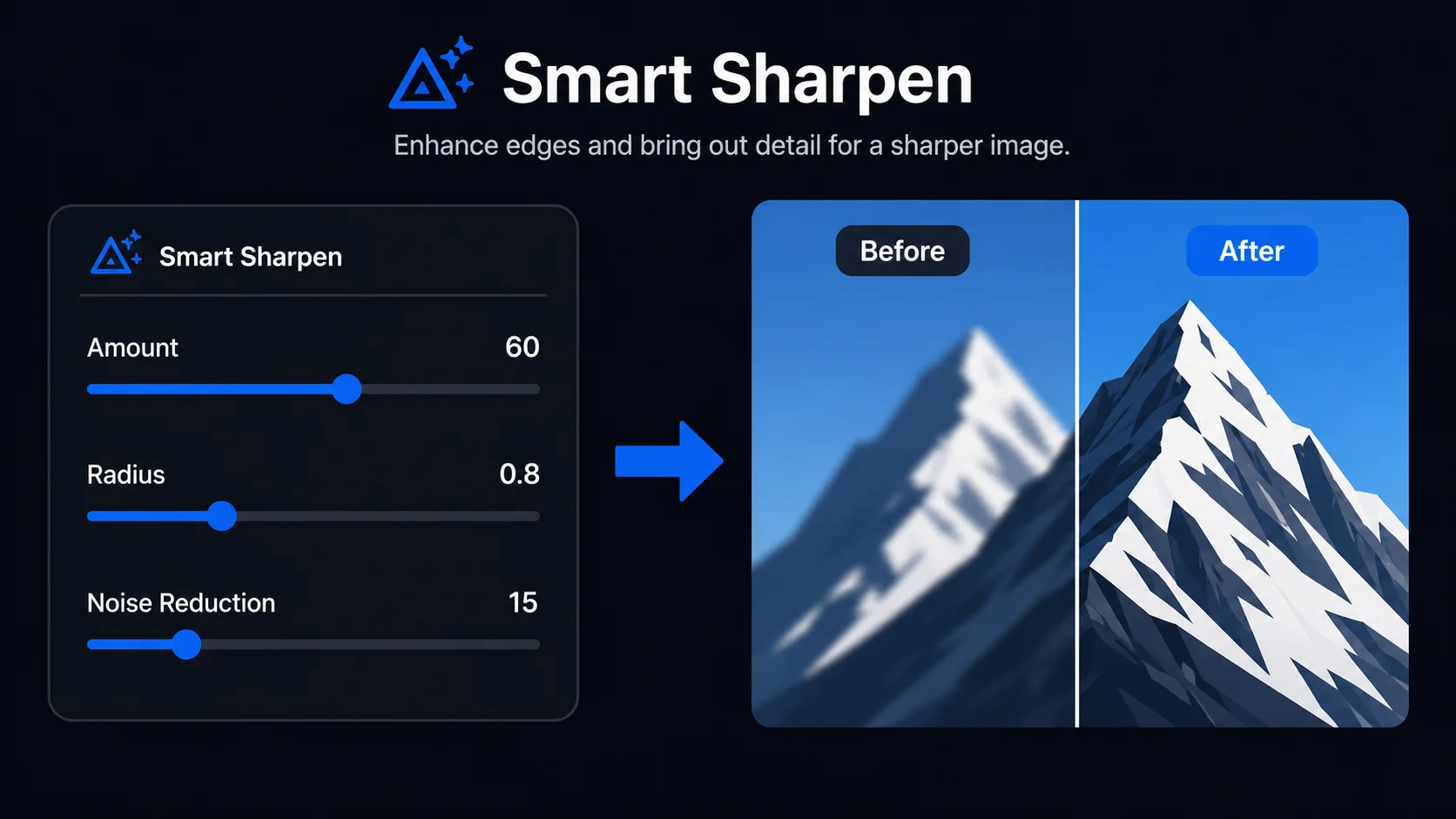
Cuando una imagen se reduce significativamente, el renderizado Canvas puede introducir un ligero desenfoque en bordes y detalles finos. Smart Sharpen aplica una máscara de desenfoque para restaurar la claridad de los bordes. Intensidad controla la fuerza. Radio controla qué tan amplio se extiende el efecto. Reducción de ruido suprime el enfoque en áreas de color uniforme.
Para la mayoría de fotos de producto y retratos escalados a 700–1200px, Intensidad 50–80, Radio 0.5–1.0 y Reducción de ruido 10–20 produce resultados limpios. Para imágenes con textura fina, reduce la Intensidad para evitar amplificar el ruido.
Además de colocar una imagen, Canvas te permite añadir texto directamente encima — ideal para especificaciones de producto, precios, mensajes promocionales o subtítulos para redes. Haz clic en «Añadir texto», escribe tu mensaje (se admiten saltos de línea) y arrástralo a cualquier parte del lienzo. Elige entre varios estilos de fuente y ajusta tamaño, espaciado y color. Puedes añadir varios bloques de texto y editar cada uno por separado.
El texto blanco suele desaparecer sobre fotos claras. Activa la barra de fondo detrás de cualquier bloque de texto para solucionarlo al instante — y ajusta su color, opacidad, esquinas redondeadas y los márgenes horizontal y vertical para lograr una barra de subtítulos limpia y legible sobre cualquier imagen. Todo el texto se renderiza en la exportación final a la resolución completa del lienzo, así que lo que ves es exactamente lo que descargas.
Tracelyx Canvas funciona completamente en tu navegador. La API Canvas posiciona tu imagen, aplica el escalado, renderiza el color de fondo y genera el archivo de exportación — todo localmente. Nada se envía a ningún servidor. Puedes trabajar con fotos de clientes, assets confidenciales y visuales no publicados sin ninguna exposición externa.
A diferencia de los editores en la nube que requieren cuenta o subida de archivos, Canvas funciona inmediatamente en cualquier navegador moderno. Sin instalación, sin cuenta, sin esperar el servidor. Cierra la pestaña y todos los datos se descartan.

Line art listo para trazar con control manual profesional, todo procesado localmente.
Abrir herramienta →
Superpón una cuadrícula precisa, fija el tamaño real e imprime a escala en hojas A4.
Abrir herramienta →
Mantén la calidad y reduce el peso.
Abrir herramienta →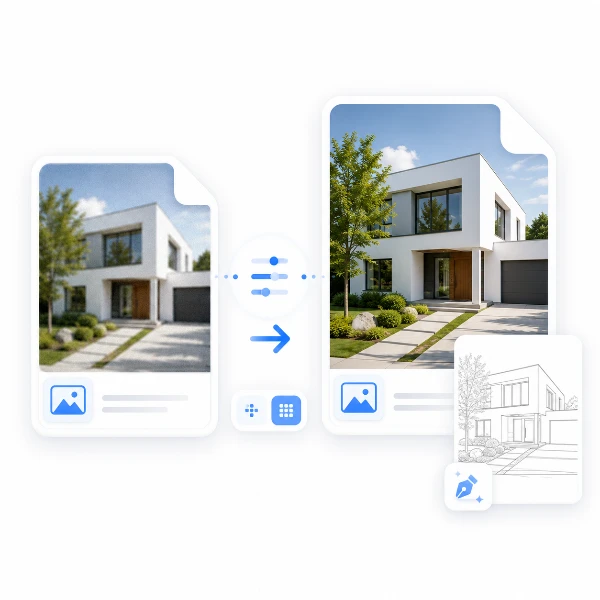
Prepara imágenes para un trazado preciso. Ajusta detalles y escala para TraceLine.
Abrir herramienta →
Convierte fotos de edificios en dibujos lineales — SVG y PNG.
Abrir herramienta →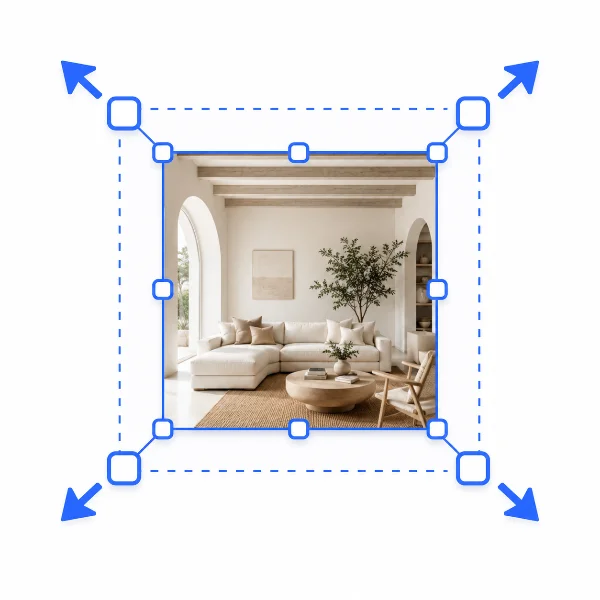
Tamaños ideales para web y redes.
Abrir herramienta →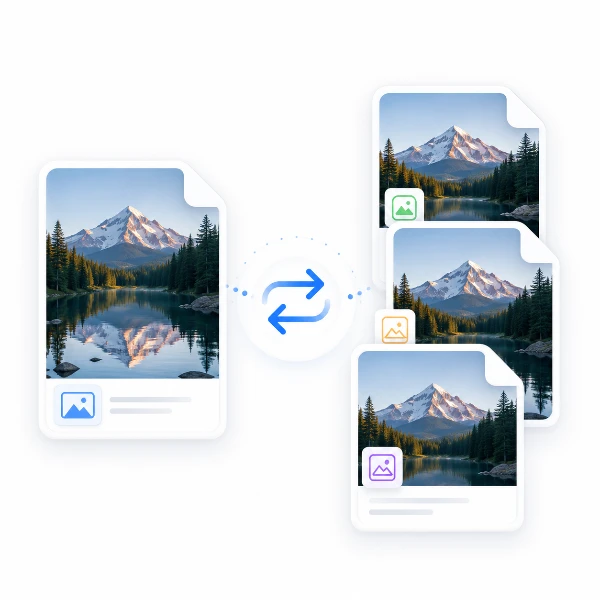
Cambia el formato sin perder calidad.
Abrir herramienta →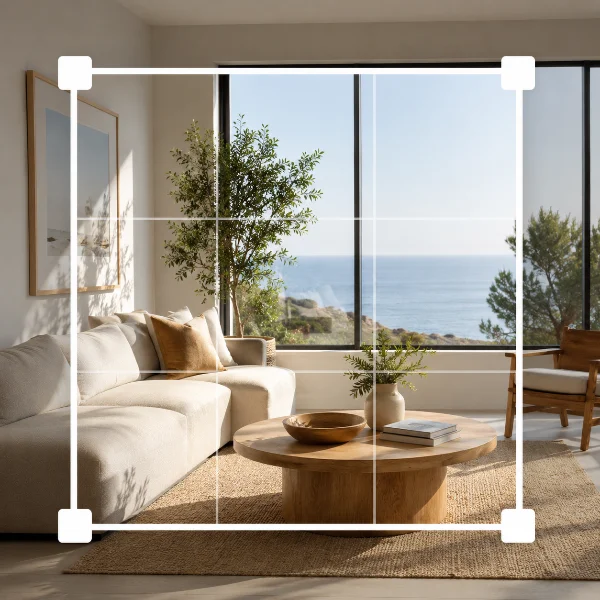
Conserva solo lo necesario.
Abrir herramienta →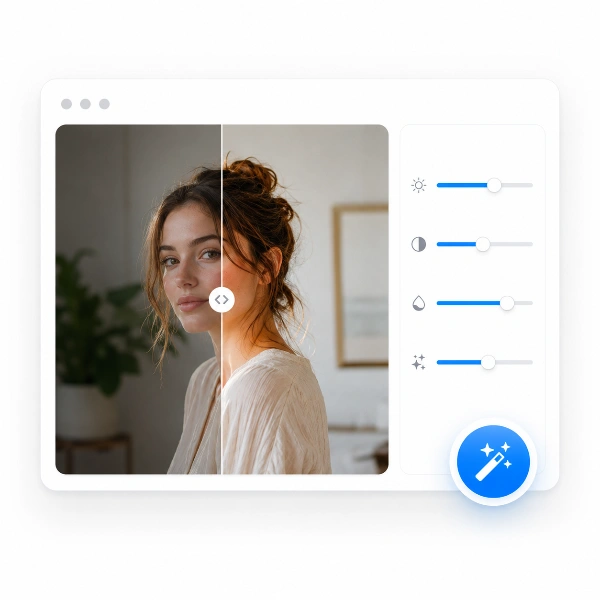
Equilibra luz y color de forma natural.
Abrir herramienta →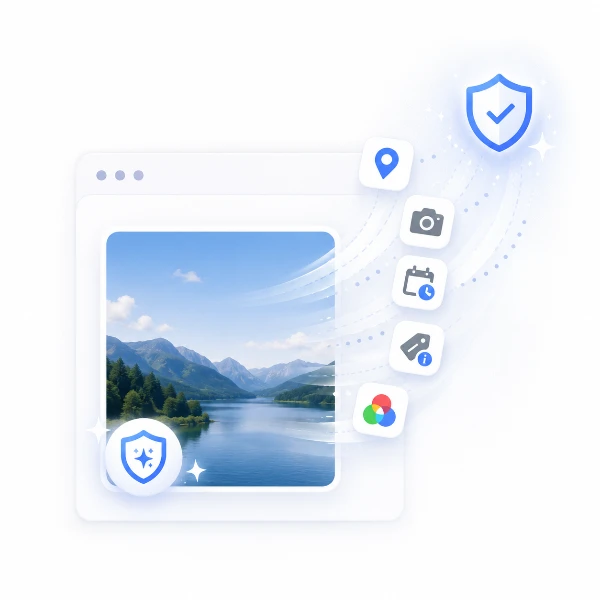
Elimina información oculta de la imagen.
Abrir herramienta →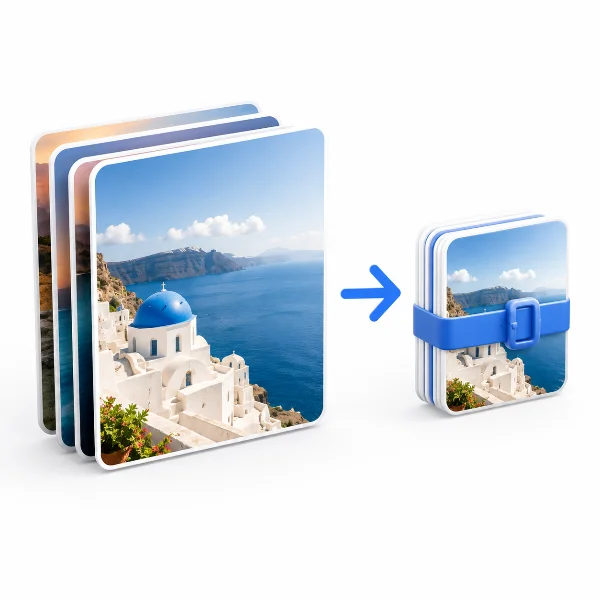
Trabaja con varias imágenes a la vez.
Abrir herramienta →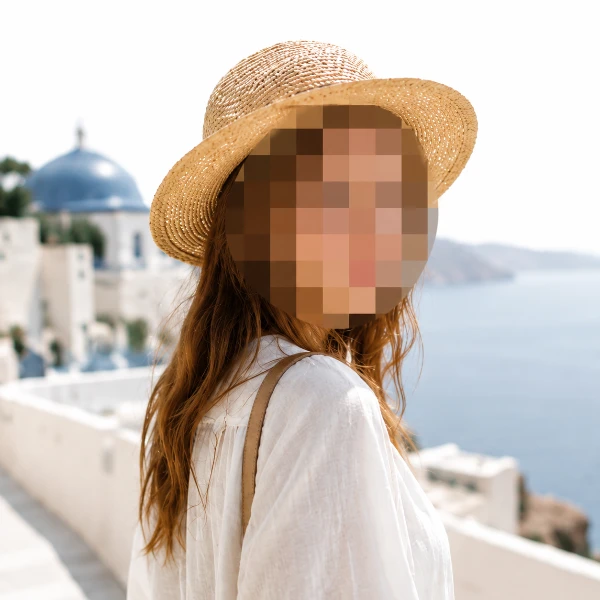
Protege información sensible fácilmente.
Abrir herramienta →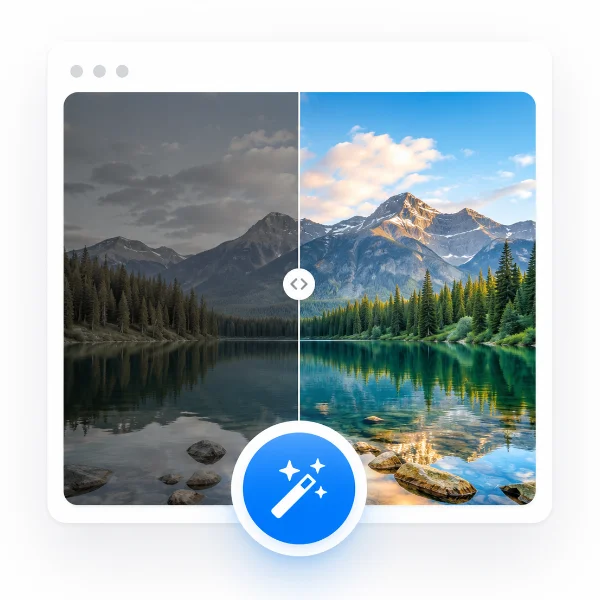
Un clic para un mejor resultado.
Abrir herramienta →