
Extracción inteligente de líneas
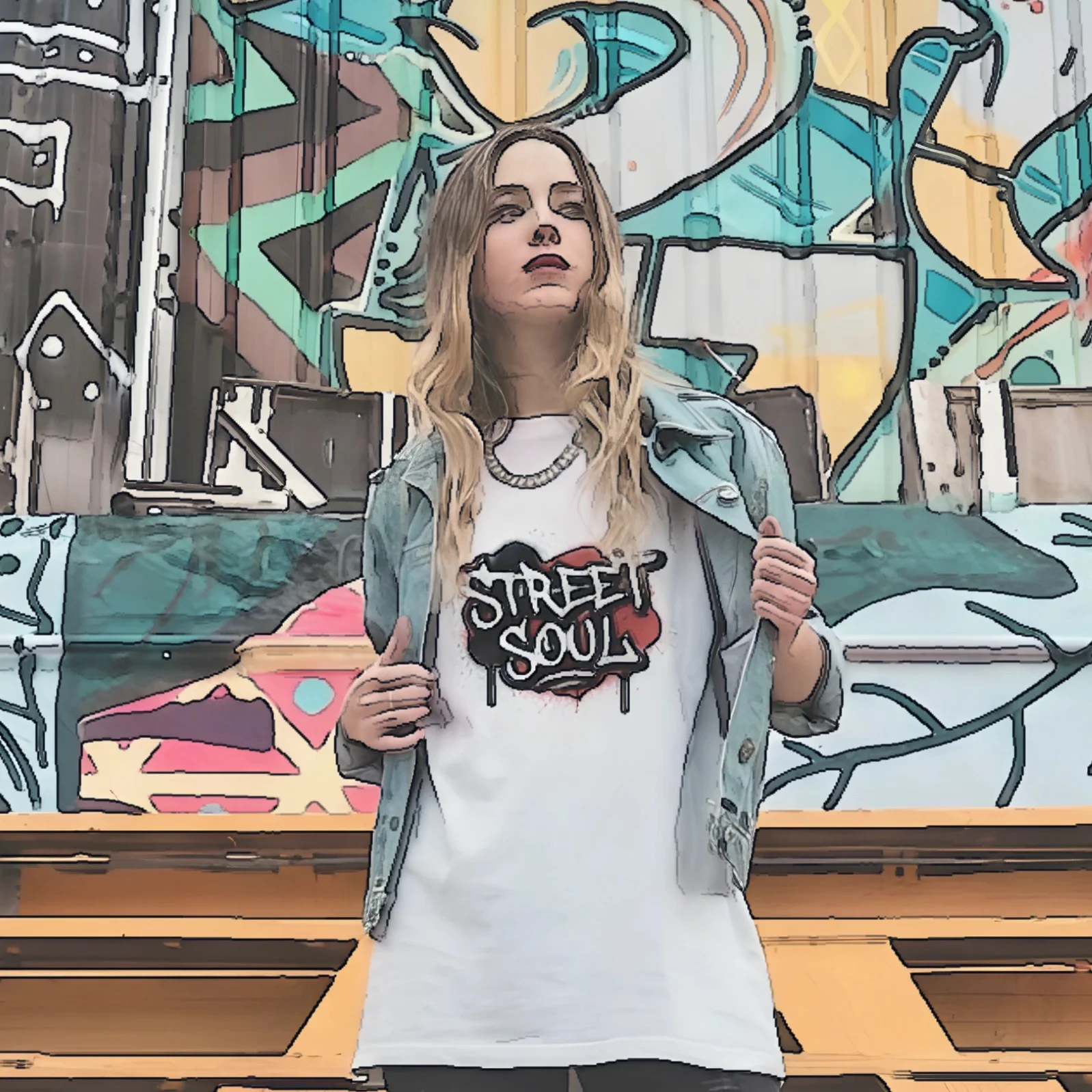
Extrae líneas limpias y equilibradas de cualquier foto al instante. Perfecto como base sólida para calcar, ilustrar o diseñar.

Pulsa el botón Compartir y luego «Añadir a pantalla de inicio».

Extracción automática de líneas con control manual profesional — todo local en tu navegador.
Empezar a editarSube una foto para extraer arte lineal limpio o aplica un preset de estilo. Todo el procesamiento se ejecuta localmente en tu navegador. Tu imagen nunca sale de tu dispositivo.
Si las líneas no salen con claridad, intenta preparar tu imagen con LinePrep primero.
Probar LinePrep →Pasa el cursor para ver la foto original.
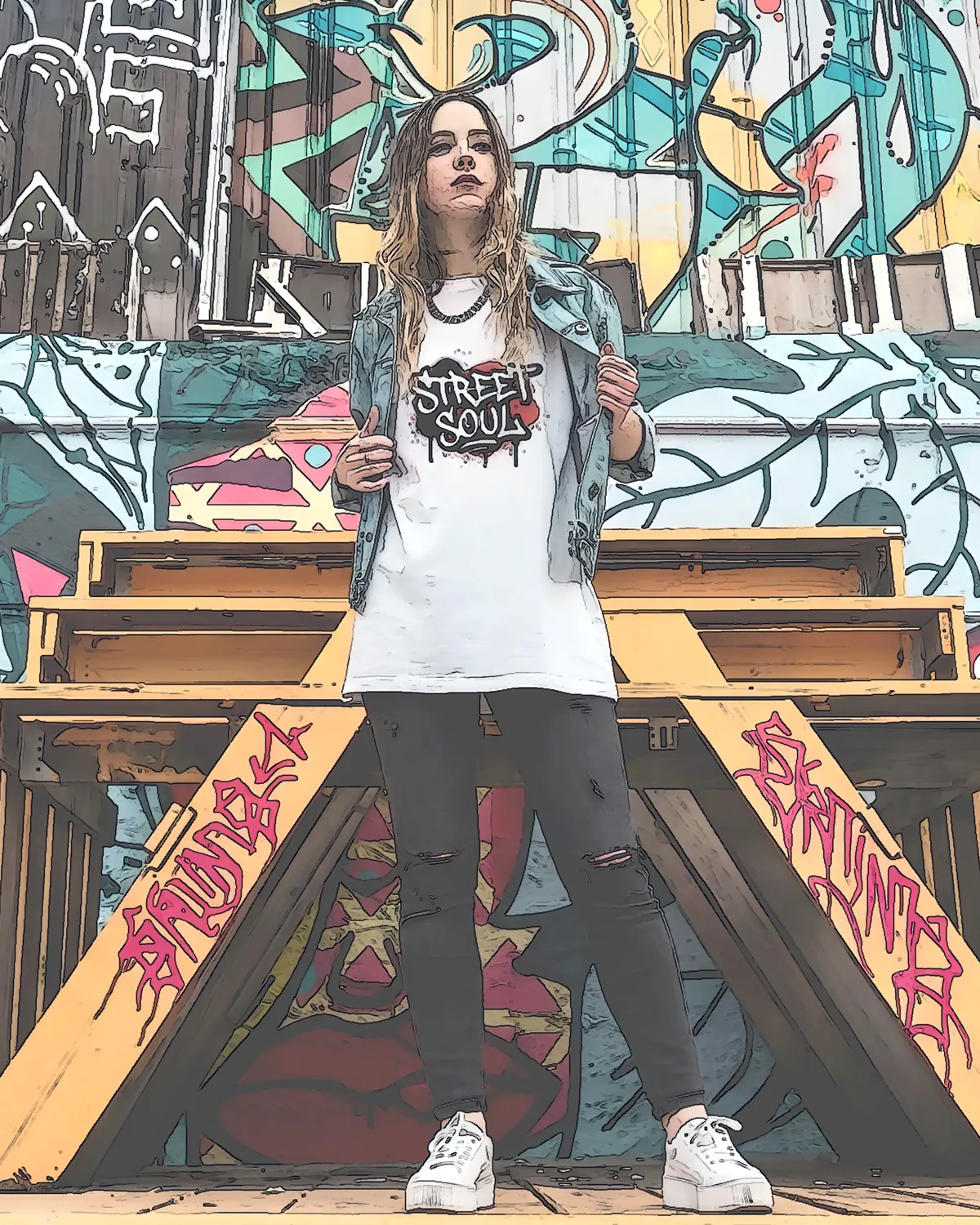
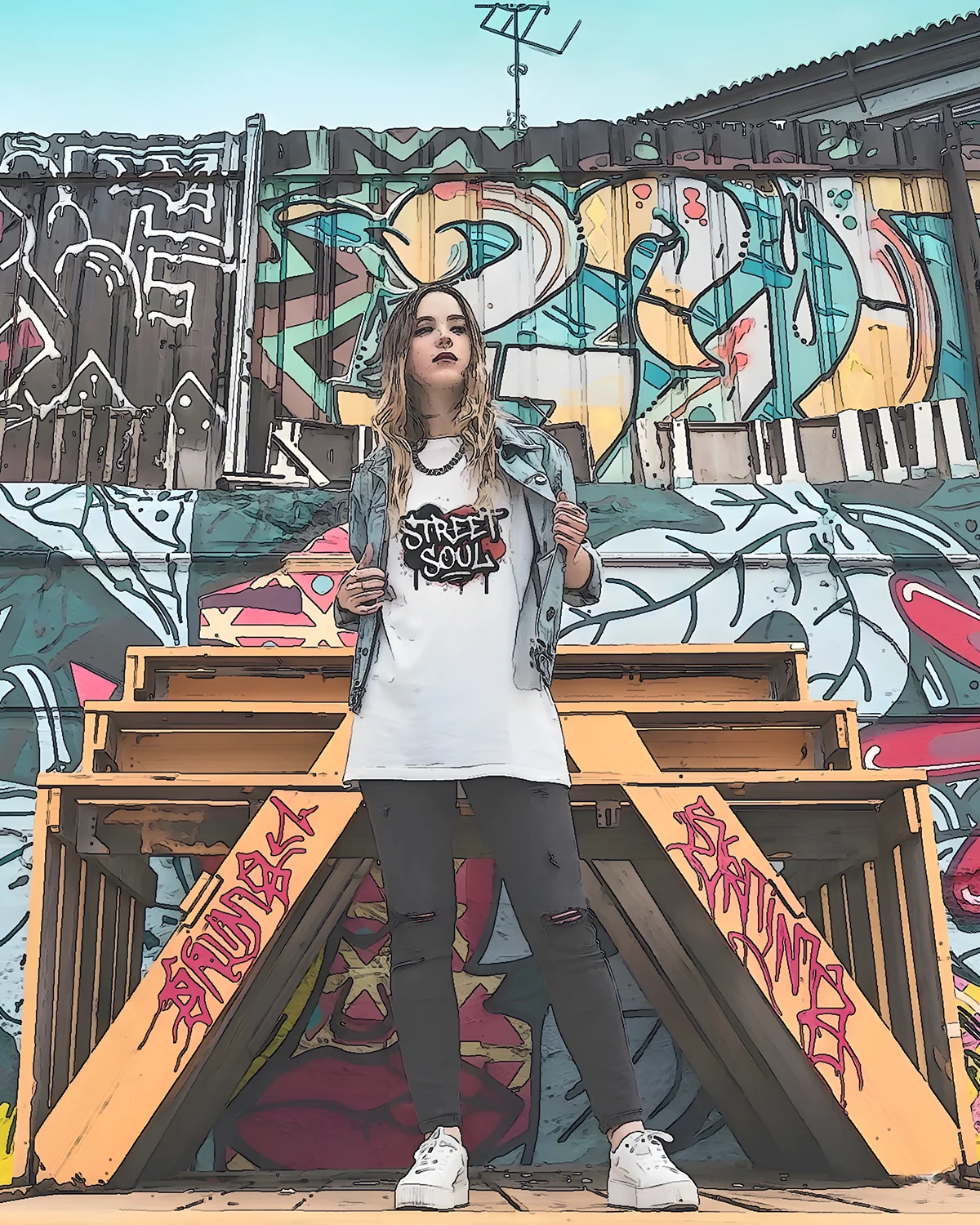
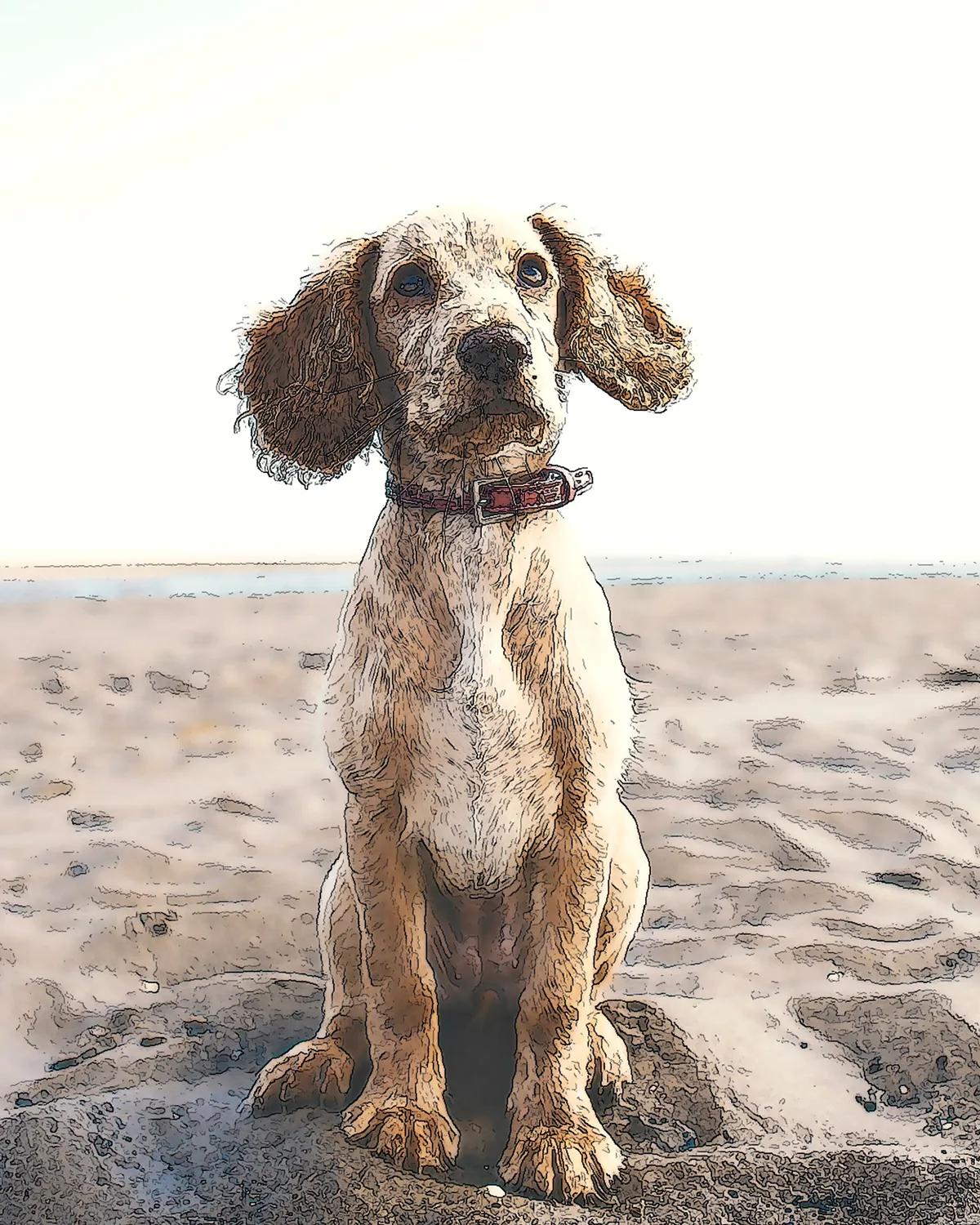
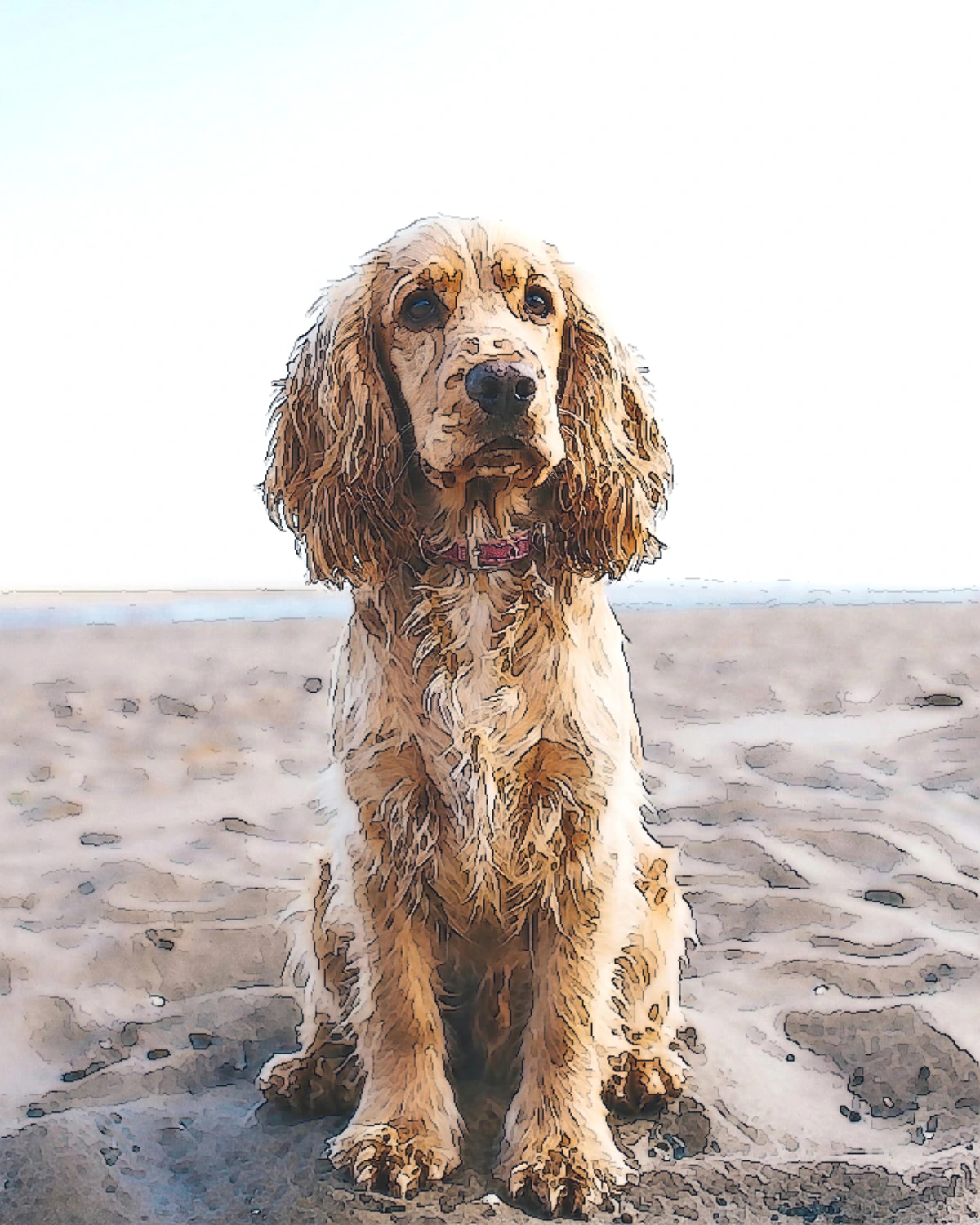
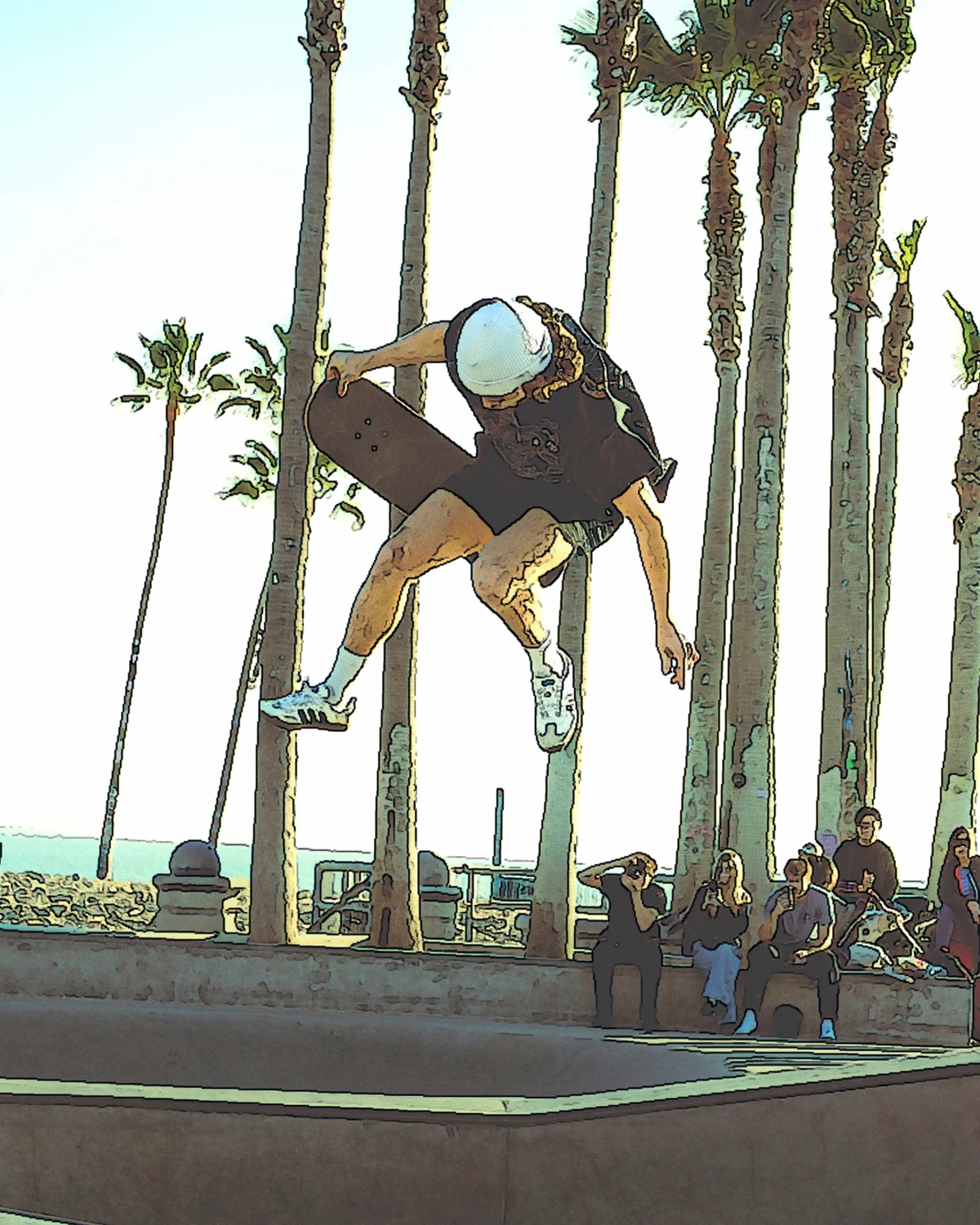
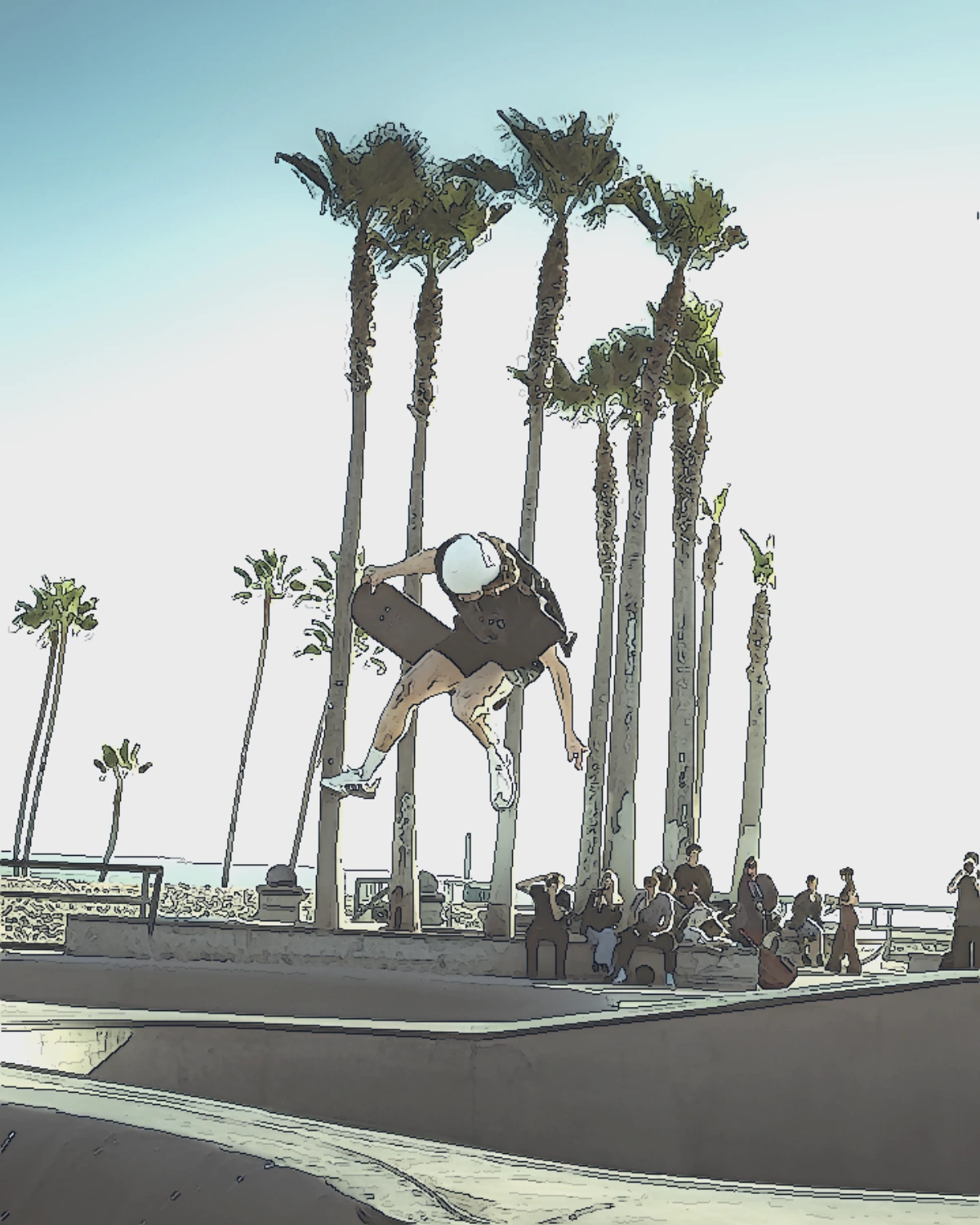



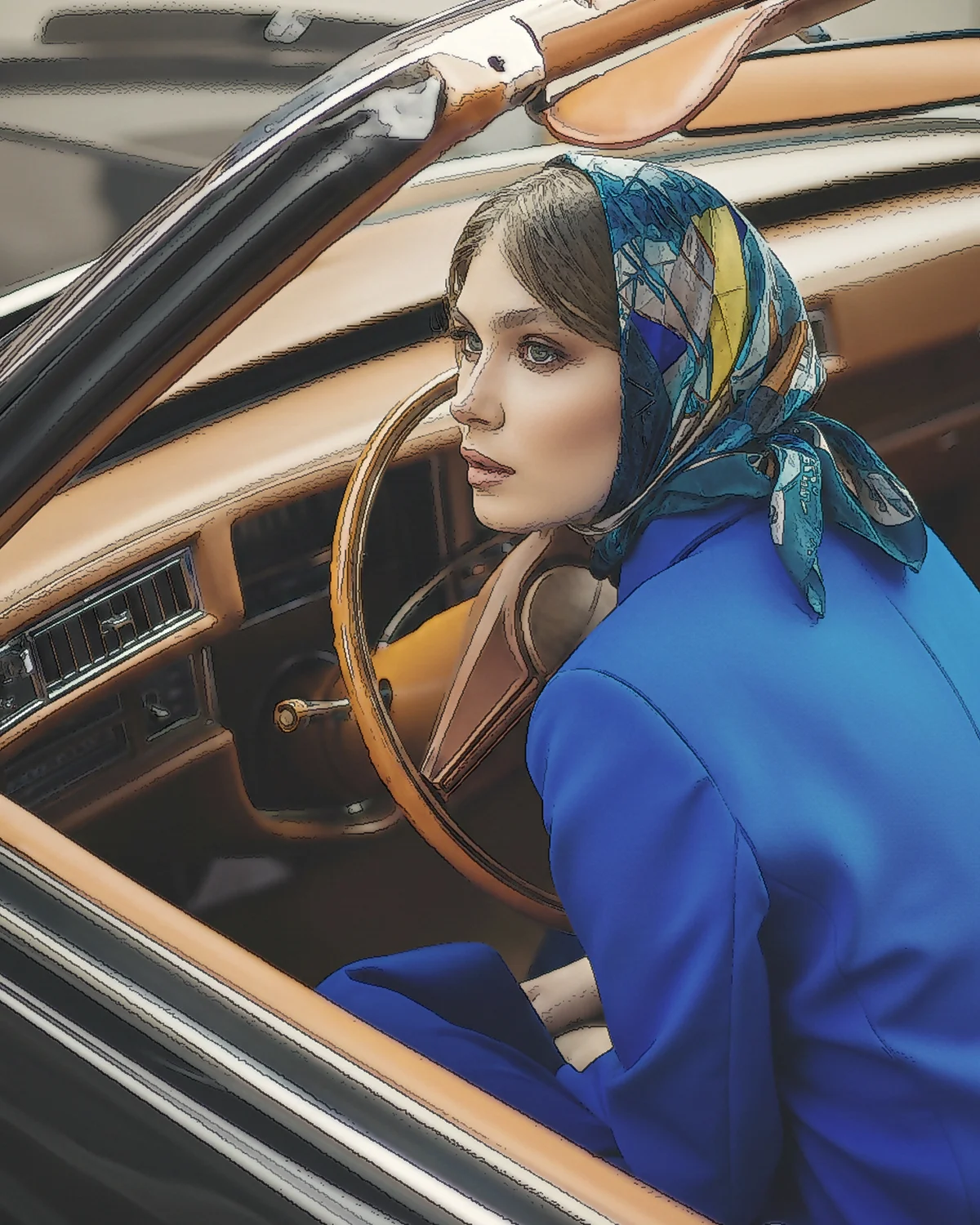
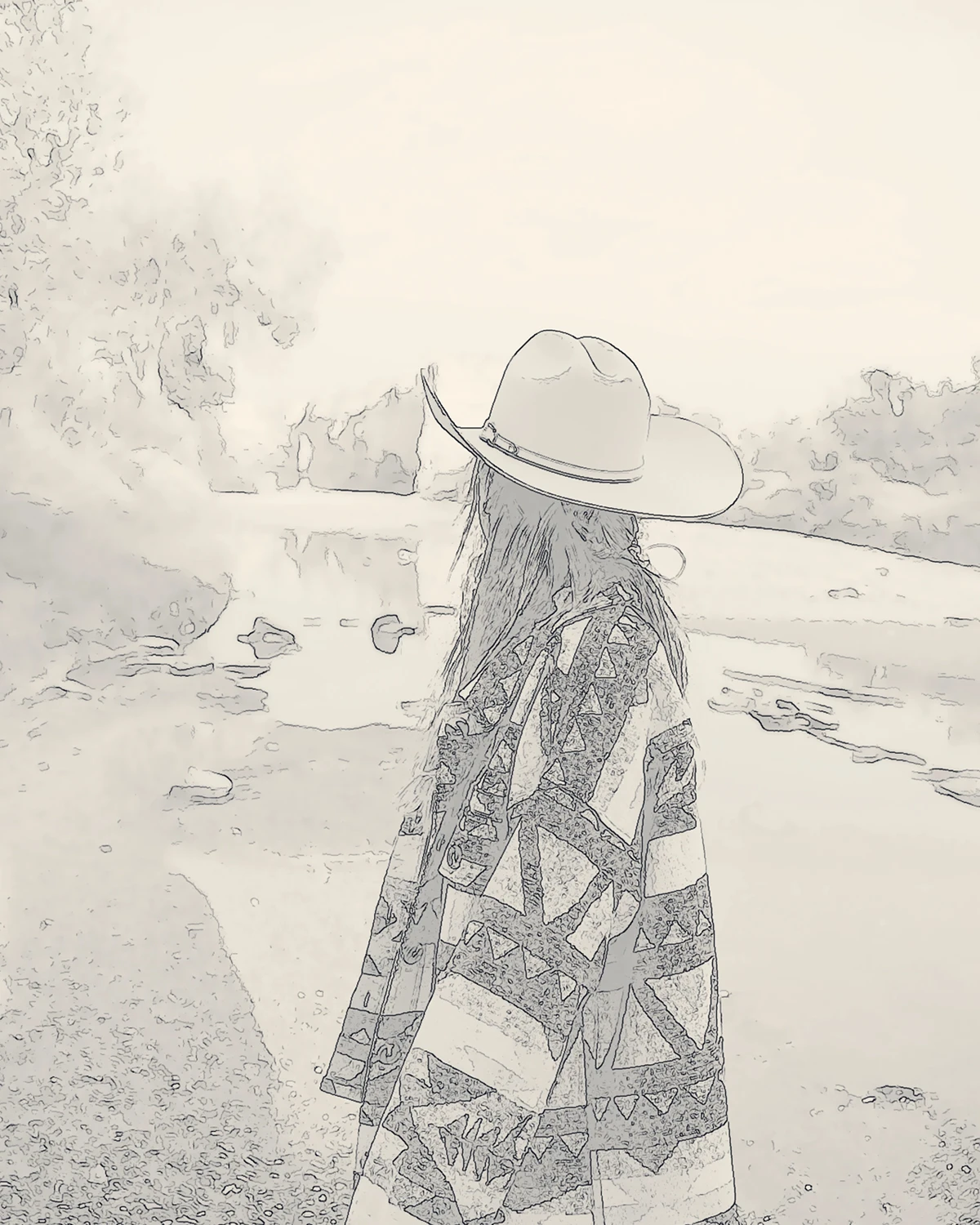
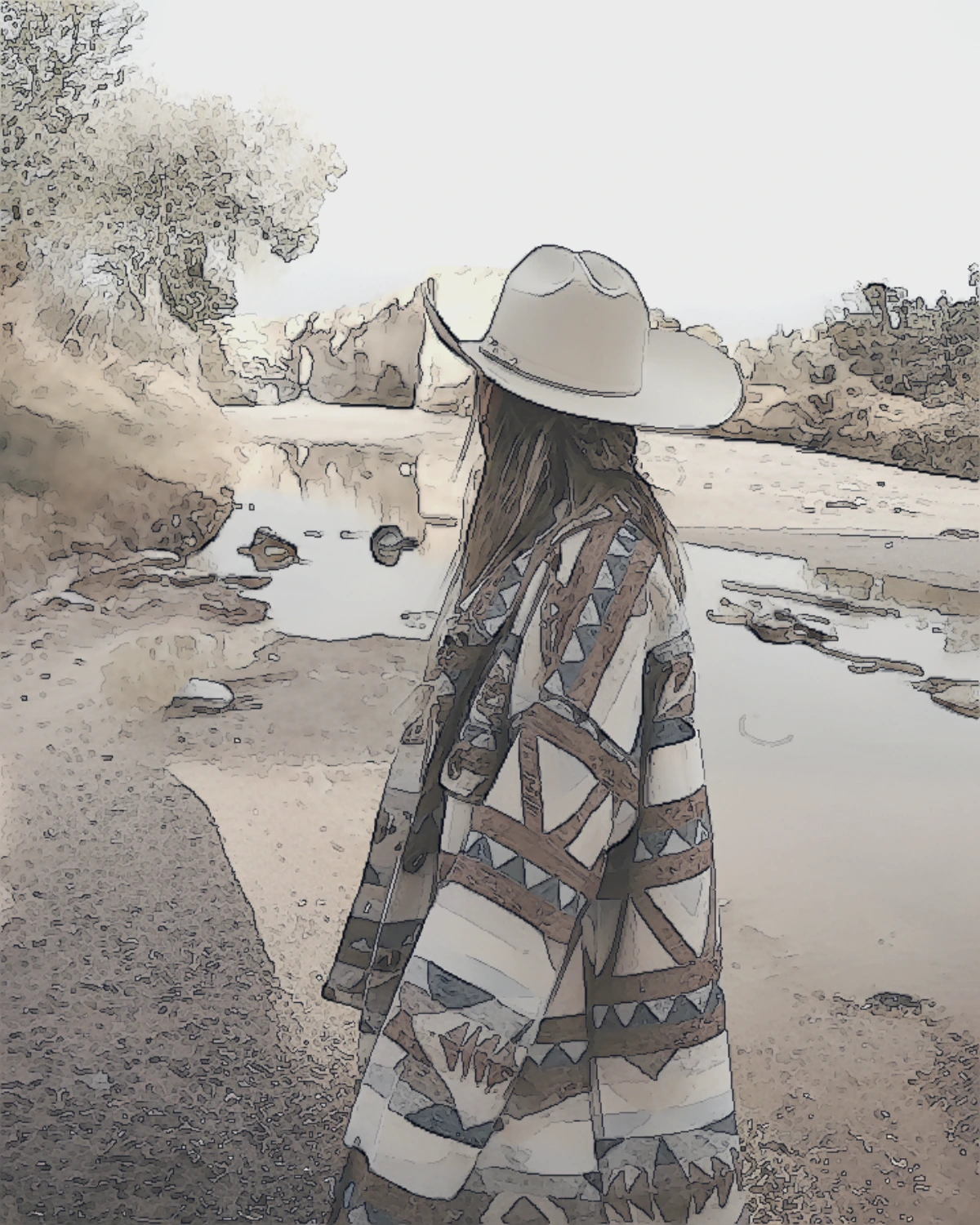
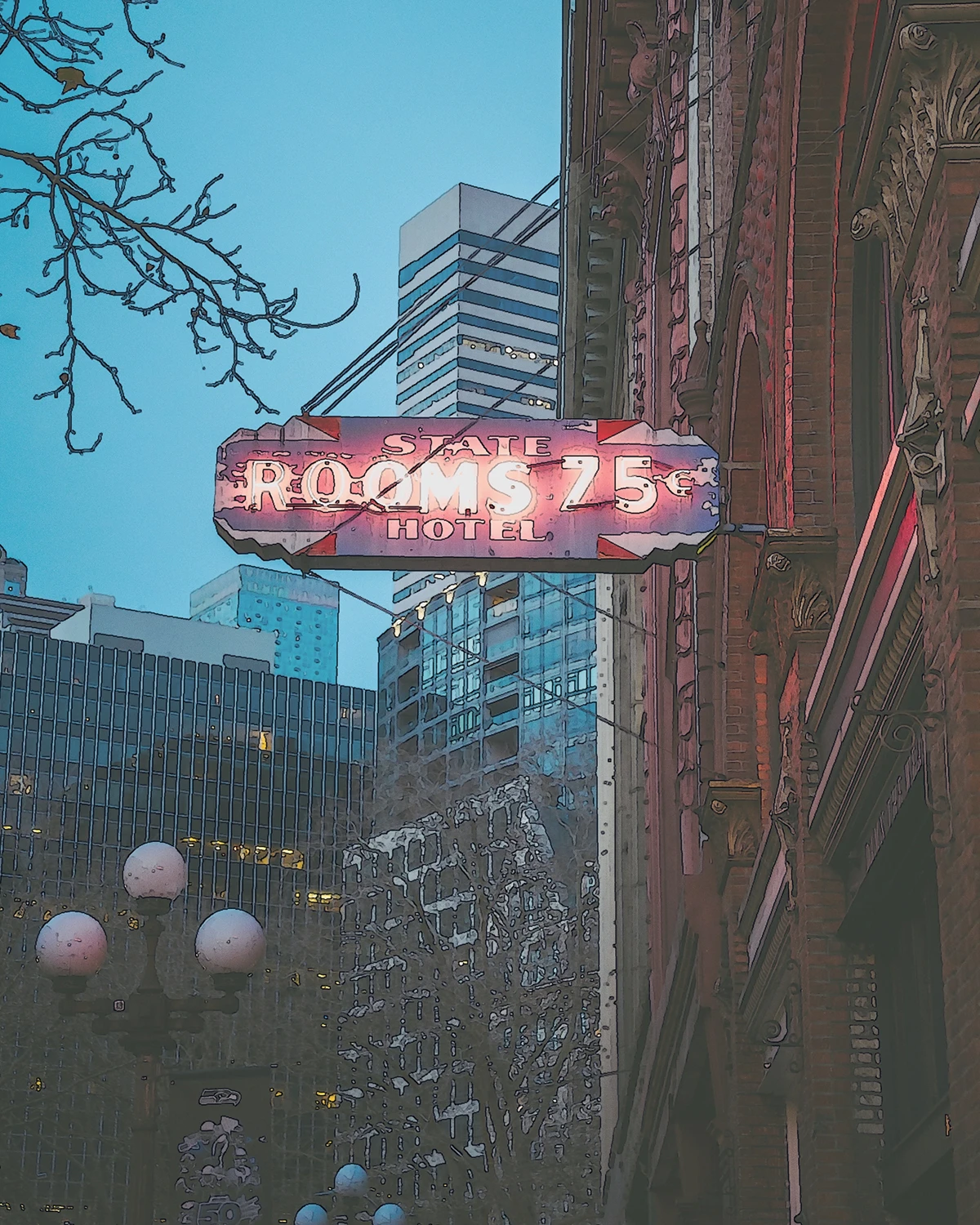
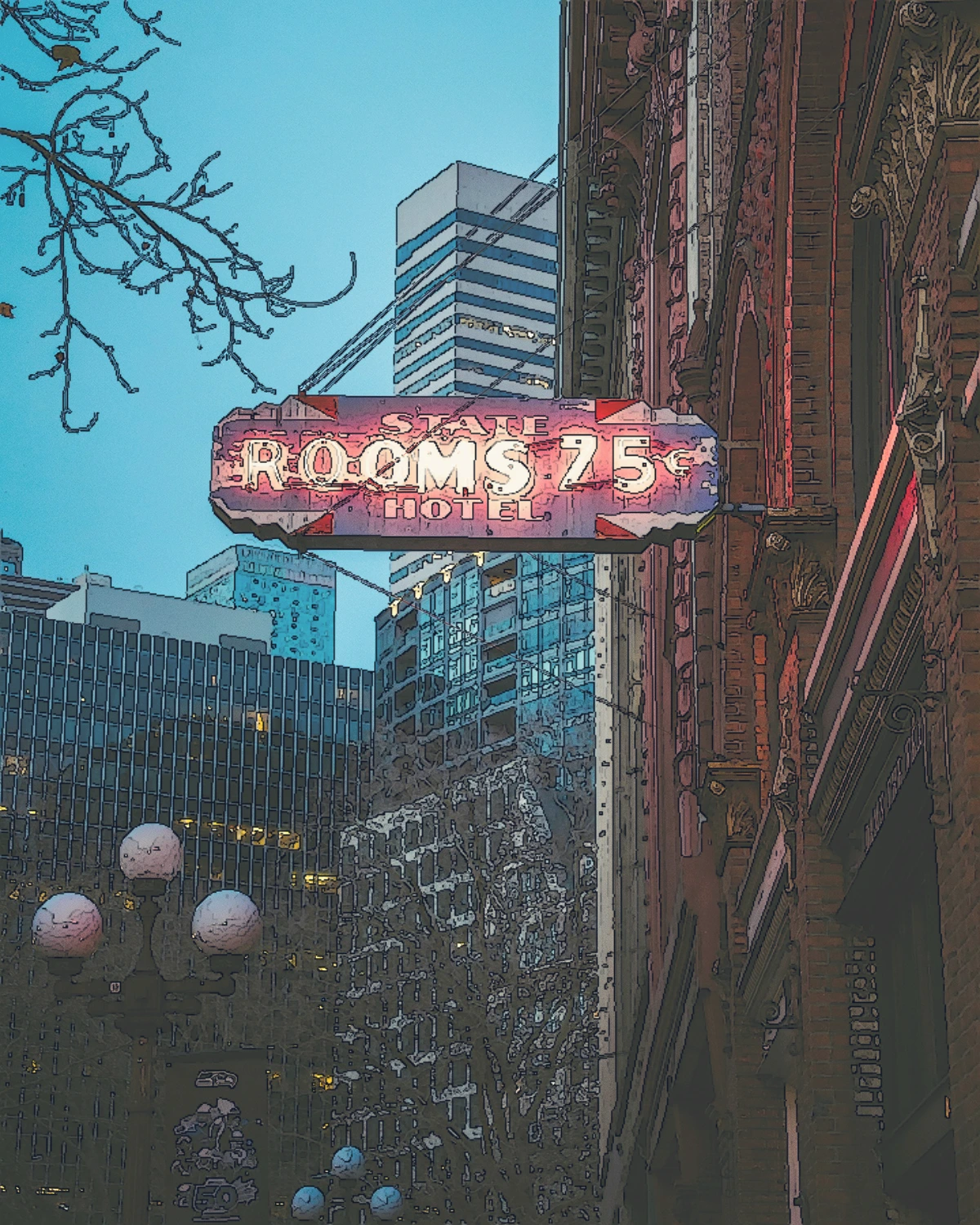
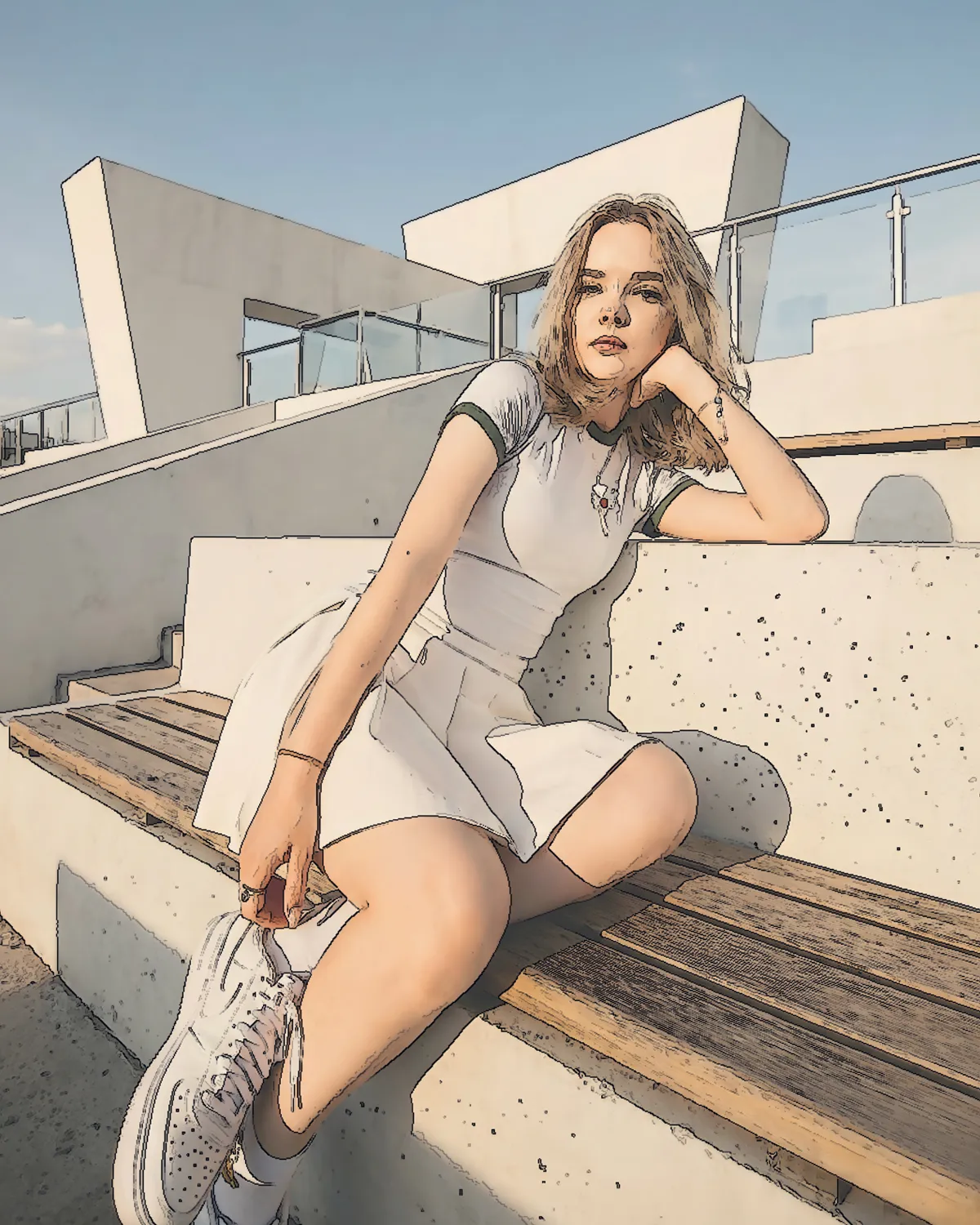
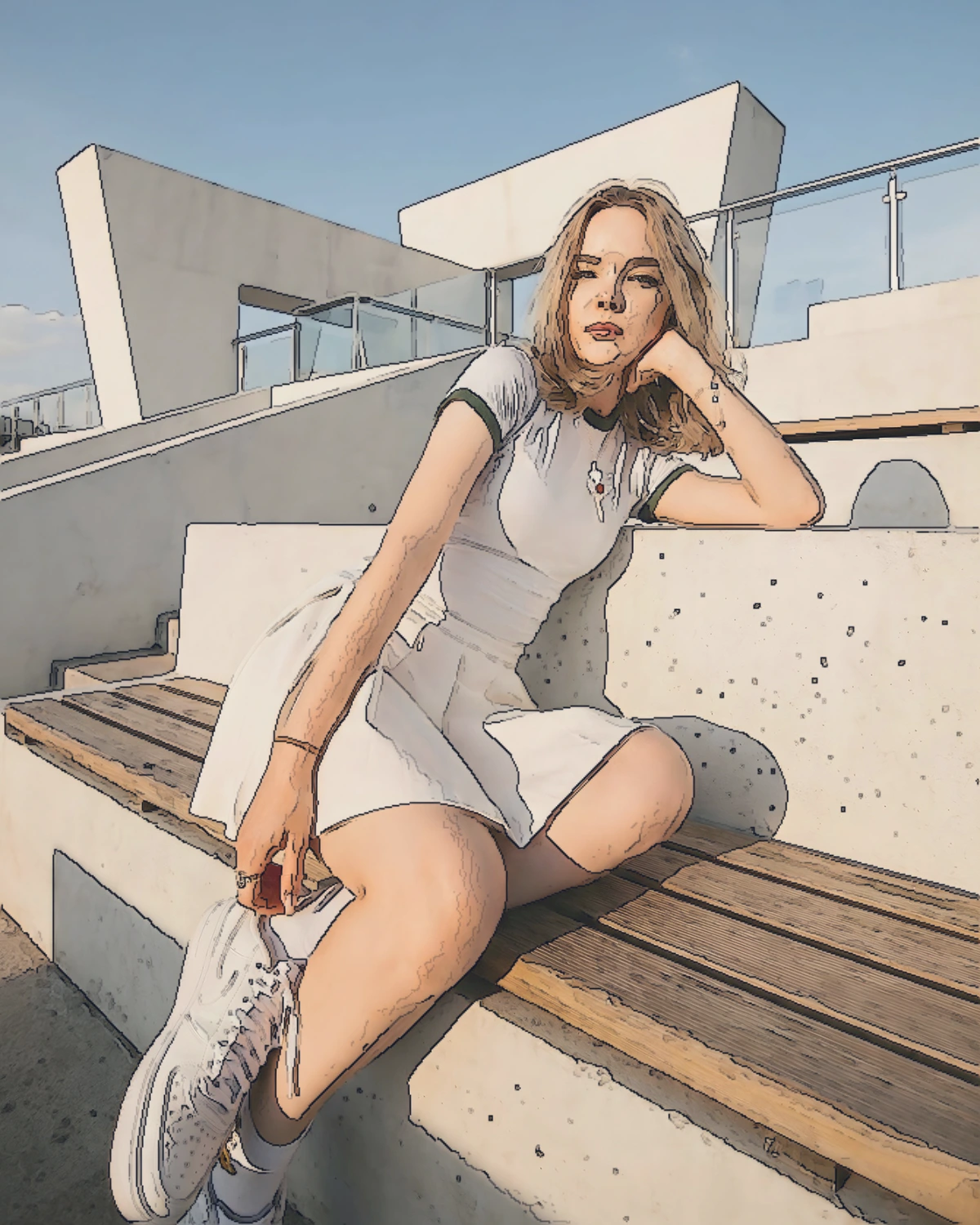
No es solo un filtro de contornos. TraceLine genera líneas limpias y utilizables desde cualquier foto, listas como base para ilustración o diseño.
Ajusta los resultados directamente en el navegador. Borra ruido, dibuja líneas faltantes y refina detalles, todo en una interfaz fluida para escritorio y móvil.
Todo el procesamiento ocurre en tu dispositivo. Nada se envía a ningún servidor — tus imágenes permanecen privadas, sin importar lo que estés trabajando.
Extrae líneas limpias y equilibradas de cualquier foto al instante. Perfecto como base sólida para calcar, ilustrar o diseñar.
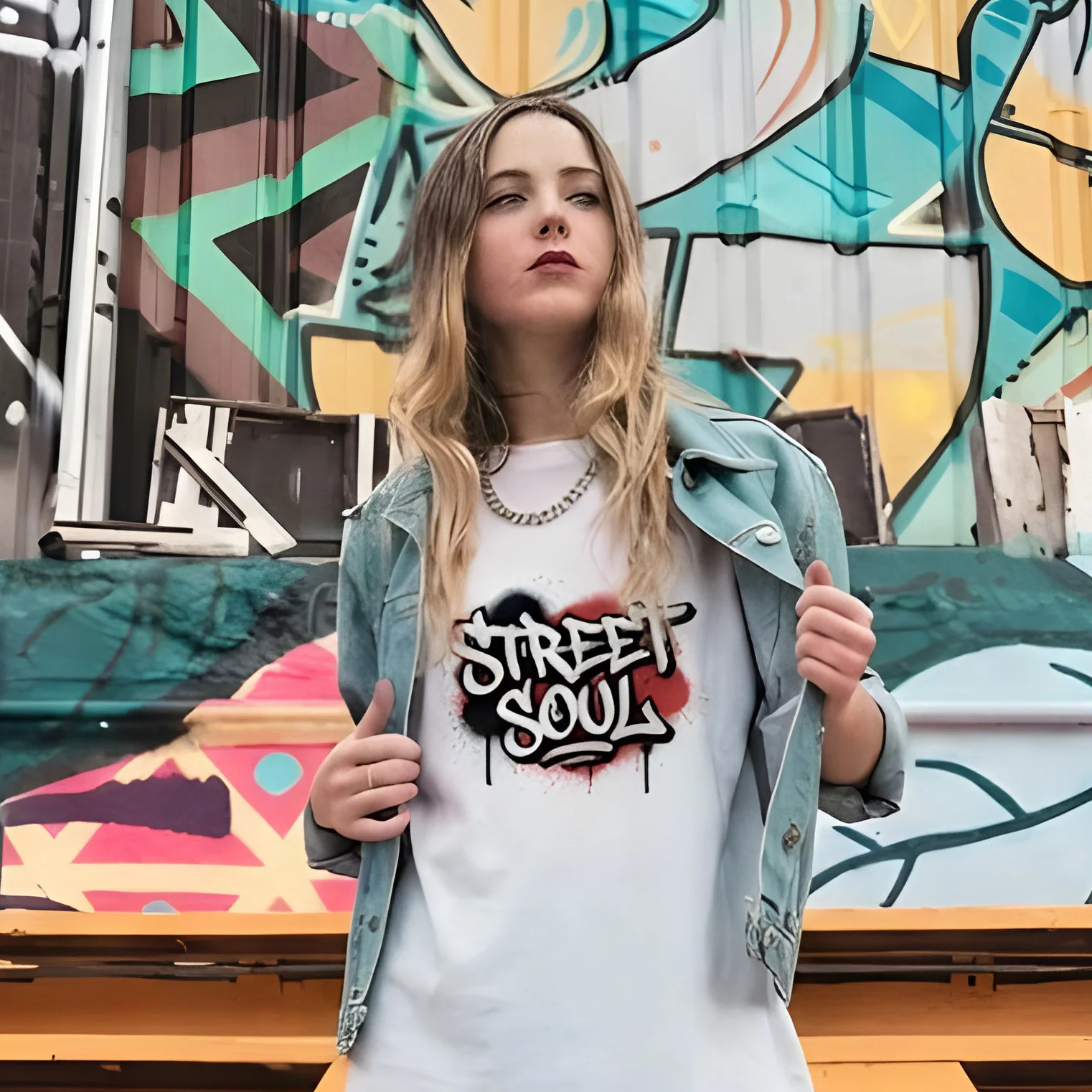
Borra el ruido no deseado o dibuja líneas faltantes directamente en el navegador. Perfecciona tu imagen al instante sin cambiar a otras herramientas.
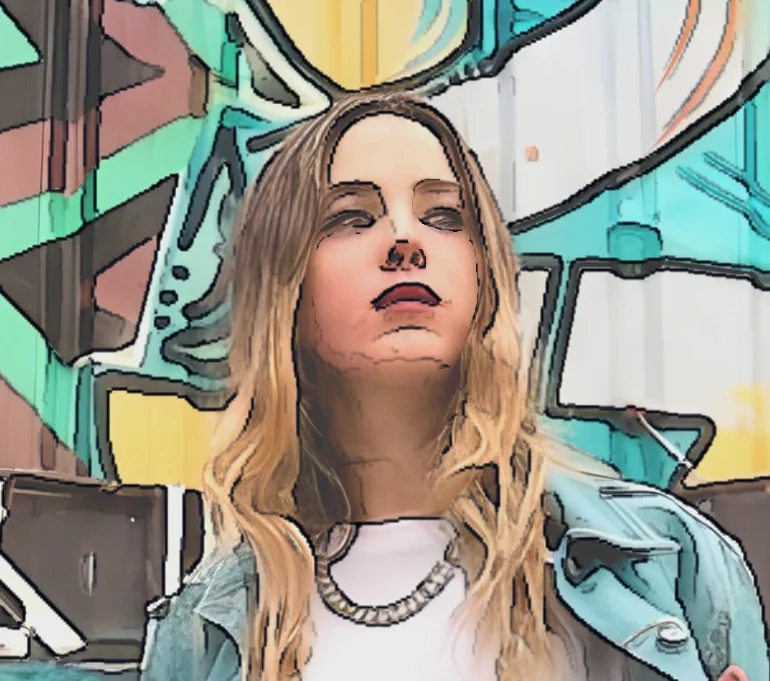
Haz zoom para una limpieza perfecta al píxel y muévete suavemente. Controles intuitivos diseñados para una sensación natural tanto en computadoras de escritorio como en tablets.

Todo el procesamiento se realiza directamente en tu dispositivo. Tus imágenes nunca se suben a ningún servidor, garantizando total privacidad y velocidad.
Ilustradores, diseñadores y artistas que necesitan arte lineal listo para producción — no solo un filtro simple.
Extrae arte lineal limpio de fotos de referencia como punto de partida para ilustración manual. Usa las herramientas integradas de dibujo y borrado para refinar cada detalle antes de exportar una base lista para producción.
Convierte fotos en recursos de estilo lineal para pósters, packaging, maquetaciones editoriales y materiales de marca. TraceLine te da una capa de líneas limpia y editable sin el ruido de los vectorizadores automáticos.
Crea arte lineal a partir de fotos para serigrafía, corte láser, patrones de bordado y diseños de pegatinas. Extrae y limpia las líneas que necesitas, luego exporta un PNG nítido listo para tu flujo de producción.
Convierte bocetos escaneados a mano y fotos de obra en dibujos lineales digitales limpios. Usa las herramientas de borrado y dibujo para eliminar detalles no deseados y reforzar líneas estructurales antes de exportar.
Transforma fotos en visuales de estilo art lineal para publicaciones sociales, miniaturas de YouTube y campañas creativas. Un look ilustrado distintivo que destaca en los feeds sin requerir habilidades avanzadas de diseño.
Crea diagramas de arte lineal y hojas de referencia a partir de fotos para materiales educativos, presentaciones y apuntes. Todo el procesamiento se realiza localmente — sin cuenta ni instalación de software.
No. Toda la extracción de líneas y edición ocurre íntegramente en tu navegador de forma local. Tus archivos nunca abandonan tu dispositivo ni se envían a ningún servidor.
TraceLine funciona bien con fotos que tienen sujetos claros y bordes definidos — retratos, objetos, arquitectura, bocetos e ilustraciones. Para imágenes pequeñas o de baja resolución, ejecutar LinePrep primero para escalar la fuente producirá resultados más limpios.
Sí. Usa el modo Editar / Dibujar para borrar ruido no deseado, dibujar líneas faltantes y realizar ajustes a nivel de píxel directamente en el navegador. Acércate para trabajar en detalle y deshaz errores con un solo clic.
LinePrep prepara tu imagen fuente para el trazado escalándola y reduciendo el ruido. TraceLine luego realiza la extracción de líneas real y te permite editar el resultado. Para mejores resultados, usa LinePrep primero en imágenes pequeñas o ruidosas, luego abre la salida en TraceLine.
TraceLine produce arte lineal a partir de tus propias imágenes, que puedes usar libremente en tus proyectos. Asegúrate de ser propietario de los derechos de las imágenes fuente que subas.
Sí, completamente gratuito. Sin cuenta, sin límites de uso y sin marcas de agua.
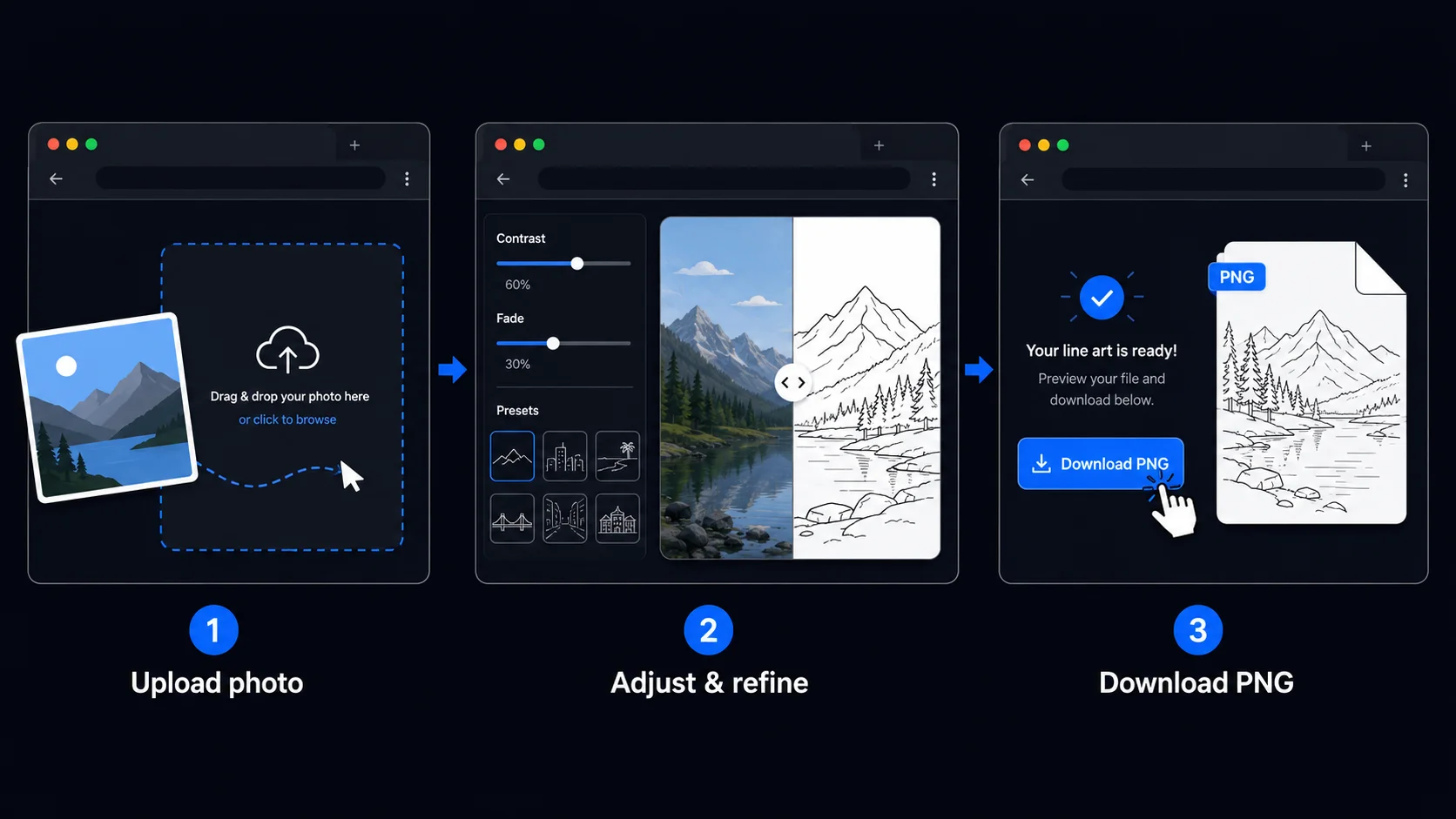
La calidad de la imagen fuente es lo más importante. TraceLine funciona mejor en fotografías con alto contraste entre el sujeto y el fondo. Las imágenes de bajo contraste — como escenas neblinosas o fotos sobreexpuestas — pueden producir líneas tenues o irregulares. Si tu foto es pequeña, borrosa o tiene mucho ruido, pásala primero por LinePrep para ampliarla y mejorarla antes de importarla a TraceLine.
Para ilustraciones detalladas y objetos, configura el Contraste más alto para capturar líneas internas finas, luego usa la herramienta Borrador para eliminar la textura no deseada en áreas que quieres dejar en blanco. Para retratos, una configuración media de Contraste suele preservar la estructura facial sin extraer en exceso el detalle de la piel. El botón Deshacer te permite retroceder libremente, así que experimenta sin dudarlo.
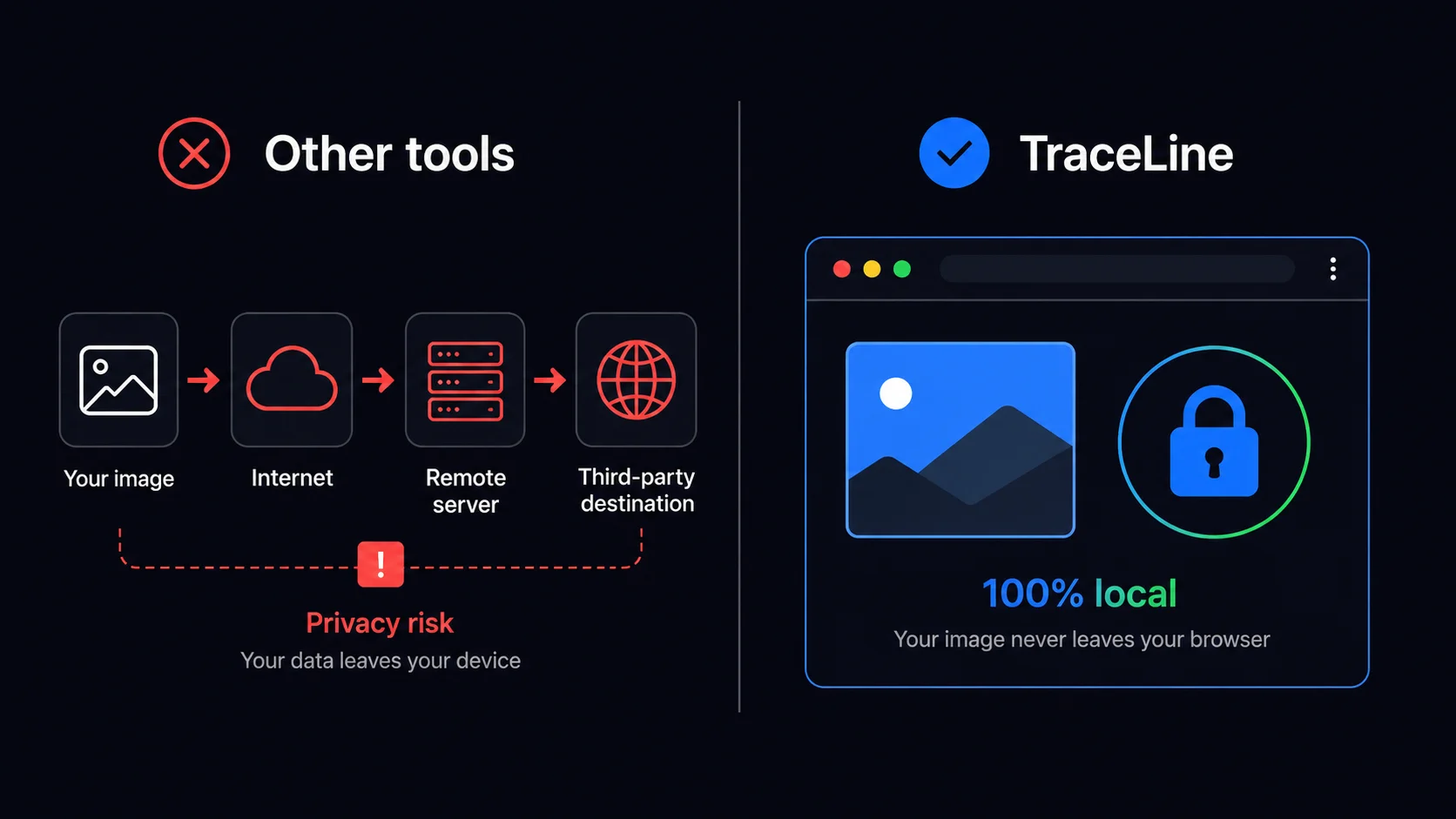
TraceLine procesa las imágenes completamente dentro de tu navegador usando la API Canvas de HTML. A diferencia de la mayoría de herramientas de imagen en línea que envían tus archivos a un servidor remoto, TraceLine nunca transmite los datos de tu imagen por la red. En el momento en que cierras la pestaña, todos los datos de imagen desaparecen — ningún servidor guarda tus archivos, ninguna base de datos registra tu contenido y ningún tercero recibe tus imágenes.
Este enfoque local es especialmente importante para el trabajo profesional. Diseñadores que manejan activos de clientes, arquitectos que trabajan con planos confidenciales y cualquier persona que procese contenido visual sensible puede usar TraceLine con total confianza. La privacidad no es un nivel de pago — es la arquitectura fundamental de cada herramienta en Tracelyx.
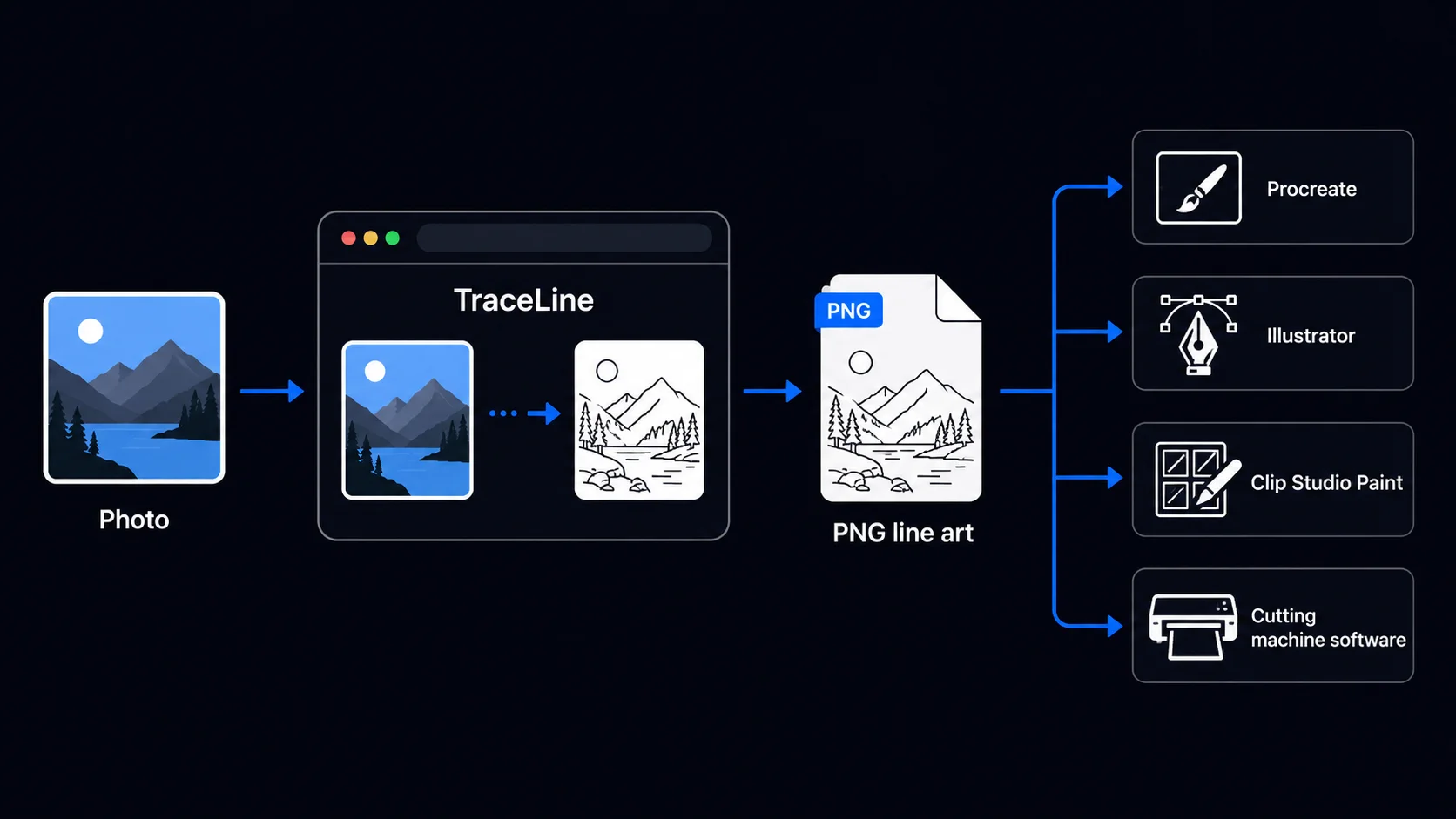
TraceLine está diseñado como un paso de preparación más que como un resultado final. El PNG que exportas funciona como una capa base limpia para trabajar en Procreate, Photoshop, Illustrator, Clip Studio Paint o cualquier aplicación de trazado vectorial. Los ilustradores importan el arte lineal como una nueva capa y pintan debajo. Los diseñadores gráficos lo usan como base para la vectorización. Los artesanos lo escalan en el software de máquinas de corte antes de la producción.
Para los mejores resultados de vectorización después de exportar desde TraceLine, usa un umbral de alrededor de 128 en tu herramienta de trazado. Si necesitas un SVG vectorial real, Trace Bitmap de Inkscape o Image Trace de Adobe Illustrator funcionan bien con la salida de TraceLine. Exporta a 2× o mayor resolución desde TraceLine para dar a tu vectorizador datos de línea más finos con los que trabajar.

Line art listo para trazar con control manual profesional, todo procesado localmente.
Abrir herramienta →
Superpón una cuadrícula precisa, fija el tamaño real e imprime a escala en hojas A4.
Abrir herramienta →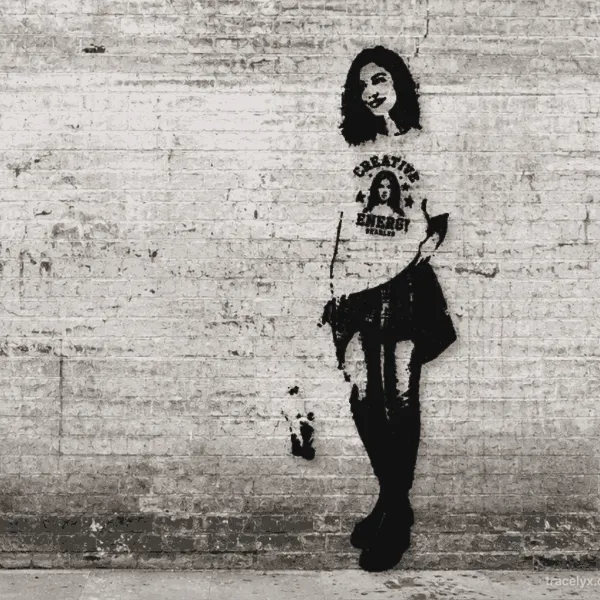
Convierte fotos en arte callejero estilo stencil en paredes reales.
Abrir herramienta →
Convierte fotos de edificios en dibujos lineales — SVG y PNG.
Abrir herramienta →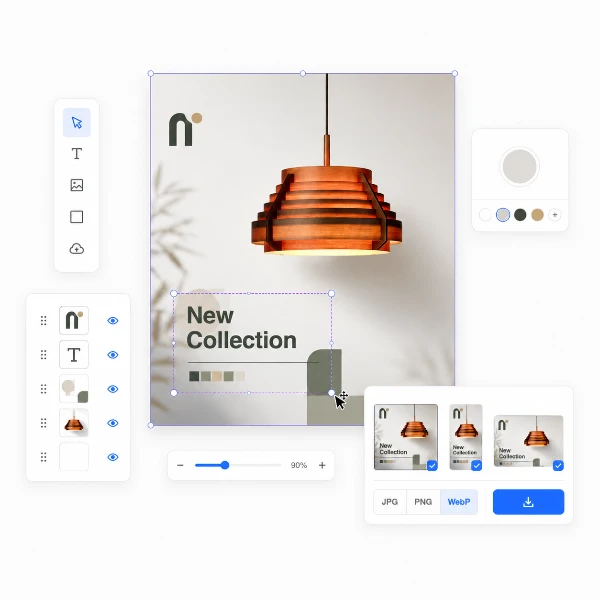
Coloca imágenes en un lienzo fijo, ajusta posición y tamaño libremente, y exporta con dimensiones exactas en píxeles. Sin subidas, sin rastreo — todo en tu navegador.
Abrir herramienta →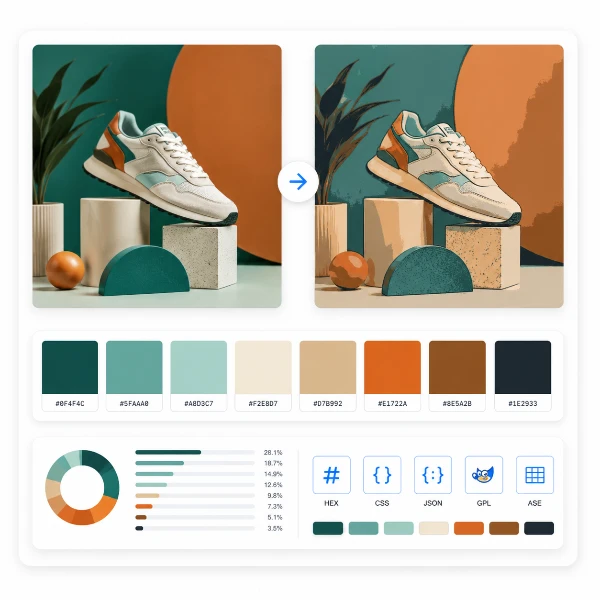
Reduce, controla y reutiliza los colores de una imagen con precisión — exporta a HEX, CSS, JSON, .gpl y .ase.
Abrir herramienta →
Calcula tela según puntadas, compara cuentas y añade márgenes.
Abrir herramienta →
Previsualiza fotos o dibujos como un folioscopio. Ajusta orden, tiempos e ida y vuelta.
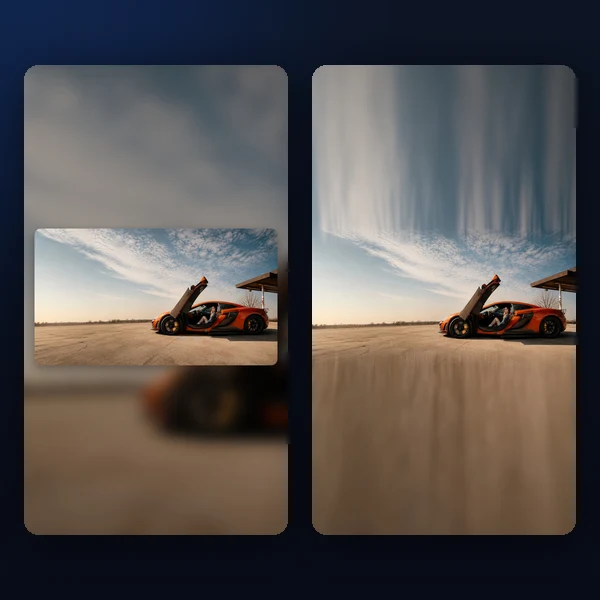
Cualquier foto → una historia 9:16 impecable. Desenfoque, degradado, extensión y tarjeta.
Abrir herramienta →