How to Extract Line Art from Photos: A Professional's Guide
Line art extraction converts a photograph into a clean set of lines and edges usable as a base for illustration, tracing, or graphic design. Whether you're an illustrator preparing reference material, a designer building brand assets from photos, or a craft maker creating laser-cut templates, the ability to extract clean line art from any image is a foundational skill. This guide covers everything from choosing the right source photo to using your output in downstream design tools.
Lines Over the Photo: The Illustration Look
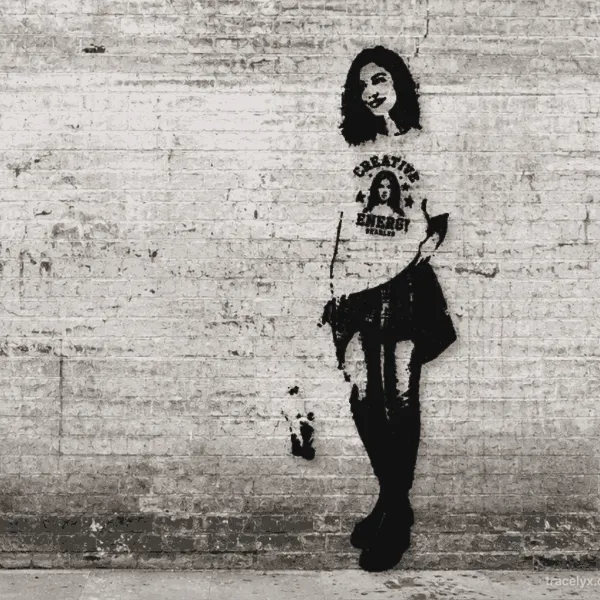
Extracted lines do not have to replace the photograph — they can sit on top of it. In TraceLine the "Photo fade" slider controls how much of the original image stays visible underneath. At the default the photo is hidden and you get bare lines on white; pull the slider down and the photo comes back through, so the lines read as inked contours over real colour and light. That blend is what makes a snapshot look drawn rather than filtered.
The two outcomes serve different jobs. Hide the photo when you need a tracing base — a clean line layer to paint under in Procreate or to vectorize in Illustrator. Keep the photo visible when the picture itself is the deliverable: something to post, print, or hand to a client. The style presets stack on top of the line layer rather than replacing it, so you can lift contrast and colour without losing the drawing.
What Makes Good Line Art?
Not all line extraction results are equal. A basic edge detection filter produces thin, noisy outlines that capture every texture and imperfection in a photograph. Professional line art uses balanced line weights, clean curves, and deliberate omissions to describe the essential structure of a subject without visual noise. When evaluating a line art extraction tool, look for three qualities: line balance (thick and thin lines that follow the subject's natural form), noise suppression (minor texture is filtered while important detail is retained), and editability (the ability to clean up and refine the result after extraction).
Automatic extraction tools vary significantly across subject types. Portraits require different treatment than architectural drawings; smooth surfaces behave differently from textured ones. A good tool gives you direct control over contrast and line strength, not just a fixed algorithm.
Choosing the Right Source Photo
The quality of your line art depends more on the source image than on any tool setting. High-contrast photos with clear subject-background separation consistently produce the cleanest results. Flat, even lighting is better than dramatic shadows — hard shadows create false edges that appear as phantom lines in the output.
Resolution matters. A 400×400 pixel image does not contain enough edge information for detailed line art. For most illustration work, a source image of at least 1200px on the long edge is recommended. If your source is small or low resolution, scale it up with an upscaler (such as LinePrep) before extracting lines — this can significantly improve extraction quality.
Avoid sources with complex patterned backgrounds. A subject photographed against a white or neutral background produces the cleanest separation. If you're working from a photo with a busy background, crop or mask it before extraction.
Step-by-Step Line Art Extraction with TraceLine
- Prepare your source image — Check resolution, contrast, and background before uploading. Run small or noisy images through LinePrep first to improve results.
- Upload to TraceLine — Drag and drop your image or click to browse. Accepts JPEG, PNG, and WebP of any size. All processing runs locally with no server limit.
- Choose a preset — TraceLine offers several line-art styles suited to different subjects: landscape presets emphasize terrain structure, portrait presets preserve facial detail, architectural presets follow geometric forms.
- Adjust contrast and fade — The Contrast slider controls how bold or fine extracted lines appear. The Photo Fade slider blends the original photo with extracted lines, useful for previewing composition.
- Refine manually — Switch to Draw or Eraser mode to fix specific areas. Zoom in to 200–300% for pixel-level cleanup. Remove stray noise with the eraser; strengthen weak lines with the draw tool.
- Export as PNG — Click Download to save at full resolution. You can always scale down later, but cannot add detail to a small export.
Using Line Art in Design Tools
The PNG you export from TraceLine works as a base layer in other tools. In Procreate, import it as a new layer and set the mode to Multiply — this makes white areas transparent so only the black lines remain. Paint on a new layer below to add color. In Adobe Illustrator, use Image Trace (Object > Image Trace > Make) with threshold 128 and Black and White mode to convert it to a vector path. In Clip Studio Paint, import as a reference layer set to Multiply and create layers below for inking and coloring.
For laser cutting and craft projects, export at the highest resolution available, then import into your cutting machine software such as Cricut Design Space or LightBurn. Use the trace or import function to convert to a cuttable path.
Keeping Your Work Private
Many online line art tools require uploading your image to a remote server — a real privacy risk for client photos, commercial reference images, or sensitive content. TraceLine processes images entirely inside your browser using the Canvas API. Nothing is transmitted over the network; the image never touches a server.
When you close the browser tab, all processing data is discarded. No log files, no storage, no retention — because there is nothing to retain. For designers handling confidential client assets or anyone processing sensitive visual material, this is a genuine security guarantee, not a marketing claim.
Start Extracting Line Art
Line art extraction from photos is a practical skill that serves illustrators, designers, craft makers, and architects across many workflows. With the right source image and the right tool, you can produce production-ready line art from virtually any photograph — ready as a base for illustration, vectorization, or production work. TraceLine is free, requires no account, and runs entirely in your browser.
Try TraceLine now →