Oculta datos sensibles
Difumina u oculta rápidamente nombres, direcciones, matrículas y más antes de compartir imágenes.

Pulsa el botón Compartir y luego «Añadir a pantalla de inicio».
Oculta nombres, correos y datos de cuentas antes de compartir fotos o capturas. Gratis y sin registro; tu imagen se procesa en el navegador.
Dibuja sobre cualquier área para difuminarla o tacharla con una caja negra. Todo el procesamiento ocurre en tu navegador — tu imagen nunca se sube a ningún servidor.
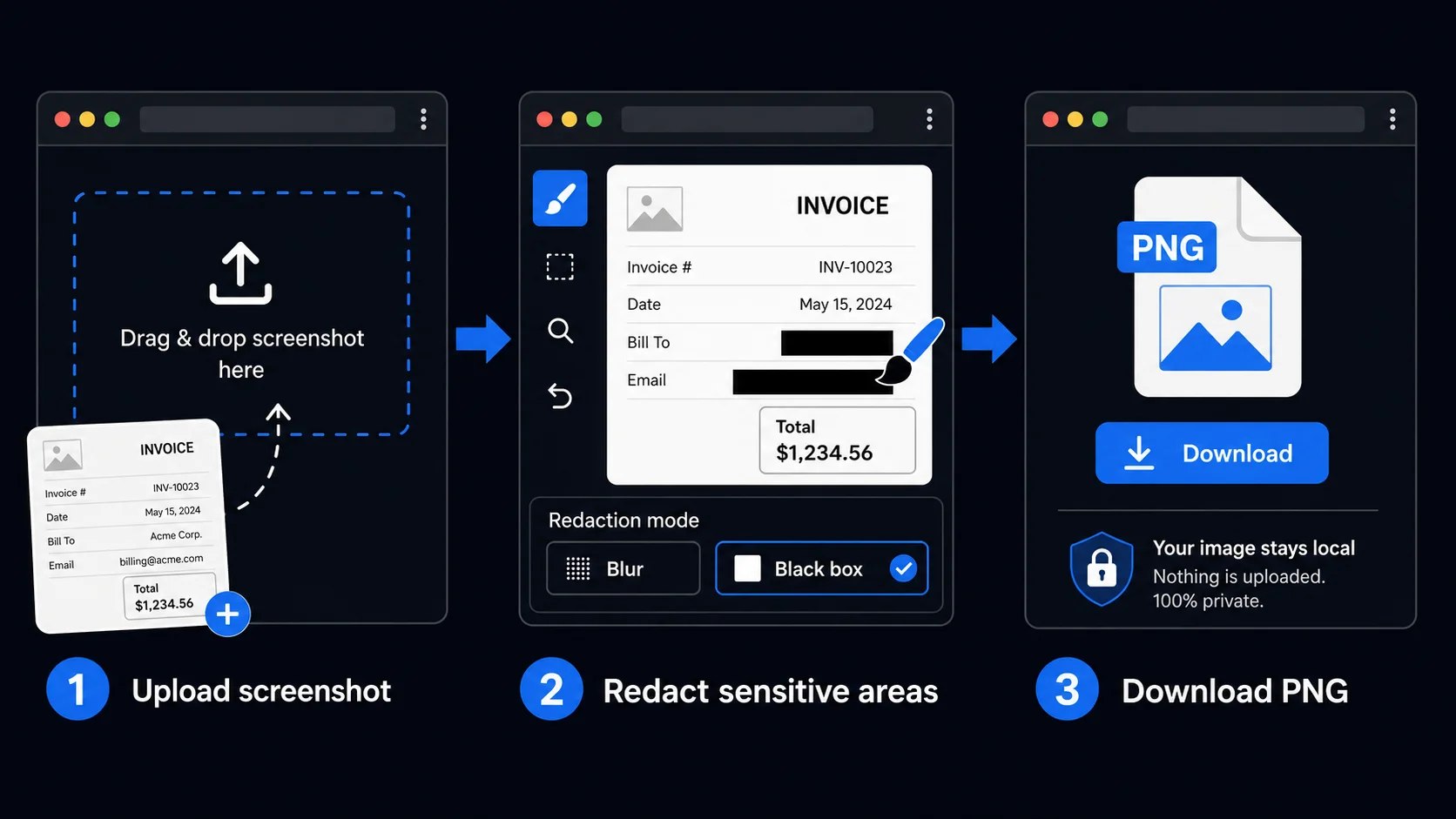
El ejemplo contiene datos ficticios. Elige Caja negra para tapar texto y guarda un PNG separado.
Usa las herramientas de la derecha para ocultar áreas sensibles.
Difumina u oculta rápidamente nombres, direcciones, matrículas y más antes de compartir imágenes.
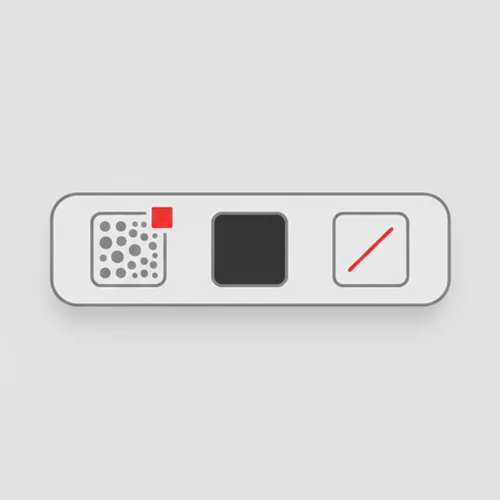
Cambia entre difuminar, caja negra y línea. Ajusta el tamaño del pincel fácilmente.
Todo se procesa localmente en tu navegador. Las imágenes nunca se envían al servidor.
Ideal para capturas de soporte, facturas, documentos escolares y cualquier imagen que necesite ocultar información.
Cualquier persona que necesite compartir imágenes sin exponer detalles privados — sin apps, sin subidas.
Redacta nombres de clientes, números de pedido y detalles de cuenta de capturas de pantalla antes de compartirlas en informes internos o escalaciones. Mantén los datos sensibles fuera de los hilos de comunicación.
Enmascara identificadores personales, firmas y detalles confidenciales de documentos antes de compartirlos con terceros. Una alternativa rápida y privada al software de redacción dedicado.
Anonimiza trabajos de estudiantes, respuestas de encuestas y materiales de investigación antes de publicarlos o presentarlos. Oculta nombres y detalles identificativos sin alterar el contenido.
Difumina números de teléfono, direcciones y otros datos personales de capturas de pantalla antes de publicarlas en línea. Un paso rápido que protege tu privacidad y la de los demás.
Oculta datos de prueba, URLs internas y contenido específico de clientes de capturas de pantalla de UI antes de añadirlas a portfolios, casos de estudio o documentación.
Enmascara matrículas, números de casa, caras y otros detalles de fotos antes de compartirlas con amigos o publicarlas en redes sociales. Simple, rápido y completamente privado.
No. Todo el procesamiento de redacción ocurre en tu navegador de forma local. Tus archivos nunca abandonan tu dispositivo ni se envían a ningún servidor.
El desenfoque puede dejar pistas, sobre todo en texto. Para nombres, correos y números de cuenta, usa una caja negra opaca que cubra todo el texto y revisa la imagen guardada.
Esta herramienta oculta información; no revela texto tapado en otra imagen. Una caja negra opaca sustituye los píxeles cubiertos en el PNG exportado. El desenfoque no garantiza que no se pueda deducir información. Conserva el original aparte.
Sí. Usa el botón Deshacer última para retroceder una acción a la vez, o Borrar todo para eliminar todas las redacciones y empezar de nuevo — siempre que no hayas descargado la imagen todavía.
Sí, completamente gratuito. Sin cuenta, sin límites de uso y sin marcas de agua.
Tracelyx Redact admite JPEG, PNG y WebP como entrada. La imagen redactada se guarda como PNG para preservar la calidad de todas las capas de redacción.
Censurar una imagen significa cubrir las partes que no quieres compartir —nombres, direcciones, caras, usuarios o importes— con un desenfoque o un recuadro negro. En Tracelyx solo tienes que arrastrar sobre la zona, y nada se sube a un servidor.
Abre la captura, arrastra sobre la zona que quieras ocultar, elige desenfoque o recuadro negro y descarga. Puedes ocultar nombres, correos, teléfonos y fotos de perfil de una vez. Todo se ejecuta en tu navegador, así que los datos personales no salen de tu dispositivo.
No. Tracelyx Redact funciona por completo en el navegador, así que no hay nada que instalar ni cuenta que crear. Carga la imagen, arrastra sobre lo que quieras eliminar, aplica el recuadro negro y guarda. Funciona igual en el móvil.
Sí. Antes de guardar puedes añadir tantas zonas de desenfoque o recuadro negro como necesites, y deshacer una a una para ajustarlas. La censura solo queda fijada en el archivo al descargarlo.
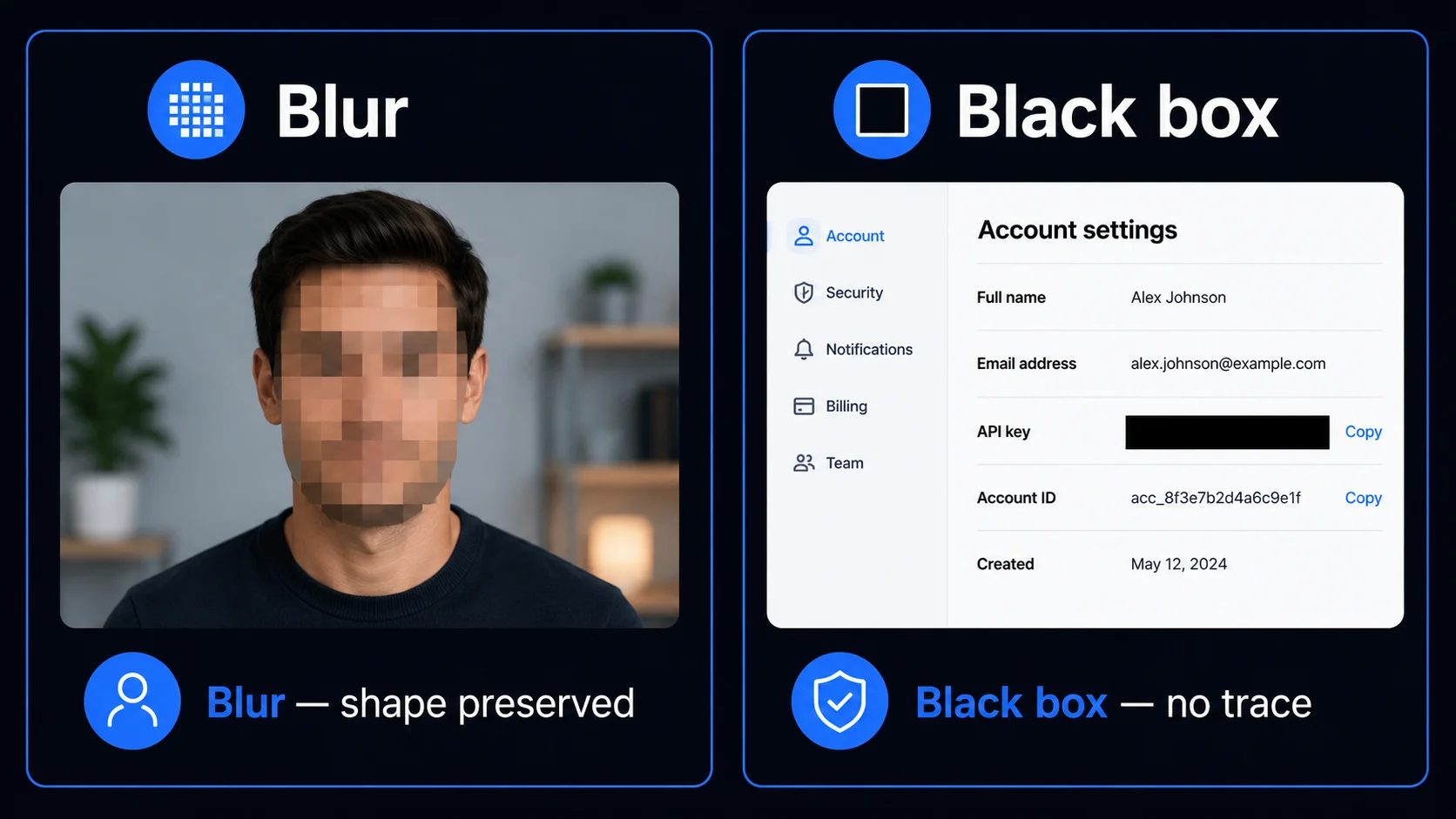
El desenfoque reduce detalles, pero puede dejar formas o pistas legibles. No dependas de él para proteger nombres, correos o números de cuenta.
La caja negra pinta trazos negros opacos sobre la imagen. Usa un pincel que cubra cada carácter y sus bordes. Revisa el PNG exportado a tamaño completo antes de compartirlo; esta herramienta no certifica requisitos legales ni de cumplimiento.
La mayoría de las herramientas de redacción en línea funcionan subiendo tu imagen a un servidor, procesándola de forma remota y devolviendo el resultado. Esto crea una ventana en la que tu imagen original, sin redactar, existe en un servidor de terceros. Para imágenes que contienen información personal sensible, datos empresariales confidenciales o contenido legalmente protegido, este paso de subida es un riesgo de privacidad real.
Tracelyx Redact procesa todo localmente en tu navegador usando la API HTML Canvas. Tu imagen se carga en la memoria del navegador, la redacción se dibuja directamente en el lienzo y el PNG de salida se genera en tu dispositivo. Nada se envía a ningún servidor en ningún momento.
Para equipos de atención al cliente, el flujo más común es redactar capturas de pantalla antes de compartirlas en tickets o hilos de escalación. Los números de cuenta, direcciones de email, IDs de pedido y nombres personales deben estar tachados antes de que cualquier captura entre en un canal compartido o sistema externo.
Para uso personal, el caso más común es eliminar matrículas, números de casa, rostros y detalles identificativos de fotos antes de publicarlas en redes sociales. Abre la herramienta, redacta la foto, descarga el resultado y publícala. Todo el flujo tarda menos de un minuto.

Line art listo para trazar con control manual profesional, todo procesado localmente.
Abrir herramienta →
Superpón una cuadrícula precisa, fija el tamaño real e imprime a escala en hojas A4.
Abrir herramienta →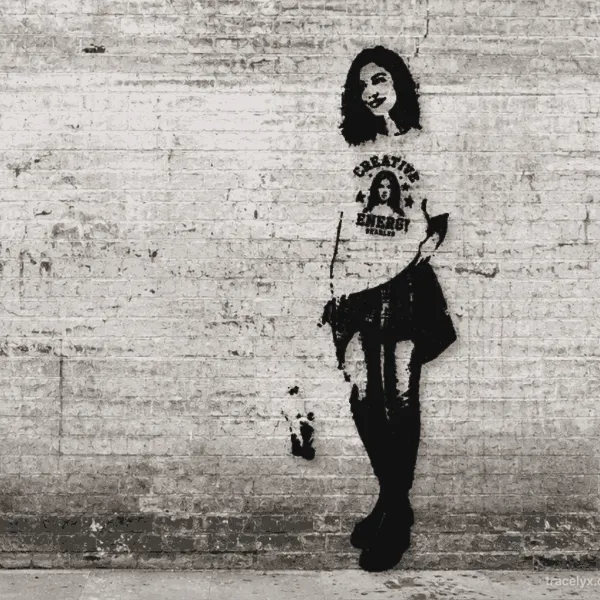
Convierte fotos en arte callejero estilo stencil en paredes reales.
Abrir herramienta →
Convierte fotos de edificios en dibujos lineales — SVG y PNG.
Abrir herramienta →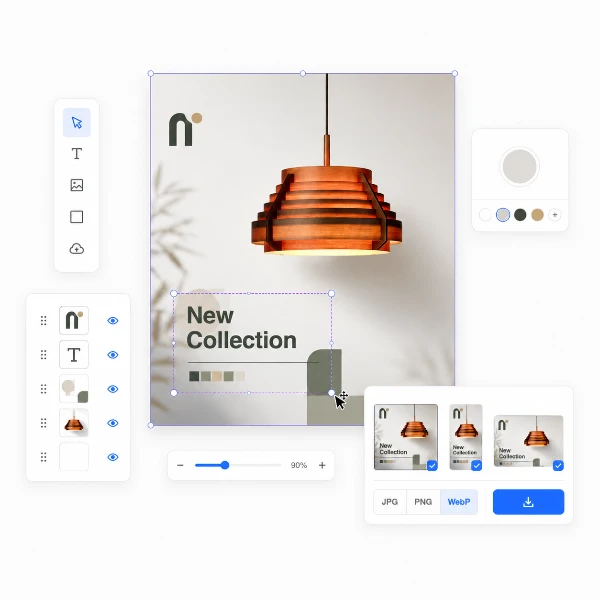
Coloca imágenes en un lienzo fijo, ajusta posición y tamaño libremente, y exporta con dimensiones exactas en píxeles. Sin subidas, sin rastreo — todo en tu navegador.
Abrir herramienta →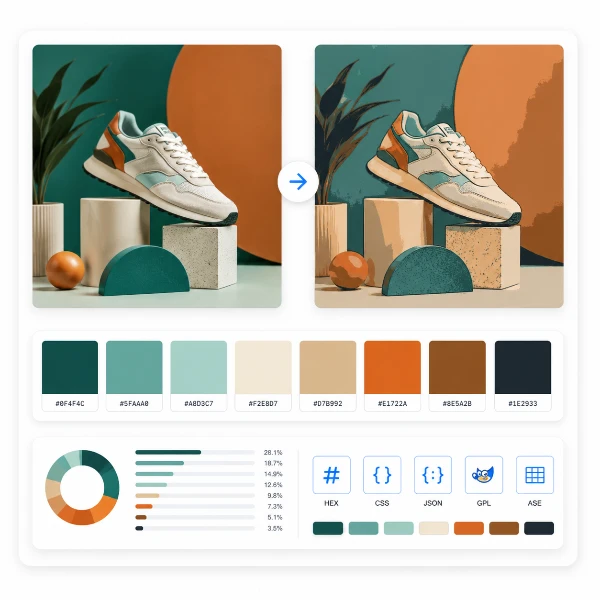
Reduce, controla y reutiliza los colores de una imagen con precisión — exporta a HEX, CSS, JSON, .gpl y .ase.
Abrir herramienta →
Calcula tela según puntadas, compara cuentas y añade márgenes.
Abrir herramienta →
Previsualiza fotos o dibujos como un folioscopio. Ajusta orden, tiempos e ida y vuelta.
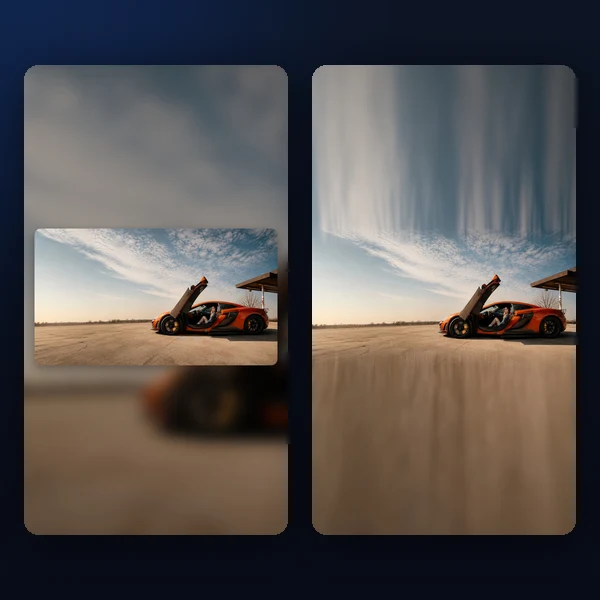
Cualquier foto → una historia 9:16 impecable. Desenfoque, degradado, extensión y tarjeta.
Abrir herramienta →