画像の解像度・DPI・ピクセルをやさしく解説
「解像度」「DPI」「ピクセル」はしばしば同じ意味のように使われます。だから不要なWeb画像に300 DPIを設定したり、印刷所に渡したファイルがぼやけて出てきたりするのです。これらは関連しつつも別物です。この記事では各語をやさしく解説し、なぜ画面ではDPIが無関係で印刷では不可欠なのかを示し、用途別の推奨解像度一覧を載せ、実際に必要なピクセル数が分かるたった1つの計算を紹介します。
ピクセルとは:唯一の本当の単位
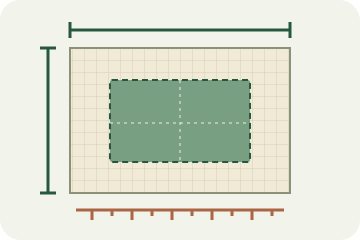
デジタル画像はピクセル——小さな色の付いた正方形——の格子です。最も正確な意味での解像度とは、単純に「横何ピクセル×縦何ピクセルか」です。1920×1080の画像は1920列・1080行、合計で200万強のピクセルを持ちます。このピクセル数はファイル内で固定されており、画像が実際にどれだけの情報量を持つかを示す唯一の尺度です。それ以外(DPIや物理サイズ)は、その既存のピクセルをどう表示・印刷するかの話であって、ピクセルが何個あるかの話ではありません。
DPIとは?PPIとの違いと「1インチあたりのピクセル数」
DPI(dots per inch)とPPI(pixels per inch)は、画像に物理サイズを与えたとき、そのピクセルがどれだけ密に詰まっているかを表します。デジタル画像や印刷の意図にはPPIが正しい用語で、DPIは厳密にはプリンターが置くインクの点を指しますが、日常では同じ意味で使われます。要点は、DPIは「ピクセルと現実の長さの比」であり、特定のサイズで紙に載せて初めて意味を持つということです。
同じ横1200ピクセルの画像を2通りに印刷すると想像してください。300 PPIなら幅4インチを覆い鮮明に見えます。100 PPIなら幅12インチに引き伸ばされ、一つひとつのピクセルが見えてきます。ピクセルは変わっていません——どれだけ離して広げたかが変わっただけです。これがDPIという概念のすべてを、たった1つの例で示しています。
なぜ画面ではDPIが無意味なのか
Webでは、ファイルに埋め込まれたDPI値は無視されます。ブラウザや画面は画像をピクセル単位で描画し、それをディスプレイ自身のピクセルに対応づけるため、横1080ピクセルの画像はDPIタグが72でも300でも同じに見えます。古い「Webは72 DPI」という助言は、初期のモニターの名残の俗説です。画面についてはピクセル寸法だけで考えるべきです。DPIが再び登場するのは、印刷する瞬間です。
用途別の推奨解像度
実用的なリファレンスです。画面用途では、画像が表示される場所にピクセル寸法を合わせ、DPIは無視します。印刷では、記載のDPIを目安に、印刷するサイズでピクセル数が十分かを確認してください。
| 用途 | 目安DPI | ピクセル例 |
|---|---|---|
| Web / 画面表示 | ピクセルのみ | 表示サイズに合わせる |
| SNS投稿 | ピクセルのみ | 1080×1080 |
| 写真プリント L判/4×6インチ | 300 dpi | 1200×1800 |
| 写真プリント 8×10インチ | 300 dpi | 2400×3000 |
| A4 書類 / 印刷 | 300 dpi | 2480×3508 |
| ポスター(離れて見る) | 150 dpi | サイズによる |
| 名刺 3.5×2インチ | 350 dpi | 1225×700 |
必要なピクセル数を求める
印刷の計算式はたった1つ、しかも単純です:ピクセル数 = 印刷サイズ(インチ)× DPI。幅6インチの写真を300 DPIで印刷するなら、6 × 300 = 横1800ピクセルが必要です。A4を300 DPIで? A4は8.27 × 11.69インチなので、約2480 × 3508ピクセルが必要です。印刷前に計算すれば、ファイルに十分な情報があるか、それともぼやけて出るかがすぐ分かります。
これで何ができて何ができないかに注意してください。ファイルのDPI欄だけを変えても情報は増えません——既存のピクセルがどれだけ大きく印刷されるかのラベルを付け替えるだけで、だから小さな画像を「300 DPI」にしても救えません。大きく印刷して鮮明さを保つには、より多くのピクセル、つまり高解像度の原本か、ピクセルを足して再シャープ化する丁寧なアップスケールが必要です。DPIは「足りているか」を教えますが、欠けているものを作り出すことはできません。
用紙サイズ→ピクセル換算表(A判・B判・写真サイズ)
毎回計算するのは面倒なので、よく使う用紙サイズのピクセル数を先に出しておきます。用紙サイズの行を見て、必要なDPIの列を読めば、画像に必要なピクセル数がそのまま分かります。「A4は何ピクセル?」の答えは300dpiなら2480×3508です。
| 用紙サイズ | サイズ (mm) | 72 dpi | 150 dpi | 300 dpi | 350 dpi |
|---|---|---|---|---|---|
| A0 | 841×1189 | 2384×3370 | 4967×7022 | 9933×14043 | 11589×16384 |
| A1 | 594×841 | 1684×2384 | 3508×4967 | 7016×9933 | 8185×11589 |
| A2 | 420×594 | 1191×1684 | 2480×3508 | 4961×7016 | 5787×8185 |
| A3 | 297×420 | 842×1191 | 1754×2480 | 3508×4961 | 4093×5787 |
| A4 | 210×297 | 595×842 | 1240×1754 | 2480×3508 | 2894×4093 |
| A5 | 148×210 | 420×595 | 874×1240 | 1748×2480 | 2039×2894 |
| A6 | 105×148 | 298×420 | 620×874 | 1240×1748 | 1447×2039 |
| B4 | 257×364 | 729×1032 | 1518×2150 | 3035×4299 | 3541×5016 |
| B5 | 182×257 | 516×729 | 1075×1518 | 2150×3035 | 2508×3541 |
| ハガキ | 100×148 | 283×420 | 591×874 | 1181×1748 | 1378×2039 |
| L判 | 89×127 | 252×360 | 526×750 | 1051×1500 | 1226×1750 |
| 2L判 | 127×178 | 360×505 | 750×1051 | 1500×2102 | 1750×2453 |
| 名刺 | 91×55 | 258×156 | 537×325 | 1075×650 | 1254×758 |
注意点が2つあります。72dpiは参考として載せているだけで、印刷にはまったく足りません(「Web用は72dpi」は昔のモニタ由来の俗説です)。350dpiは日本の商業印刷でよく要求される値で、一般的な標準である300dpiより少し高めです。
よくある質問
Web画像にDPIは関係ある?
いいえ。画面は画像をピクセル単位で表示するため、Webではピクセル寸法だけが重要です。ファイルに保存されたDPI値はブラウザに無視され、DPIタグが72でも300でも画面上の見え方は同じです。
印刷にはどのDPIを使うべき?
近くで見る写真プリントや書類は300 DPIが標準です。離れて見る大きなポスターは150 DPI以下でも構いません。本当に重要なのは十分なピクセル数で、印刷サイズ(インチ)× DPI が必要なピクセル数を与えます。
DPIを上げれば画質は良くなる?
DPIの数値だけを変えても画質は変わりません——既存のピクセルがどれだけ大きく印刷されるかのラベルを付け替えるだけです。大きく・鮮明に印刷するにはより多くのピクセルが必要で、それは高解像度の原本かアップスケールであって、DPI欄の編集ではありません。
A4サイズは何ピクセルですか?
300dpiなら2480×3508ピクセルです。A4は210×297mm(8.27×11.69インチ)なので、それぞれに300を掛けた値になります。日本の商業印刷でよく求められる350dpiの場合は2894×4093ピクセルです。
300dpiとはどういう意味ですか?
印刷したときに1インチの中にピクセルが300個並ぶ、という意味です。画像そのものが持つ性質ではなく、「持っているピクセル数」と「印刷する物理サイズ」の比率です。同じファイルでも小さく印刷すれば実質のdpiは上がり、大きく印刷すれば下がります。
dpiとppiの違いは何ですか?
ppi(pixels per inch)はデジタル画像や印刷指定に使う正しい用語で、dpi(dots per inch)は本来プリンタが実際に打つインクの点の密度を指します。1ピクセルは通常、複数のインク点で再現されます。ただし日常的な使い方やほとんどのソフト上では両者は同じ意味で使われており、同じ数値として扱って問題ありません。
ポスター印刷には何ピクセル必要ですか?
ポスターは離れて見るものなので150dpiで足りることが多く、非常に大きいサイズなら100dpi程度でも成立します。150dpiならA1で約3508×4967ピクセル、A0で約4967×7022ピクセルです。ただし印刷所によっては300dpiを要求される場合があるので、入稿先の仕様を先に確認してください。
写真のdpiを確認するにはどうすればいいですか?
dpiの値はファイルのメタデータに記録されており、ファイルのプロパティや画像編集ソフト、メタデータ閲覧ツールで確認できます。ただし重要度は思われているほど高くありません。印刷品質を決めるのはピクセル数なので、まずピクセル寸法を見て、印刷したいサイズに対して足りているかを計算するほうが確実です。
必要な正確なピクセルサイズに設定
計算でピクセル数が分かれば、次の実務はその正確な寸法に画像をリサイズすることです。Tracelyx Resizeは、ブラウザ内で正確なピクセルサイズに設定します(アップロード不要)。印刷用のピクセル目標や画面寸法に、画像をサーバーに送らず合わせるのに便利です。
正確なピクセルにリサイズ →