画像の色を、狙った数だけに。
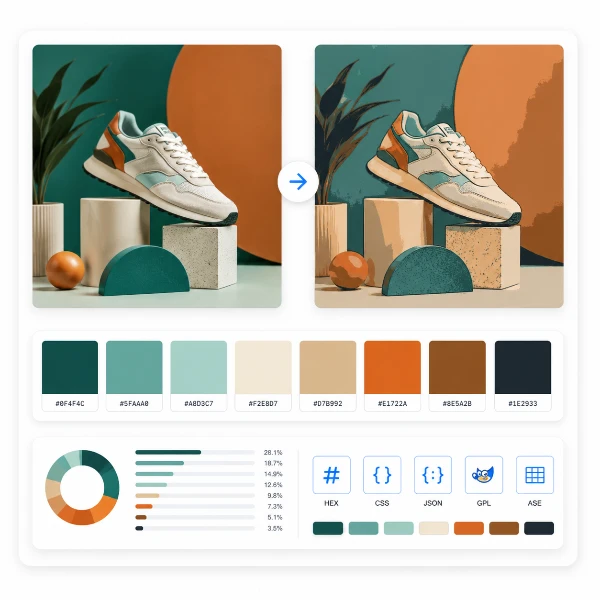
色数も配色も、思いどおりに。メディアンカットとディザリングで画像を指定した色数に減色し、パレットを確認して、コード・デザインツール・ドット絵向けに書き出せます。すべてブラウザ内で完結します。
今すぐ試すAIなし。正確なアルゴリズムによる減色処理。画像はアップロードされません。
色数
ディザリング
パレット
色チップをクリックすると HEX をコピーします。
色の使用率
書き出し
PaletteForge の活用シーン
画像が使う色を正確にコントロールしたいすべての人へ。
ドット絵作家・ゲーム開発
スプライトやタイルセットを固定パレットに揃え、ディザを比較し、.ase をそのまま Aseprite へ取り込めます。
ブランド・Webデザイナー
参照画像から無駄のないパレットを抽出し、CSS変数や .ase スウォッチとして書き出して統一感のある配色に。
印刷・シルクスクリーン
色分解の前に、版数(インク数)を正確な色数へ制限できます。リソグラフにも。
よくある質問
画像はサーバーにアップロードされますか?
いいえ。減色処理はすべてブラウザ内のローカル処理で行われ、画像がサーバーへ送信されることはありません。
どの減色アルゴリズムを使っていますか?
メディアンカット法で代表色を選び、知覚に近い重み付きRGB距離で近い色を正しく割り当てます。AIは使わない、正確で再現性のあるアルゴリズム処理です。
ディザリングはどの方式が使えますか?
なし・Floyd–Steinberg(誤差拡散)・Ordered(Bayer 4×4 行列)です。切り替えてその場で結果を比較できます。
.ase ファイルは Adobe や Aseprite で使えますか?
はい。書き出される .ase は RGB の標準的な Adobe Swatch Exchange 形式で、Adobe 製品や Aseprite で読み込めます。
PaletteForge は無料ですか?
はい、完全に無料です。アカウント不要・利用制限なし・透かしなし。
PaletteForge の使い方
3ステップで減色
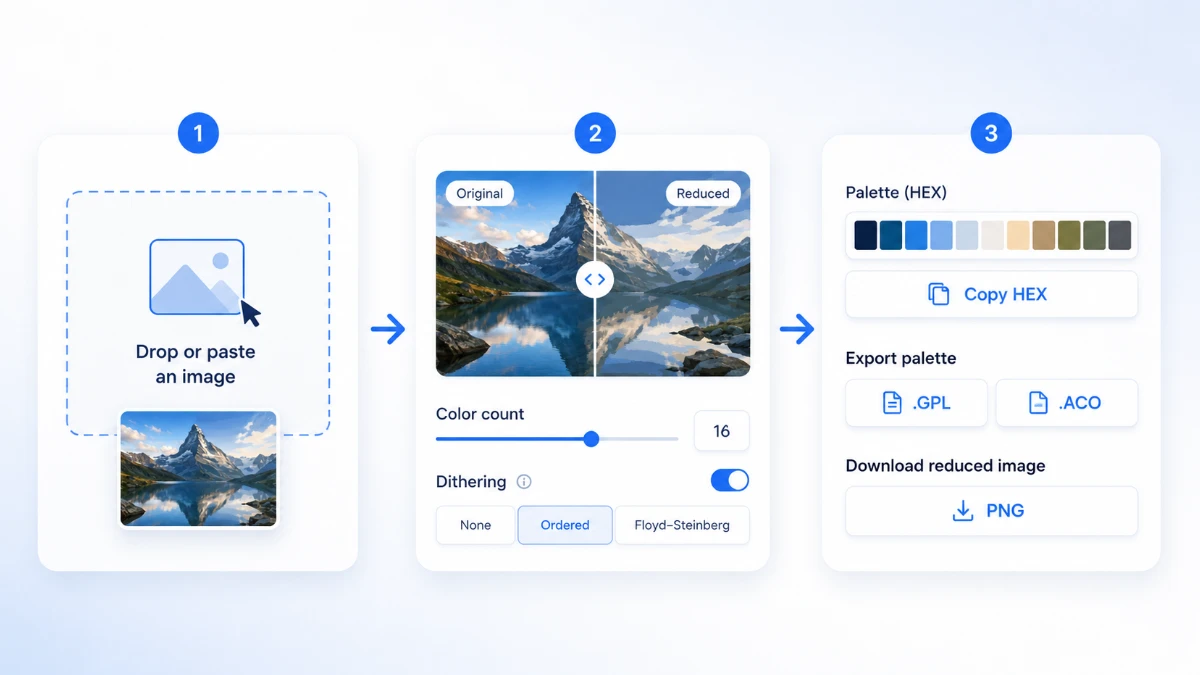
- 画像を読み込みます — ファイルをドロップ、選択、またはクリップボードから貼り付け。アップロードはされず、処理はローカルです。
- 色数とディザリング方式を選びます。Before/After スライダーで減色結果と元画像を比較できます。
- HEX をコピーしたり、パレットを HEX/CSS/JSON/.gpl/.ase で書き出したり、減色後の PNG をダウンロードできます。
正確な色数指定
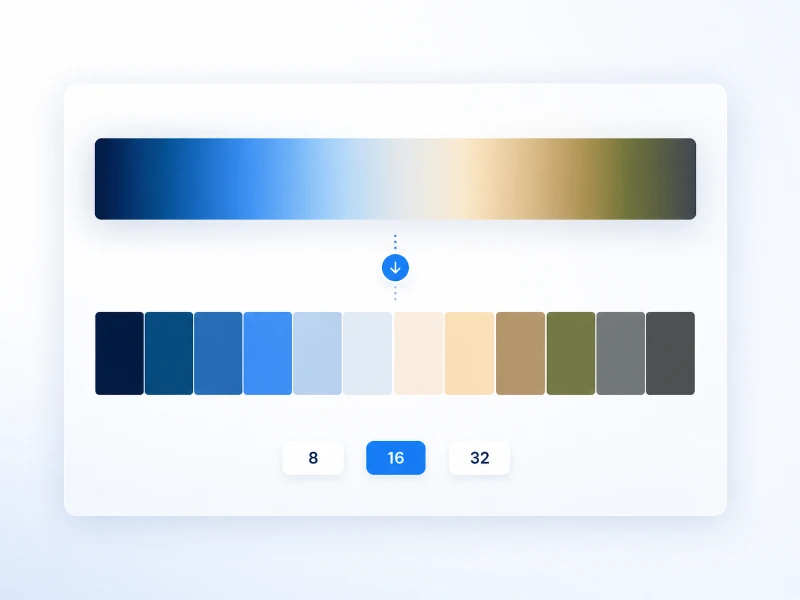
PaletteForge はメディアンカット量子化を使い、画像を 8・16・32 色、または 2〜256 の任意の色数に正確に減色します。色をランダムに選ぶのではなく、画像の色空間を最も広がっている軸で繰り返し分割していくため、最終的なパレットは「その画像で実際に多く使われている色」の重みづけに基づいた、本当に代表的な色で構成されます。元画像の雰囲気を保ちながら、無数の微妙な階調を、扱いやすく予測可能な色のセットへとまとめられます。
色数を少なくすればポスターのような力強い仕上がりになり、インデックス PNG・ドット絵・シルクスクリーン印刷に向きます。色数を増やせばグラデーションや肌の階調を残しつつ、色の複雑さだけを抑えられます。減色処理は決定的なので、同じ画像・同じ色数なら必ず同じパレットになります。シリーズもの素材で再現性のある見た目が欲しいときに便利です。
ディザの比較
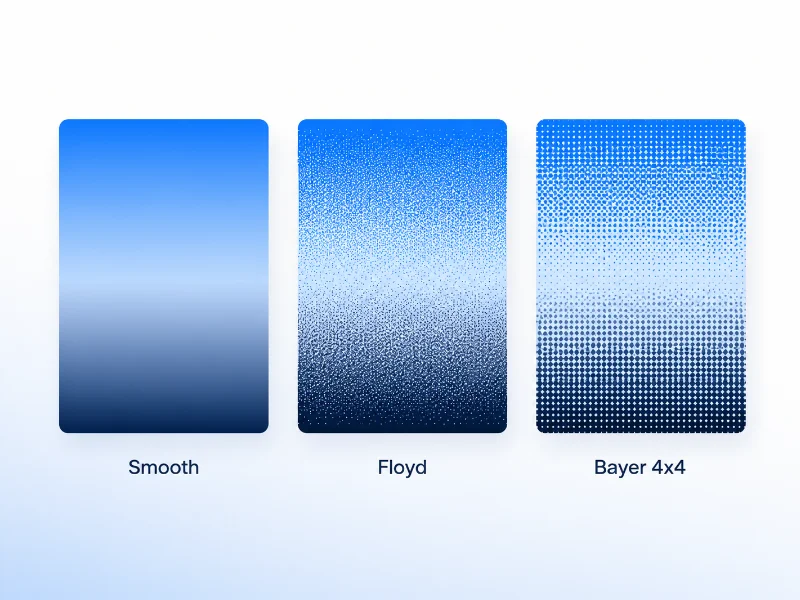
減色するとグラデーション部分にバンディング(縞)が出ることがあります。ディザリングは、限られたパレット色を細かいパターンで混ぜ合わせ、目の中で中間色として見えるようにしてそれを目立たなくします。PaletteForge には3つのモードがあります。フラットな塗りに向く「なし」、写真で最も滑らかになる Floyd–Steinberg 誤差拡散、レトロでくっきりした網点質感が得られる Ordered(Bayer 4×4)です。
モードを切り替えるとビフォー/アフターのスライダーが即座に更新されるので、滑らかさとファイルサイズのトレードオフを、実際の自分の画像で見ながら判断できます。写真やイラストには Floyd–Steinberg が向くことが多く、ドット絵やあえて機械的な質感を出したいときは Ordered ディザが定番です。
あらゆる形式へ書き出し
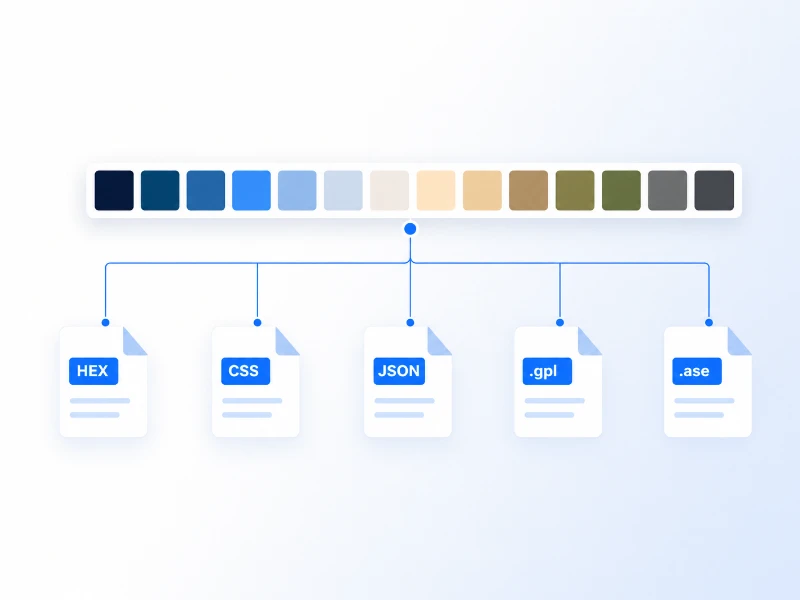
パレットが決まったら、どこへでも持ち出せます。スウォッチをクリック一つで HEX としてコピーできるほか、パレット全体を HEX 一覧・CSS カスタムプロパティ・コード用の JSON、オープンソース系ペイント向けの GIMP .gpl、そして Photoshop・Illustrator・Aseprite にそのまま読み込める Adobe .ase スウォッチとして書き出せます。
選んだ色数とディザリングを反映した減色後の画像そのものを、PNG としてダウンロードすることもできます。これにより PaletteForge は、参考画像から実用パレットまでを一手でつなぐツールになります。スポイトでの手作業も、HEX コードの手打ちも不要です。
プライバシー:画像は端末から出ません
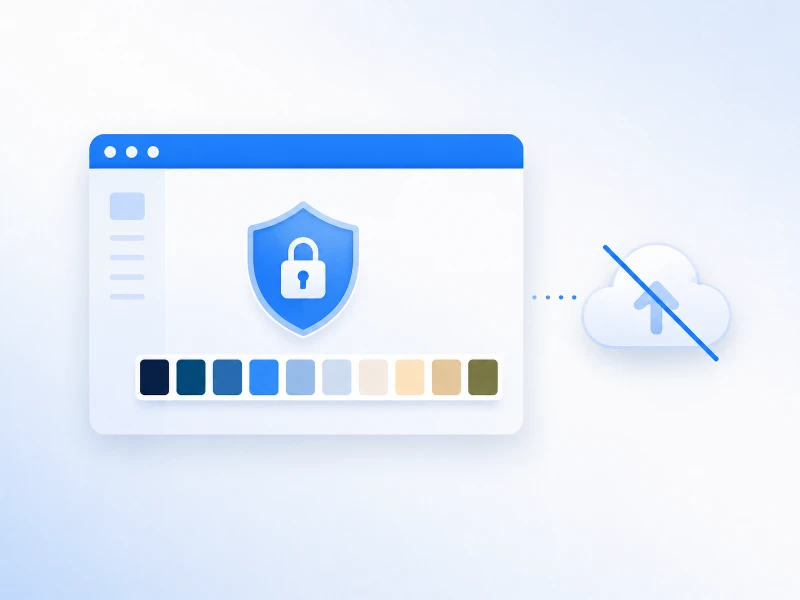
PaletteForge は Canvas API を使ってブラウザ内だけで画像を処理します。ファイルはサーバーへ送信されないため、未公開・機密の素材でも安全に扱えます。ページを再読み込みすればすべて消え、どこにも送信されません。
アカウントもログインも、利用回数の制限もありません。すべて、すでに読み込まれたページ内だけで動作するので、機密のモックアップ・未公開のゲーム素材・クライアントワークでも、何もアップロードせずに使えます。タブを閉じれば痕跡は一切残りません。