Make motion and pauses from a few images
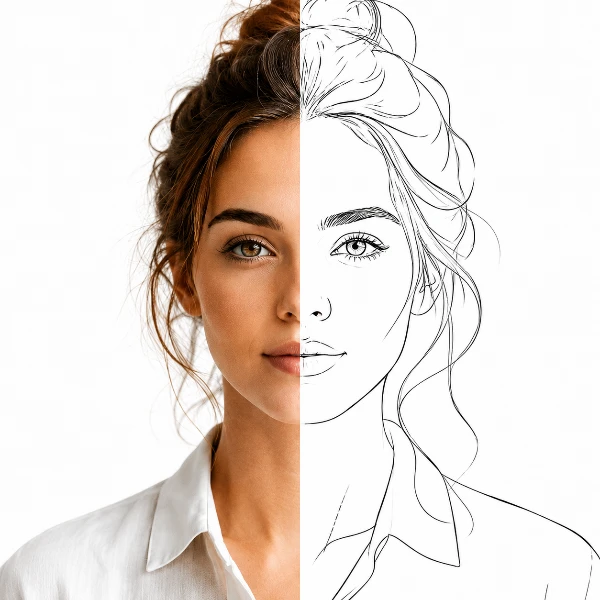
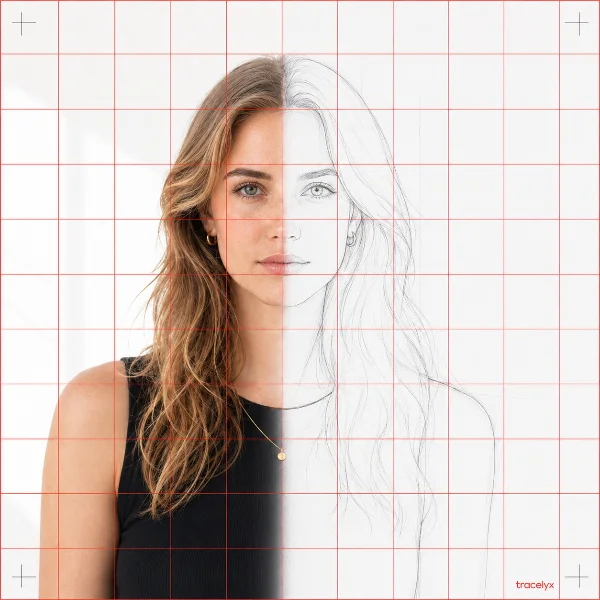
Fliplyx turns each photo or drawing into a frame and plays them like a flipbook. Start with two or three images. It switches existing images; it does not use AI to generate new poses or interpolate smoother motion.
1. Prepare two or three different poses
Try standing, stepping and hesitating. Use a burst of photos, your drawings or assets you have permission to use. Keep image size, background, camera position and foot or face alignment consistent. Duplicating the same photo does not create a new pose.
2. Add images and check the order
Choose several files with Add images, or drop them together on the left image area. Each becomes one frame. The file picker determines the initial order: check the timeline and use Move earlier / later to rearrange. Later uploads append. While the sample is showing, your first upload replaces it.
In Edit each frame, drag a card to change its position. On touchscreens, use the ⠿ handle below the image; swipe the image area to scroll the list. A gold line marks the insertion point. Drop outside the list or press Esc to cancel. Move earlier / later remains available for keyboard operation. Frame numbers stay with their original images.
3. Hold one frame to create a pause
Select a frame and enter its duration in milliseconds; 1000ms is one second. Try 450ms, 180ms and 650ms, with the third image holding longest. Apply to all overwrites every duration uniformly. Set the overall speed first, then extend the frame you want to emphasize.
4. Forward, reverse or ping-pong
Forward plays 1 → 2 → 3; reverse plays 3 → 2 → 1. Ping-pong plays 1 → 2 → 3 → 2, and looping returns to 1. End frames are not duplicated consecutively. With two images it repeats 1 → 2. Disable loop to stop after one cycle; a single three-image ping-pong cycle ends on frame 2.
5. Adjust misalignment
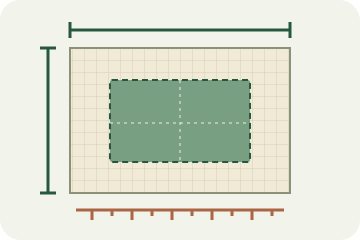
The left panel shows the source of the selected frame. Drag its crop or enter left, top, width and height. Reset crop restores the original bounds. Cropping can help with framing differences, but cannot repair changing faces, limbs or backgrounds. Contain entire frame avoids cropping edges when image sizes differ.
Optional: split a sprite sheet
If your frames are already arranged in one image, open Use a sprite sheet and choose it. This replaces the current images. Set columns, rows, outer margins and gaps, then re-split. Frames are read left to right, row by row. Re-splitting resets order, crops and durations.
Download motion, or save an editable project
In Download, choose MP4 (silent) or animated GIF. Ratio, fit, background, order and durations are included. MP4 cycles set the total length; GIF exports one cycle and uses the Loop checkbox. GIF durations round to 10ms. MP4 needs a compatible browser; use GIF if unavailable. PNG saves the selected original crop without preview styling. Project JSON embeds the images and settings to resume editing; it is not a playable video.
Limits and what it does not do
Use up to 24 separate images or 128 sheet frames. PNG, JPEG, WebP and GIF are supported; animated files are frozen to a decoded still. Limits: 25MB per image, 50MB per selected batch, 8,192px per side and 40MP across all images. Devices with less memory may need smaller files.
Animation export: up to 60 enabled frames. MP4: 30 seconds total, up to 1280px long edge, 1–10 cycles. GIF: 15 seconds per cycle, up to 640px. Export can be cancelled; keep the page open. No audio, AI pose generation, interpolation or autosave. Project embedded PNGs are limited to about 27MB combined. Processing stays local; sharing a project also shares its source images.