Private by design
Tracelyx Batch — process multiple images at once in your browser

Image Batch Converter

Convert many images at once: resize, change format, strip EXIF, and rename files in a single batch. All processing runs locally in your browser.

Drop up to 50 images to convert, resize, and optimize them all at once. Set format, quality, and dimensions once — apply to every file. Everything runs locally in your browser.

Click or drop to start

Up to 50 images per batch, max 10MB per file.

Files in this batch

No images added yet. Drop files above to start.

Convert dozens at once

Drop a whole set of images and process them in one go — no more repeating the same steps file by file.

Resize, convert, and compress together

Apply format, quality, and max width/height settings to every image in the batch with a single preset.

Local and private

All processing runs in your browser, so client work and internal assets never leave your device.

One ZIP download

Download every converted image at once as a neatly packed ZIP archive with clean file names.

Who uses Tracelyx Batch?

Anyone who works with multiple images at once — no app, no upload.

Web Developers

Convert and resize entire asset folders before deployment. Switch all images to WebP, apply max width limits, and download a clean ZIP — without touching a single file manually.

E-commerce Sellers

Process a full catalog of product photos in one go. Standardize format, size, and quality across all images and download them ready to upload to your storefront.

Photographers

Export a whole shoot as web-ready files in minutes. Strip EXIF data from all images at once to protect location and device information before sharing.

Designers

Prepare a full set of deliverables in one batch run. Apply consistent format, quality, and naming conventions across all assets and hand them off as a single ZIP.

Bloggers & Writers

Compress and rename all images for an article in one step before uploading to your CMS. Consistent filenames and sizes keep your media library organized.

Business & Marketing

Process image sets for campaigns, presentations, and reports in bulk. Save time by applying the same settings to every file and downloading everything at once.

Frequently Asked Questions

Are my images uploaded to a server?

No. All batch processing happens entirely in your browser using local processing. Your files never leave your device and are never sent to any server.

How many images can I process at once?

You can process up to 50 images per batch, with a maximum file size of 10MB per image.

Can I resize and convert format at the same time?

Yes. You can apply format conversion, quality settings, and max width/height resizing all in a single batch run. All settings are applied to every image in the batch at once.

How does the rename feature work?

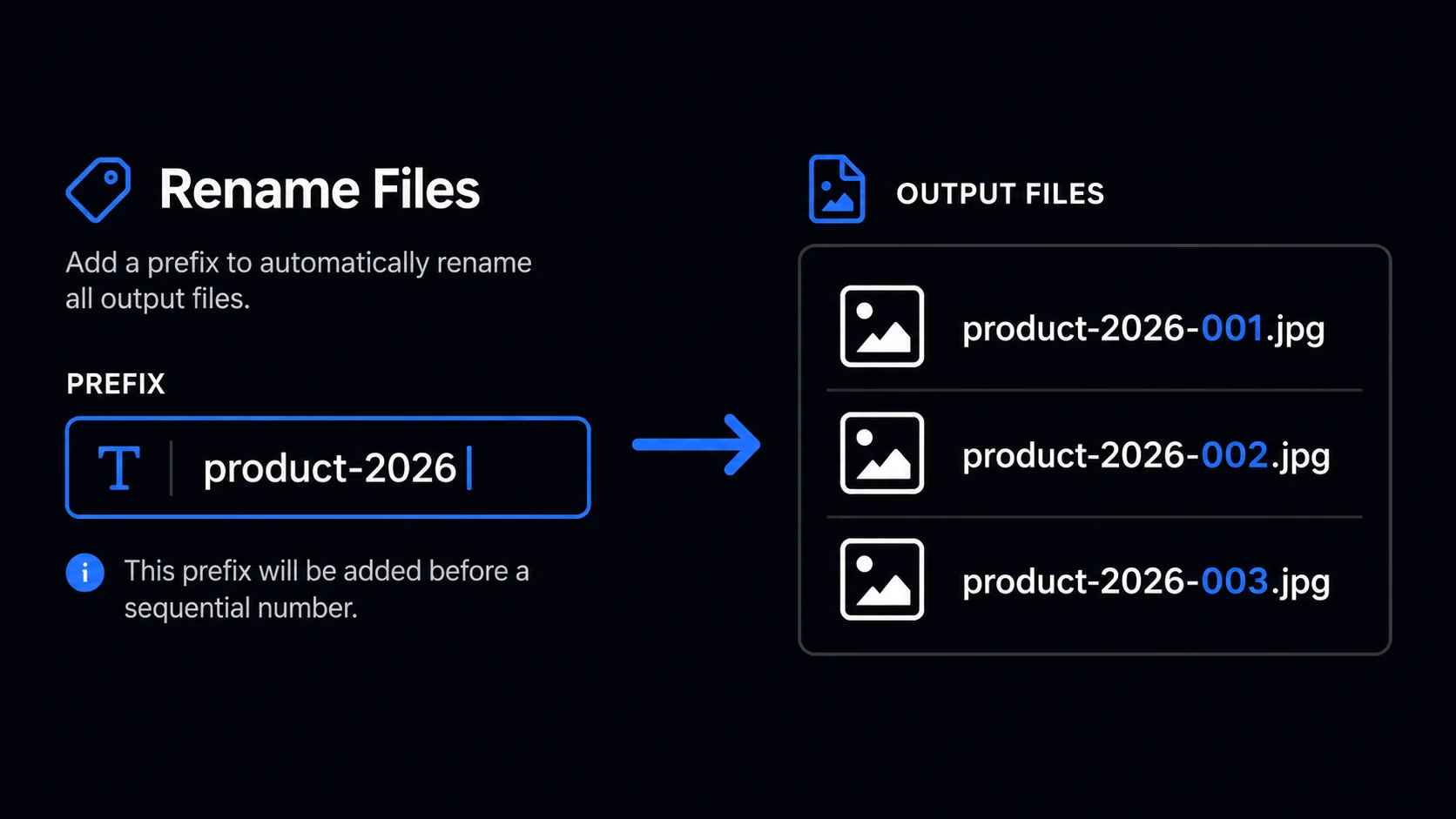
If you set a prefix, files will be renamed sequentially — for example, prefix-001.jpg, prefix-002.jpg, and so on. If no prefix is set, the original filenames are kept.

Is Tracelyx Batch free?

Yes, completely free. No account required, no usage limits, no watermarks.

How do I download the processed files?

After processing, click Download ZIP to get all converted images packed into a single ZIP archive. You can then extract the files wherever you need them.

How to Use Tracelyx Batch: A Complete Guide

Process Multiple Images in 4 Steps

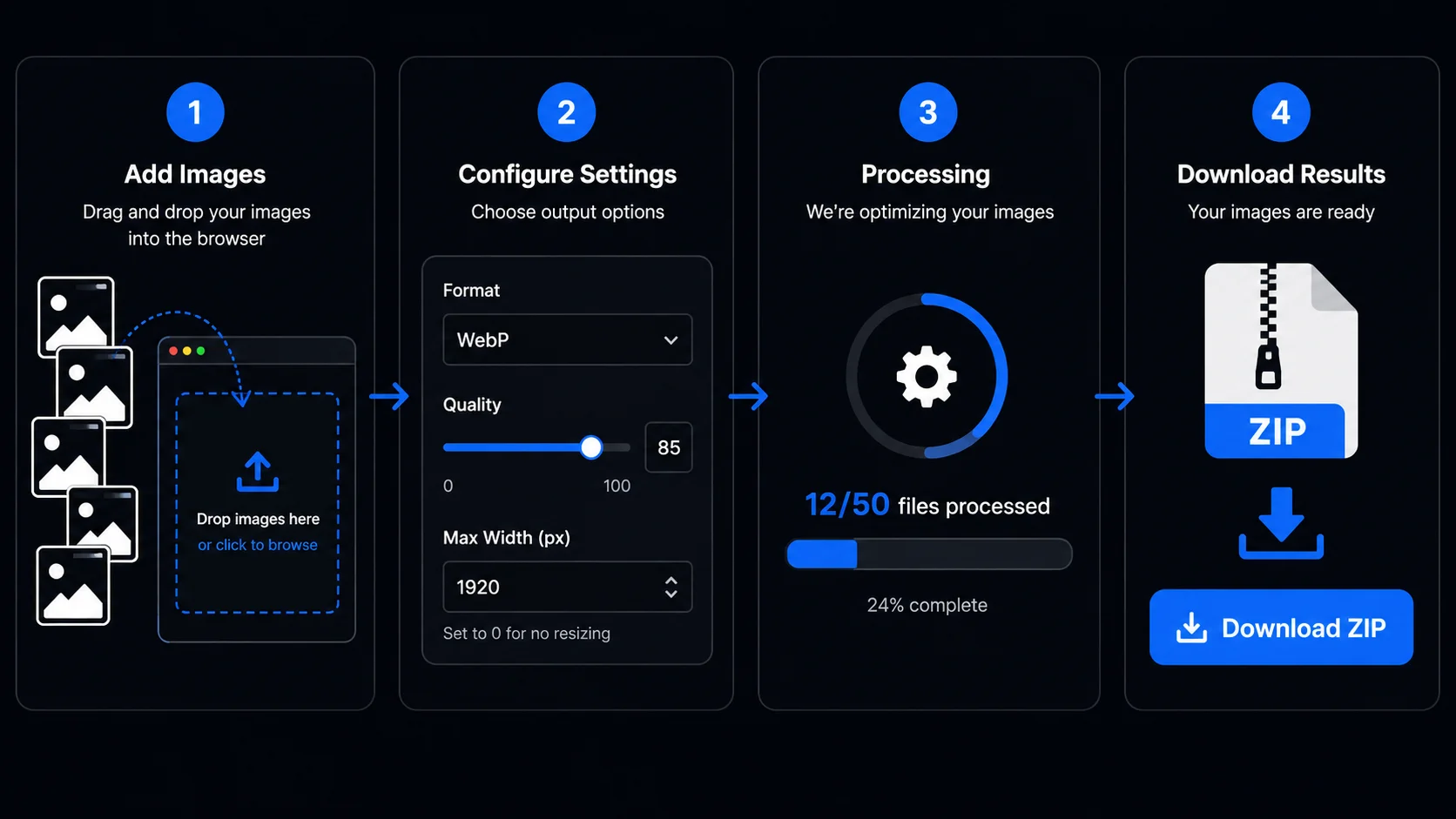
Tracelyx Batch 4-step guide: add files, configure settings, process, download ZIP
  1. Add your images — Drop up to 50 JPEG, PNG, or WebP files into the upload area, or click to select them. Each file appears in the file list on the left.
  2. Configure settings — Set your output format (JPEG, PNG, WebP, or keep original), quality level, and optional max width/height for resizing. All settings apply to every image in the batch.
  3. Set a filename prefix (optional) — Enter a prefix to rename all files sequentially: prefix-001.jpg, prefix-002.jpg, and so on. Leave blank to keep original filenames.
  4. Process and download — Click Process batch. When complete, click Download ZIP to get all converted images in a single archive.

When to Use Batch Processing

Batch processing is the right choice whenever you need to apply the same operation to a set of files. Resizing an entire product catalog for a new storefront, converting a folder of PNG assets to WebP before deployment, stripping EXIF from every photo in a client delivery, or renaming a shoot's worth of files to a consistent naming scheme — any of these tasks that would take minutes of repetitive work per image can be done in a single batch run.

The key advantage over processing images one at a time is consistency. Every file in the batch gets exactly the same settings applied — the same quality level, the same output dimensions, the same format. There is no risk of accidentally exporting one file at a different quality or forgetting to strip EXIF from one image in the set.

File Renaming and Organization

Batch file renaming feature: prefix-001, prefix-002 sequential naming

The prefix rename feature is particularly useful for e-commerce and content workflows. Set a prefix like product-category-2026 and your files come out as product-category-2026-001.jpg, product-category-2026-002.jpg, and so on — ready to upload to a CMS, storefront, or file storage system without any manual renaming. The sequential number is zero-padded to three digits so files sort correctly in any file manager.

If you prefer to keep original filenames, simply leave the prefix field blank. The output format extension is updated automatically — a file named photo.png converted to WebP becomes photo.webp, with no manual renaming needed.

Batch Processing Without Uploading to Any Server

Processing large numbers of images through an online service creates a significant privacy exposure: every file in your batch passes through a remote server you don't control. For batches that include confidential client work, product images with unreleased designs, personal photos, or any assets you wouldn't want stored externally, this is a genuine risk.

Tracelyx Batch processes every image entirely inside your browser. The Canvas API reads each file locally, applies the format conversion and resizing, and packs the result into a ZIP — all without transmitting a single byte to a remote server. You can safely batch-process an entire client delivery, a confidential product catalog, or a personal photo archive without any files ever leaving your device.