How to Batch Convert and Resize Images in a Browser
Batch image processing eliminates one of the most tedious tasks in any content or development workflow: applying the same operation to many files one at a time. Whether you're converting a folder of PNG assets to WebP before deployment, resizing a product catalog to consistent dimensions, stripping EXIF data from a photographer's delivery, or renaming a set of files to a consistent scheme before uploading to a CMS — all of these are batch tasks. This guide covers how to use a browser-based batch converter effectively, including configuration choices that affect output quality and privacy.
What Is Batch Image Processing?
Batch processing means applying the same set of operations to multiple files in a single run. The typical operations in an image batch workflow include: format conversion (changing JPEG to WebP, or PNG to JPEG), quality compression (reducing file size while maintaining visual quality), dimension resizing (shrinking images to a max width or height), EXIF removal (stripping location and camera metadata), and file renaming (applying a consistent naming convention to all outputs).
The advantage of a proper batch tool over processing images one at a time is both speed and consistency. Speed is obvious — processing 40 files in one run versus 40 individual operations. Consistency is more subtle but equally important: when settings are configured once and applied to every file, there is no risk of accidentally exporting one file at a different quality, or missing the EXIF removal step on one image out of a set.
Choosing Format and Quality for a Batch
The most impactful decision in a batch run is the output format. For web deployment, WebP is consistently the best choice: it produces smaller files than JPEG at equivalent visual quality, supports transparency like PNG, and is supported by all modern browsers. Converting a folder of mixed JPEG and PNG files to WebP in one batch run is one of the quickest wins available for web performance.
Quality 80–85 is appropriate for most web-facing images. For images that will be displayed at large sizes or used in print contexts, 90–95 is safer. For background images, thumbnails, and decorative elements, 70–75 is typically sufficient and produces noticeably smaller files. If you're unsure which setting to use for a batch, process one representative image with the single-image Compress tool first to verify the result looks acceptable, then apply the same quality setting to the full batch.
Resizing in a Batch: Max Width and Height
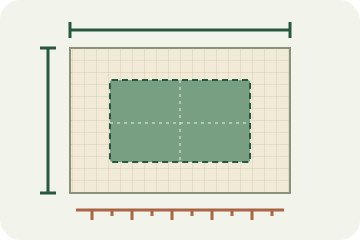
The resize feature in Tracelyx Batch uses a max width and max height constraint — images are scaled down proportionally if they exceed the specified limit, but never scaled up. This means a batch of images at varying resolutions can all be constrained to a maximum of 1200px wide without any images being artificially enlarged. The aspect ratio of each image is always preserved.
Common max-width values for web use are 1920px for full-width hero images, 1200px for standard content images, and 800px for thumbnails and inline images. Setting a max width in a batch run is one of the simplest ways to ensure that all images in a set are appropriately sized for web delivery without individually checking each file's dimensions.
File Renaming for Organized Exports
The prefix rename feature outputs files as prefix-001, prefix-002, and so on — zero-padded to three digits so files sort correctly in any file manager or storage system. This is especially useful for e-commerce product catalogs where files need consistent, descriptive names, and for content workflows where uploaded images should have meaningful filenames rather than camera-generated codes like DSC_0042.jpg.
If no prefix is specified, original filenames are kept with only the extension updated to match the new format. A file named photo.png converted to WebP becomes photo.webp — no manual renaming needed. This is the right choice when you want to preserve the original naming structure while only changing format or applying compression.
Processing Private or Sensitive Image Batches
Most online batch tools — cloud-based converters, CDN image processors, and similar services — send your files to remote servers for processing. For large batches, this means uploading dozens or hundreds of files to a server you don't control. For a typical batch of website asset images, this is a low-risk tradeoff. For batches that include client deliverables, proprietary product images, unreleased designs, or personal photos, the tradeoff is less acceptable.
Tracelyx Batch runs entirely inside your browser. Each file is processed locally using the Canvas API and packed into a ZIP file that is generated locally. No file ever leaves your device during processing. When you close the browser tab, all data is discarded. For photographers, designers, and developers working with confidential assets, this is the safest way to run a batch operation.
Start Processing Your Image Batch
Batch image processing in a browser is as fast as any desktop application — the Canvas API operates at your device's local speed, not at the rate of a network upload and server queue. Drop up to 50 images, configure once, and download a complete ZIP. Tracelyx Batch is free, requires no account, and keeps all files on your device.
Try Tracelyx Batch now →