Cleaner lines for tracing
Prepare your image so TraceLine can capture finer, more stable lines with less noise.
Tap the Share button, then “Add to Home Screen”.
Prepare your images for cleaner, more controllable tracing in TraceLine. Refine details and scale up to 4096px — all processed locally in your browser.
Scale up and sharpen low-resolution images before extracting line art in TraceLine. All processing runs in your browser — no upload needed.
Prepare your image so TraceLine can capture finer, more stable lines with less noise.

Resize up to 4096px to make small details easier to trace—without turning the image into “AI-enhanced” noise.
Export a prepped image, then jump straight into TraceLine for precise line work and adjustments.
Everything runs locally in your browser. Your images never leave your device.
Anyone who wants cleaner, more controllable line art from their images — all processed locally.
Upscale reference photos and scanned sketches before extracting line art in TraceLine. More resolution means cleaner lines and less manual cleanup.
Prepare source images for tracing and vectorization workflows. LinePrep's sharpening pass preserves edge quality that would otherwise be lost in scaling.
Upscale low-resolution images to print-ready quality. The sharpening pass keeps fine detail crisp at larger sizes.
Scale architectural sketches and drawings for use in TraceLine or vectorization tools. Preserves line precision needed for technical illustration.
Prepare photos for line art extraction by upscaling before TraceLine processing. A larger source image produces more complete and accurate line art output.
Upscale scanned student artwork and hand-drawn materials for digital use. LinePrep makes small scans usable in classroom digital workflows.
No. All processing happens entirely in your browser. Your files never leave your device and are never sent to any server.
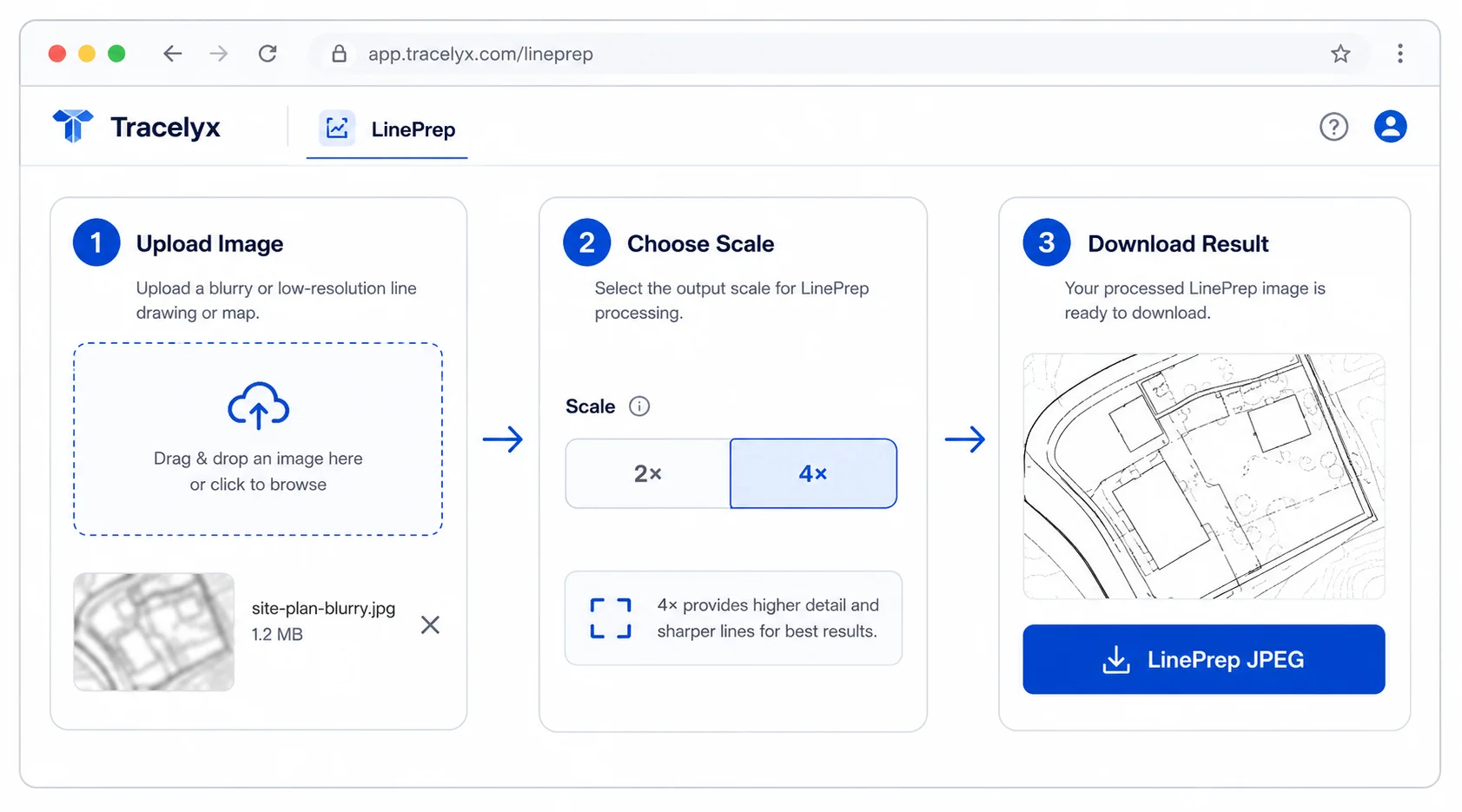
2× doubles the width and height. 4× quadruples them. For very small source images, 4× can recover detail that would be missing at 2×. For larger sources, 2× is usually sufficient.
LinePrep combines upscaling with an edge sharpening pass that recovers the contrast lost during interpolation. This produces a larger image that is significantly crisper than a simple resize would produce.
Yes, completely free. No account required, no usage limits, no watermarks.
Yes. The output is optimized to give TraceLine the best possible source image. Choose LinePrep JPEG when your goal is to use the result in TraceLine for line art extraction.
For use with TraceLine, choose the LinePrep JPEG option which is optimized for tracing. If you plan to use the image elsewhere, choose standard JPEG or WebP depending on your needs.
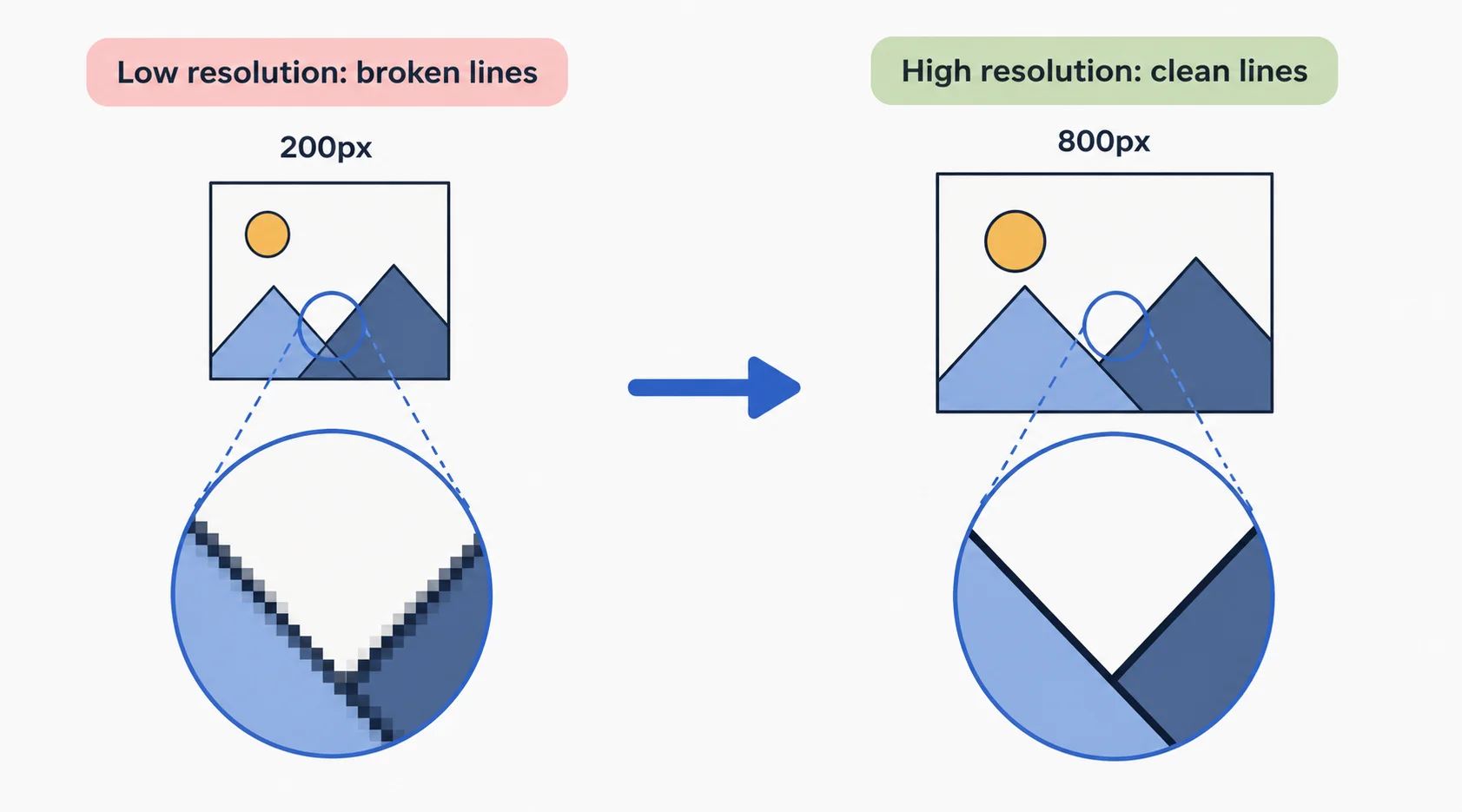
TraceLine extracts lines by analyzing contrast between adjacent pixels. When the source image is small or low-resolution, there are fewer pixels at each edge — the tool has less information to distinguish a sharp line from background noise. The result is line art that requires more manual cleanup: missing segments, broken lines, and unwanted texture extraction.
LinePrep addresses this by scaling the image up before tracing. At 2× or 4× the original resolution, each edge is represented by more pixels, giving TraceLine a clearer contrast gradient to follow. The sharpening pass reduces blur introduced by scaling, so edges stay crisp. The practical effect is cleaner, more complete line art with significantly less manual correction needed afterward.
LinePrep fits between your source image and TraceLine. The typical workflow is: photograph or scan your reference, run it through LinePrep to upscale and sharpen, then open the result in TraceLine to extract the line art. From TraceLine, export a PNG and import it into your illustration software as a base layer. This three-step process — LinePrep, TraceLine, illustration tool — gives you clean digital line art from almost any physical source.
For scanned sketches and hand-drawn references, LinePrep is especially useful. Scans often introduce compression artifacts and slight blur at edges. LinePrep's sharpening pass corrects for this and ensures the scan is clean enough for accurate line extraction. Upscaling a 600 DPI scan to 1200 or 2400 DPI equivalent before tracing gives TraceLine the resolution it needs to follow even the finest pencil lines.
Trace-ready line art with manual control — all processed locally.
Open tool →
Turn photos into stencil-style street art on real walls.
Open tool →
Set a canvas size, drop your image, adjust position and scale — then export at exact pixel dimensions.
Open tool →
Reduce file size without visible quality loss.
Open tool →
Prepare images for precise tracing. Refine details and scale images before using TraceLine.
Open tool →
Turn building photos into clean line drawings — SVG & PNG.
Open tool →
Resize images for web and social media.
Open tool →
Convert between JPEG, PNG, WebP.
Open tool →
Crop freely or with fixed aspect ratios.
Open tool →
Improve brightness and clarity automatically.
Open tool →
Delete location and camera metadata safely.
Open tool →
Process multiple images at once.
Open tool →
Blur or mask sensitive information.
Open tool →
Automatically balance light and color.
Open tool →