How to Prepare Images for Line Art Extraction with LinePrep
Line art extraction quality depends heavily on the source image. TraceLine analyzes contrast between adjacent pixels to find edges — when the source is small or blurry, those edges are ambiguous, and the extracted lines come out broken, noisy, or incomplete. LinePrep solves this by upscaling and sharpening the image before tracing, giving TraceLine a cleaner, higher-resolution source to work from.
Why Resolution Affects Line Art Quality
At low resolution, a single pixel can represent the transition from background to subject. TraceLine reads this as an edge, but the signal is weak — one pixel wide, potentially affected by JPEG compression artifacts or camera noise. The extracted line is thin, irregular, and may have gaps where the contrast wasn't strong enough to register.
At higher resolution, the same edge is represented by several pixels transitioning gradually from one tone to another. This gradient gives TraceLine a clear, strong signal to follow. The resulting line is smooth, complete, and requires far less manual cleanup in the Draw and Eraser tools.
When to Use LinePrep vs Going Straight to TraceLine
If your source image is already large and sharp — a high-resolution photo or scan at 1200 DPI or higher — LinePrep may not add much. Go directly to TraceLine and adjust the Contrast slider to get the lines you need. LinePrep is most valuable when the source is a small phone photo, a low-DPI scan, a compressed image from the web, or any image where the details look slightly soft or noisy.
A practical rule: if the image is under 1000px on its longest side, or if TraceLine produces broken or incomplete lines from it, run it through LinePrep first at 2× or 4× before trying again.
Choosing the Right Export Format
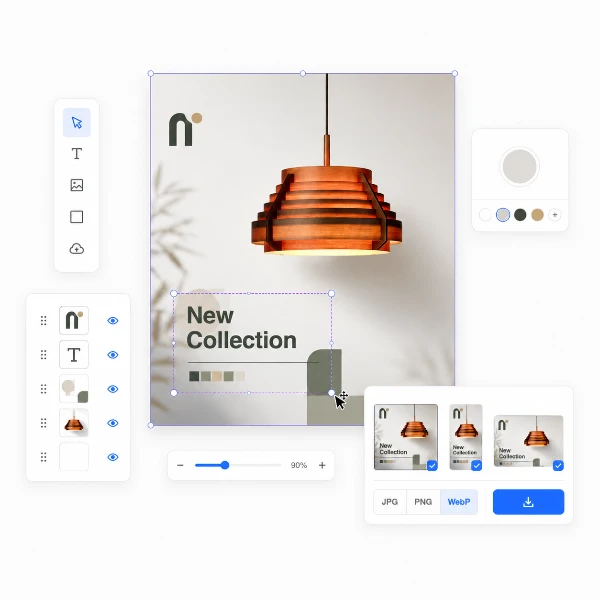
LinePrep offers three export options. LinePrep JPEG is optimized specifically for TraceLine — it applies a mild sharpening and contrast enhancement that improves edge detection in TraceLine without introducing artifacts. Standard JPEG is appropriate if you want to use the upscaled image in other contexts. WebP is the smallest file size option and works well for general use.
For the TraceLine workflow, always choose LinePrep JPEG unless you have a specific reason to use another format. The optimization it applies is specifically tuned for the kind of contrast analysis TraceLine performs — the difference in line art quality compared to a standard upscale is often noticeable.
Start Preparing Your Source Images
LinePrep is free, requires no account, and processes your image entirely in your browser. Drop your source image, choose a scale factor, and download the result. The entire process takes under a minute and can significantly improve the quality of the line art you get from TraceLine.
Try Tracelyx LinePrep now →