The Grid Method: How to Scale and Transfer Any Image by Hand
The grid method is the oldest reliable way to enlarge or copy an image by hand: divide the source into a grid of equal cells, draw the same grid at the target size, then reproduce the contents of each cell one at a time. Artists, muralists, and crafters have used it for centuries. The hard part has always been drawing an accurate grid at the right scale — and printing it large. Tracelyx TraceGrid does exactly that in your browser: it overlays a precise grid, tells you the real size of one cell, and prints to scale across as many sheets as you need.
Why Work to a Known Scale
A grid keeps proportions honest. When every cell on your canvas corresponds to one cell on the reference, you only ever copy a small, manageable shape at a time, and the overall composition stays in proportion automatically. The bigger the enlargement — a thumbnail to a wall — the more a grid saves you from drift and distortion.
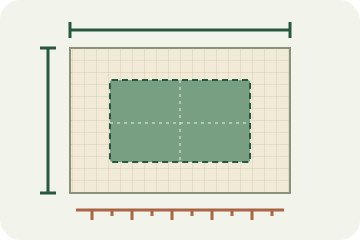
What turns a rough enlargement into an accurate one is knowing the real size of each cell. If your finished piece is 300mm wide across 10 columns, each cell is exactly 30mm. Mark 30mm squares on your surface and every line has a precise place to land. TraceGrid calculates and displays this for you so there is no guesswork.
How the Cell Size Is Calculated
The math is deliberately simple, and TraceGrid shows the result live: cell width = finished width ÷ number of columns, and cell height = finished height ÷ number of rows. Enter the finished size in millimetres or centimetres and pick your grid, and the exact cell size appears immediately. For example, a 400 × 600mm piece on a 10 × 15 grid gives 40 × 40mm cells.
To keep cells perfectly square, turn on "keep cells square" and TraceGrid adjusts the row count (and snaps the height) so width and height per cell match exactly. To stop the image being stretched, keep the original image proportions locked so the finished width and height always follow the source aspect ratio. Output DPI (300 by default) sets the resolution of exported files; it does not change the physical size.
Step-by-Step
- Drop your image — Drag and drop a photo or line drawing, click to choose, or paste from the clipboard. Nothing is uploaded.
- Set the grid — Choose columns and rows, or a preset (5×5, 8×8, 10×10, 16×16). Optionally lock cells to squares.
- Enter the finished size — Type the real width and height in mm or cm. The exact size of one cell is shown so you can mark the same grid on your surface.
- Add numbering and aids — Turn on numeric or A1-style numbering (inside cells or as edge labels), a center cross or diagonals, mirror the image for mirror-copying, and lower the underlay to print a faint base for tracing.
- Style the lines — Pick the grid color, width, and opacity so it reads clearly over your image.
- Export or print — Download a high-resolution PNG, a print-ready tiled PDF, or print directly. All three use the same exact measurements.
Printing Big: Tiling Across A4 Sheets
Most finished work is larger than a single sheet of paper. When the finished size exceeds your paper, TraceGrid automatically splits the design into tiles, one paper sheet per page, and tells you how many pages and the column × row layout. Each sheet carries a glue/overlap margin (5mm by default) so adjacent pages share a strip you can line up, plus corner registration marks for accurate taping.
Choose A4 or any custom paper size and orientation. Download the tiled PDF for clean printing, then assemble the sheets into one full-size grid to transfer onto canvas, wall, or fabric. To print at true size, set your printer to "Actual size" / 100% and turn off "Fit to page" — then measure one cell against the on-screen value to confirm.
From Photo to Clean Line Art First
A grid is easiest to follow over simple, clean lines. If you are starting from a photo, convert it to line art first with TraceLine, then bring that result into TraceGrid to add the grid and print to scale. This is the natural workflow: Photo → TraceLine → TraceGrid → print and transfer.
TraceGrid itself does not edit, filter, or auto-trace your image — it overlays the grid and handles sizing and tiling precisely. Keeping each tool focused is what makes the measurements trustworthy.
Your Image Never Leaves Your Device
TraceGrid runs entirely in your browser with the Canvas API. Your image is loaded into memory, the grid is rendered, and PNG or PDF files are generated locally — with no network request and no upload. Close the tab and everything is discarded. There is no account, no storage, and no tracking, so you can safely use client references, unreleased artwork, and personal photos.
Start Transferring to Scale
Whether you are enlarging a reference onto a wall, charting a cross-stitch pattern, or practising proportions, a precise grid at a known scale removes the guesswork. Set the grid, enter the finished size, read the exact cell dimensions, and print across as many sheets as you need — all privately, in your browser.
Try Tracelyx TraceGrid now →