Image Resolution, DPI and Pixels Explained
"Resolution," "DPI" and "pixels" get used as if they mean the same thing, which is why people set 300 DPI on a web image that needs none, or send a printer a file that comes out blurry. They are related but distinct. This guide explains each in plain language, shows why DPI is irrelevant on screen but essential for print, gives a table of recommended resolutions by use, and shows the one calculation that tells you how many pixels you actually need.
Pixels: The Only Real Unit
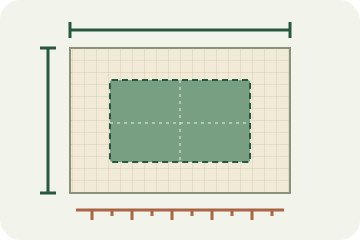
A digital image is a grid of pixels — small colored squares. Its resolution in the truest sense is simply how many pixels wide by how many pixels tall it is: a 1920×1080 image contains 1920 columns and 1080 rows, just over two million pixels in total. That pixel count is fixed in the file and is the only measure of how much actual detail the image holds. Everything else — DPI, physical size — is about how those existing pixels are displayed or printed, not how many there are.
DPI and PPI: Pixels Per Unit of Length
DPI (dots per inch) and PPI (pixels per inch) describe how densely those pixels are packed when the image is given a physical size. PPI is the correct term for digital images and printing intent; DPI strictly refers to the ink dots a printer lays down, but in everyday use the two are used interchangeably. The key idea is that DPI is a ratio between pixels and a real-world length — it only means something once you are putting the image onto paper at a specific size.
Picture the same 1200-pixel-wide image printed two ways. At 300 PPI it covers 4 inches and looks sharp; at 100 PPI it is stretched across 12 inches and the individual pixels become visible. The pixels never changed — only how far apart they were spread. That is the whole concept of DPI in one example.
Why DPI Is Meaningless on Screen
On the web, the DPI value embedded in a file is ignored. Browsers and screens render an image by its pixels, mapping them to the display's own pixels, so a 1080-pixel-wide image looks identical whether its DPI tag reads 72 or 300. The old "72 DPI for web" advice is a myth left over from early monitors; for screens you should think only in pixel dimensions. DPI re-enters the picture the moment you print.
Recommended Resolutions by Use
Here is a practical reference. For screen uses, match the pixel dimensions to where the image appears and ignore DPI. For print, aim for the listed DPI and make sure the pixel count is high enough at the size you are printing.
| Use | Target DPI | Pixel example |
|---|---|---|
| Web / screen image | Pixels only | Match display size |
| Social media post | Pixels only | 1080×1080 |
| Photo print 4×6 in | 300 dpi | 1200×1800 |
| Photo print 8×10 in | 300 dpi | 2400×3000 |
| A4 document / print | 300 dpi | 2480×3508 |
| Poster (viewed at distance) | 150 dpi | Depends on size |
| Business card 3.5×2 in | 350 dpi | 1225×700 |
Working Out the Pixels You Need
For print there is one formula, and it is simple: pixels = print size in inches × DPI. A 6-inch-wide photo at 300 DPI needs 6 × 300 = 1800 pixels across. Want an A4 at 300 DPI? A4 is 8.27 × 11.69 inches, so you need about 2480 × 3508 pixels. Run the numbers before printing and you will know immediately whether your file has enough detail or will come out soft.
Note what this does and does not let you do. Changing only the DPI field in a file does not add detail — it just relabels how large the existing pixels will print, which is why bumping a small image to "300 DPI" cannot rescue it. To print bigger and stay sharp you need more pixels: a higher-resolution original, or careful upscaling that adds pixels and re-sharpens. DPI tells you whether you have enough; it cannot create what is missing.
Paper Size to Pixels: Conversion Table
Rather than run the formula every time, here are the pixel dimensions for the paper sizes people actually print. Find your paper size, read across to the DPI you need, and that is the pixel count your image must have.
| Paper size | mm | 72 dpi | 150 dpi | 300 dpi | 350 dpi |
|---|---|---|---|---|---|
| A0 | 841×1189 | 2384×3370 | 4967×7022 | 9933×14043 | 11589×16384 |
| A1 | 594×841 | 1684×2384 | 3508×4967 | 7016×9933 | 8185×11589 |
| A2 | 420×594 | 1191×1684 | 2480×3508 | 4961×7016 | 5787×8185 |
| A3 | 297×420 | 842×1191 | 1754×2480 | 3508×4961 | 4093×5787 |
| A4 | 210×297 | 595×842 | 1240×1754 | 2480×3508 | 2894×4093 |
| A5 | 148×210 | 420×595 | 874×1240 | 1748×2480 | 2039×2894 |
| A6 | 105×148 | 298×420 | 620×874 | 1240×1748 | 1447×2039 |
| B4 | 257×364 | 729×1032 | 1518×2150 | 3035×4299 | 3541×5016 |
| B5 | 182×257 | 516×729 | 1075×1518 | 2150×3035 | 2508×3541 |
| Postcard | 100×148 | 283×420 | 591×874 | 1181×1748 | 1378×2039 |
| L photo print | 89×127 | 252×360 | 526×750 | 1051×1500 | 1226×1750 |
| 2L photo print | 127×178 | 360×505 | 750×1051 | 1500×2102 | 1750×2453 |
| Business card (JP) | 91×55 | 258×156 | 537×325 | 1075×650 | 1254×758 |
Two practical notes. 72 DPI is listed only for reference — it is the old screen myth and is too low for any print. And 350 DPI is what Japanese commercial printers usually ask for, slightly above the 300 DPI standard used elsewhere.
FAQ
Does DPI matter for web images?
No. Screens display images by pixel, so only the pixel dimensions matter on the web. The DPI value stored in a file is ignored by browsers; an image is the same on screen whether its DPI tag says 72 or 300.
What DPI should I use for printing?
300 DPI is the standard for photo prints and documents viewed up close. Large posters seen from a distance can use 150 DPI or less. What actually matters is having enough pixels: print size in inches multiplied by DPI gives the pixel count you need.
Can I increase DPI to improve quality?
Changing the DPI number alone does nothing to quality — it only relabels how big the existing pixels print. To genuinely print larger and sharper you need more pixels, which means a higher-resolution original or upscaling, not just editing the DPI field.
How many pixels is A4 at 300 DPI?
2480 × 3508 pixels. A4 is 210 × 297 mm, which is 8.27 × 11.69 inches, and multiplying each side by 300 gives 2480 × 3508. At 350 DPI, the density Japanese commercial printers often ask for, it becomes 2894 × 4093.
What does 300 DPI actually mean?
It means 300 pixels are packed into every inch of printed length. It is not a property of the image on its own — it is a ratio between the pixels you have and the physical size you print them at. The same file printed smaller has a higher effective DPI; printed larger, a lower one.
What is the difference between DPI and PPI?
PPI (pixels per inch) is the correct term for a digital image and for print intent; DPI (dots per inch) strictly describes the ink dots a printer physically lays down, and one pixel is usually reproduced by several ink dots. In everyday use, including in most software, the two are used interchangeably and you can treat them as the same number.
How many pixels do I need for a poster?
Posters are viewed from a distance, so 150 DPI is usually enough and 100 DPI can work for very large formats. At 150 DPI an A1 poster needs about 3508 × 4967 pixels and A0 about 4967 × 7022. Check the printer's own specification first, since some still require 300 DPI.
How do I check the DPI of a photo?
The DPI value is stored in the file's metadata and you can read it in the file properties, in an image editor, or with a metadata viewer. It matters far less than you might think: what limits print quality is the pixel count, so check the pixel dimensions first and work out whether they are enough at your print size.
Set the exact pixel size you need
Once the formula tells you the pixel count, the practical step is resizing the image to those exact dimensions. Tracelyx Resize sets precise pixel sizes in your browser, with no upload — handy for hitting a print pixel target or a screen dimension without sending your image to a server.
Resize to exact pixels →