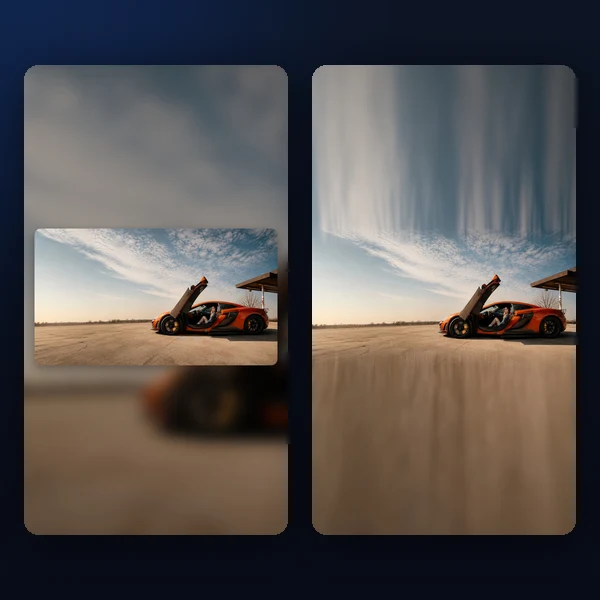
How to Crop Images for Social Media and the Web
Cropping is one of the most frequent image tasks in any content workflow — yet getting it wrong costs time. Upload an image at the wrong ratio to Instagram or YouTube and the platform will auto-crop it, cutting off your subject or losing the composition. Prepare a set of product photos without consistent framing and your e-commerce shop looks unpolished. This guide covers the essential techniques: how to choose the right aspect ratio for each platform, how to maintain consistent framing across multiple images, and how to do all of it without uploading your files to any third-party service.
Why Aspect Ratio Matters
An aspect ratio describes the proportional relationship between an image's width and height. When you upload an image to a platform that expects a specific ratio, one of two things happens: the platform fills the space by zooming in and cropping the edges, or it adds letterboxing padding around the image. Neither outcome is ideal — the first risks cutting off important content, the second looks unintentional and amateurish.
Pre-cropping to the exact ratio before uploading gives you full control over what the viewer sees. You choose the focal point, you decide what gets cut, and you ensure the subject is centered the way you intend. This is standard practice for any professional content workflow — from social media management to e-commerce operations.
Standard Aspect Ratios by Platform
Instagram supports 1:1 (square) for grid posts — the safest choice because it displays consistently in all contexts. For in-feed photos where you want maximum vertical space on mobile, 4:5 is the tallest ratio Instagram allows without letterboxing. For Instagram Stories, Reels, and TikTok, 9:16 fills the full phone screen — any other ratio will be pillarboxed with blurred background fill.
YouTube requires a 16:9 thumbnail for proper display on all devices. The same 16:9 ratio applies to website hero images, blog post headers, and presentation slides — it is the universal widescreen standard. For Twitter/X, 16:9 and 2:1 both work well for in-feed card images. LinkedIn and Facebook both handle a range of ratios but display 1.91:1 landscape images most consistently in link previews.
Step-by-Step: Cropping with Tracelyx Crop
- Upload your image — Drag and drop any JPEG, PNG, or WebP file. The tool loads it immediately with no server upload.
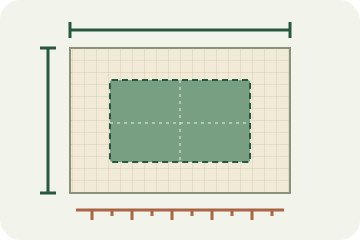
- Choose your aspect ratio — Select a preset from the dropdown. The crop box snaps to the correct ratio. For a custom ratio, use Free mode and manually size the box.
- Position the crop box — Drag the box to frame your subject. Drag corner handles to fine-tune the size. Watch the live preview to confirm the result.
- Set output quality — The default of 80 is appropriate for most web use. Increase to 90+ for print or portfolio work.
- Download — Click Crop image, then Download. The file is saved directly to your device.
The Lock Crop Box: Batch Consistency in a Single-Image Tool
The Lock crop box feature is one of the most underused capabilities in Tracelyx Crop. Once you check Lock crop size and position, the crop area is frozen. Load the next image — it will have the exact same crop applied, at the same coordinates. This lets you work through a set of product photos, portraits, or any image series with a consistent frame, without any manual re-positioning.
This is particularly useful for e-commerce: a shop that standardizes all product images to 1:1 at a consistent 800×800px crop looks professional and loads predictably. Photographers delivering client portrait sets use it to apply consistent head-room and composition across an entire shoot. The lock persists across image loads until you uncheck it — so you can process a hundred images in sequence without touching the crop settings again.
Cropping Privately — No Server, No Upload
Most online crop tools work by uploading your image to a remote server, cropping it there, and returning the result. For stock photos and generic web assets, this is usually acceptable. For product photos that contain proprietary design details, portraits of identifiable people, client assets covered by NDA, or any image you wouldn't want stored on a third-party server — uploading to an online tool is a real risk.
Tracelyx Crop runs entirely in your browser using the Canvas API. No image data leaves your device. When you close the tab, the image is gone. There is no file retained, no processing log, no account tied to your history. For businesses and professionals handling sensitive visual assets, this is the only acceptable way to use an online crop tool.
Start Cropping
Getting the crop right before uploading saves time, prevents platform auto-cropping, and makes content look more intentional. With preset aspect ratios for every major platform, the Lock crop box for batch consistency, and fully local processing for privacy, Tracelyx Crop handles the most common cropping workflows in seconds — with no account, no subscription, and no server.
Try Tracelyx Crop now →